INTRODUCTION
Ethernet is a Link Layer Protocol in the TCP/IP protocol stack between the physical and data link layer. It is the most widely used protocol for Local Area Networks (LANs). Every device on Ethernet is assigned a unique MAC address for communication. Gigabit Ethernet refers to various technologies developed for transmitting Ethernet frames at the rate of gigabits per second. The Reduced Gigabit Media-Independent Interface (RGMII) is used to interface the Ethernet IP core on FPGA with the Gigabit Ethernet PHY chip on Neutron KU60. The Media Access Layer converts the packets into a stream of data to be sent while the Physical Layer converts the stream of data into electrical signals. RGMII provides a media-independent interface so that MAC and PHY can be compatible, irrespective of the hardware used. In this tutorial, the Neutron KU60 FPGA Development Board is used to demonstrate a TCP/IP echo server application. The echo server application runs on lightweight IP (lwIP) TCP/IP stack.
Prerequisites:
- Hardware:
- Neutron KU60 FPGA Development Board
- Cat 6 Ethernet Cable
- AMD Platform Cable USB or NLJTPRG002 (Optional)
- USB Type C cable
- 12V DC Power Supply (max 5A current rating)
- Software:
- AMD Vivado Design Suite 2025.2.1
- Vitis IDE 2025.2.1
- Serial Terminal (PuTTY, Tera Term, etc.)
Let’s get started
The following steps will walk you through the process of creating a new project with Vivado and building a hardware platform with MicroBlaze soft processor using an IP integrator. Numato Lab’s Neutron KU60 FPGA Development Board is used in this example, but any compatible FPGA platform can be used with minor changes to the steps. Screenshots are added wherever possible to make the process easier for the reader.
Step 1:
Start Vivado Design Suite, and select “Create Project” from the Quick Start section. The project wizard will pop up. Press Next to proceed with creating the project.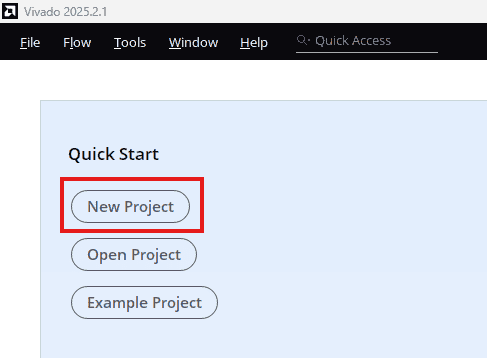
Step 2:
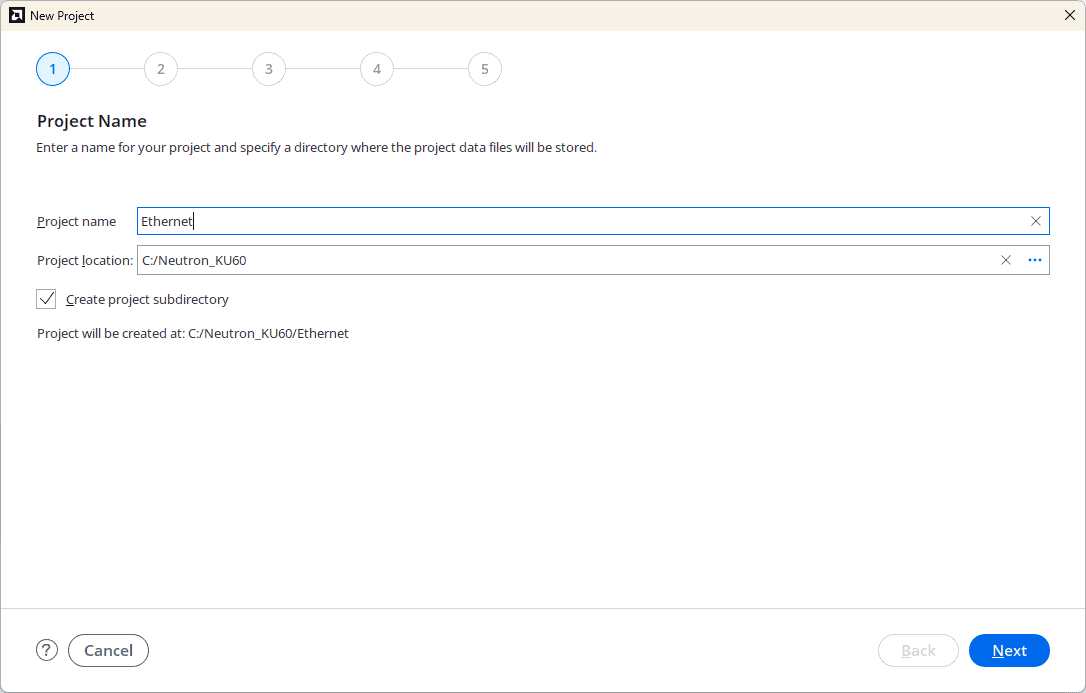
Enter a name for the project and save it at a suitable location. Check the option “Create project subdirectory”. Click Next to continue.
Step 3:
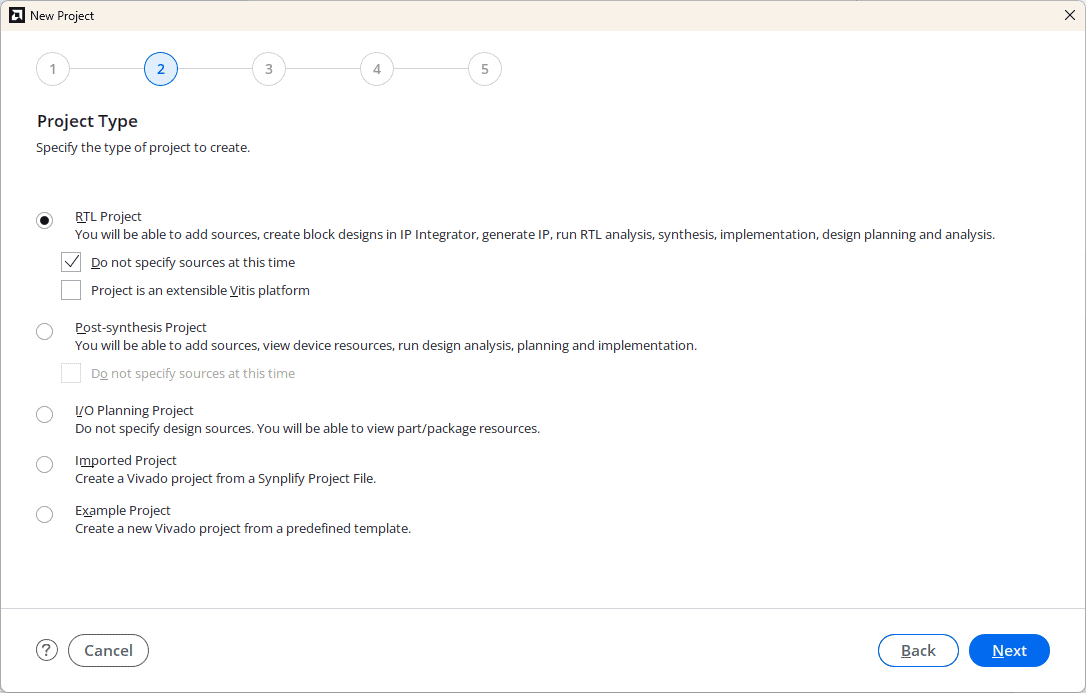
In the Project Type window, select RTL Project and check the option “Do not specify sources at this time”. Click Next.
Step 4:
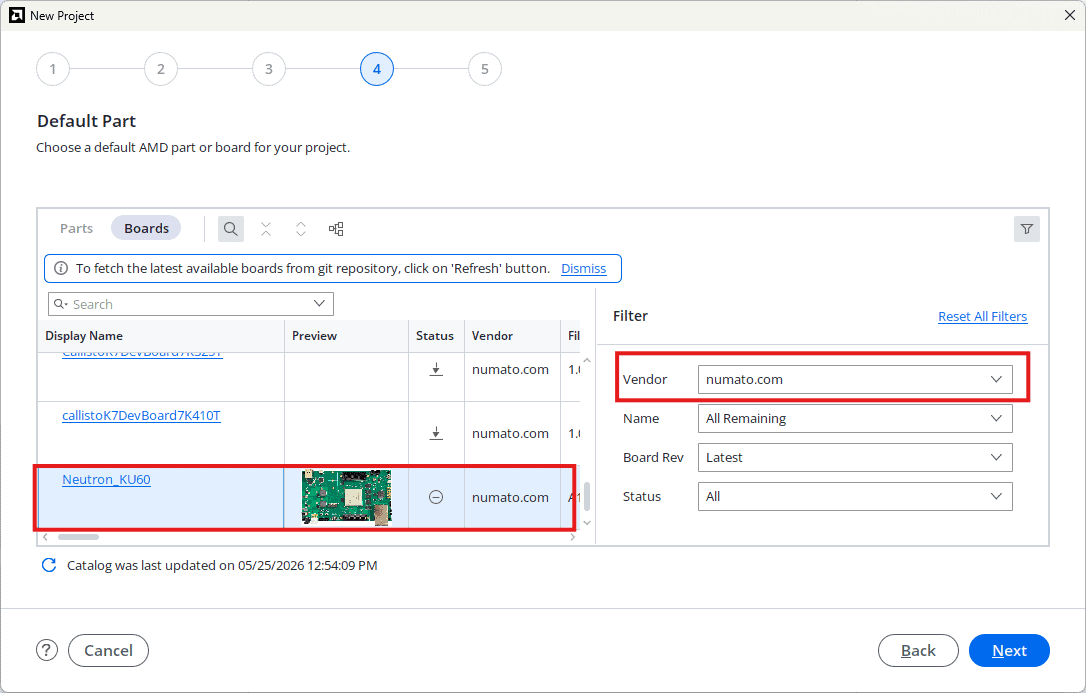
At the “Default Part” stage, switch to the “Boards” tab and set the vendor to numato.com. Select “Neutron_KU60” and click Next. If the Neutron_KU60 does not appear in the list, click “Refresh” to update the board catalog. Vivado will then download the latest board files, after which Neutron_KU60 will become available for selection.
Continue the wizard and finish creating the project. When the new project wizard exits, a new project will be opened up in Vivado with the settings you have selected.
Step 5:
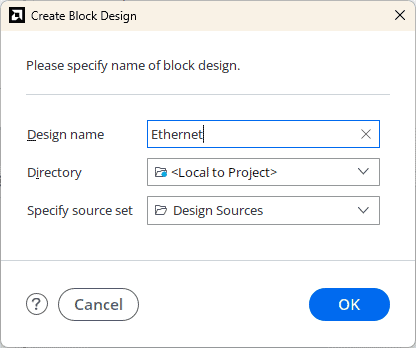
In the Flow Navigator panel, select Create Block Design under IP INTEGRATOR. Enter a name for the block design and click OK. An empty block design will be created.
Step 6:
Click the Board tab. The default peripherals available for the Neutron_KU60 will be displayed. (If the “Board” tab is not visible, search for it using the search option in Vivado.)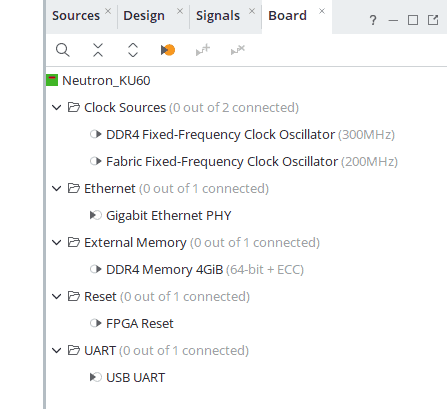
Drag and drop DDR4 Memory 4GiB, Fabric Fixed-Frequency Clock Oscillator, Gigabit Ethernet PHY and USB UART into IP Canvas.
Step 7:
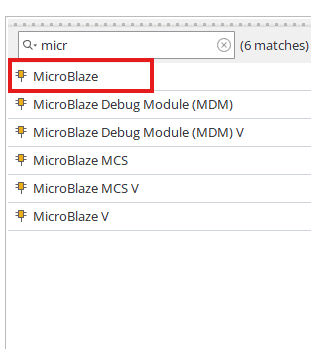
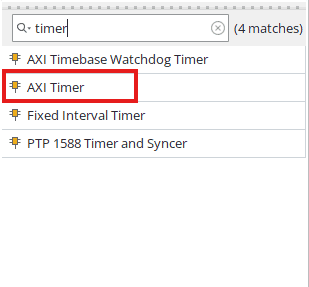
In the Diagram window, right-click and select “Add IP” from the pop-up menu. Search for “MicroBlaze” & “AXI Timer” and add them to the design by double-clicking them.
Step 8:
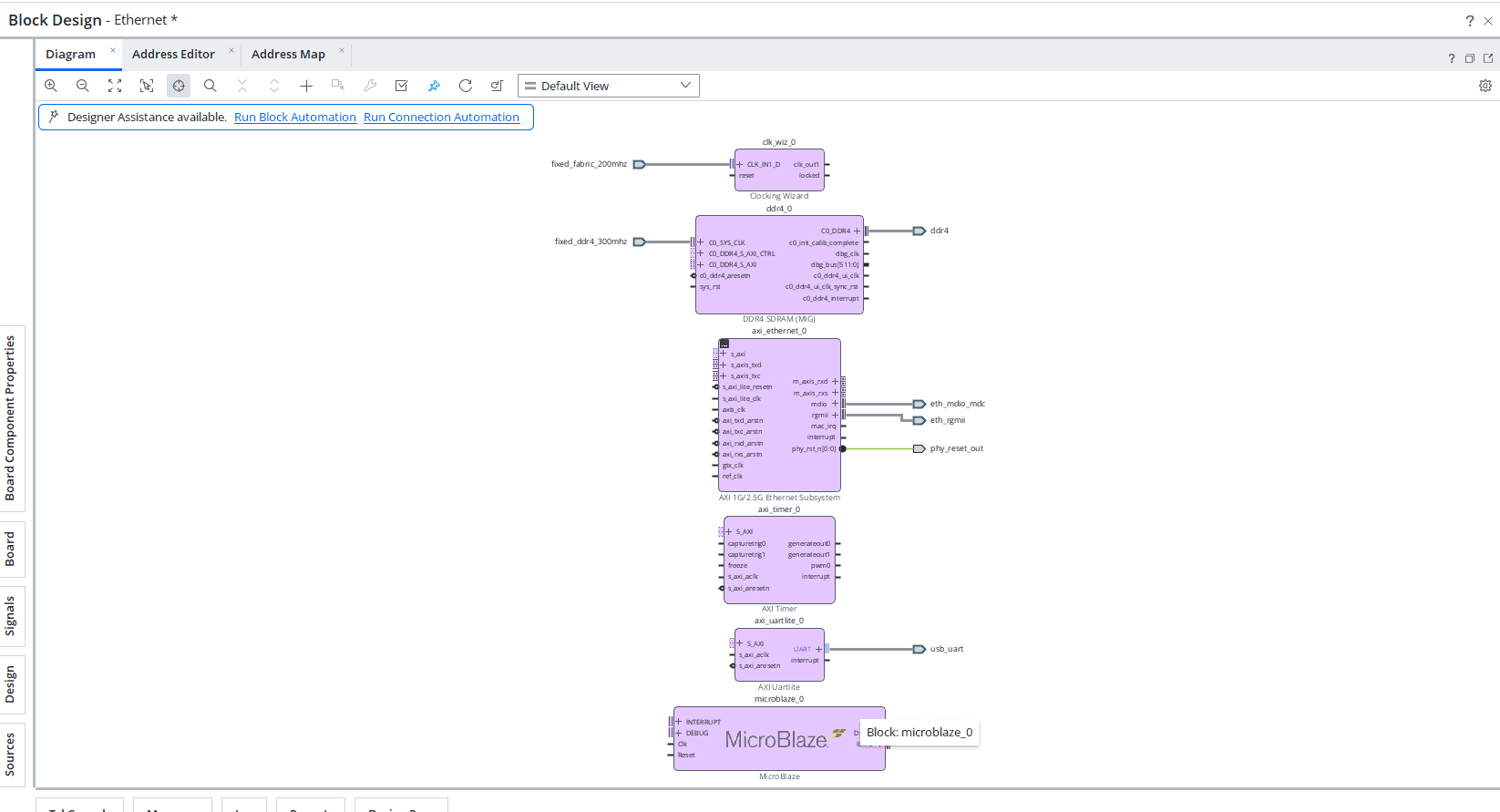
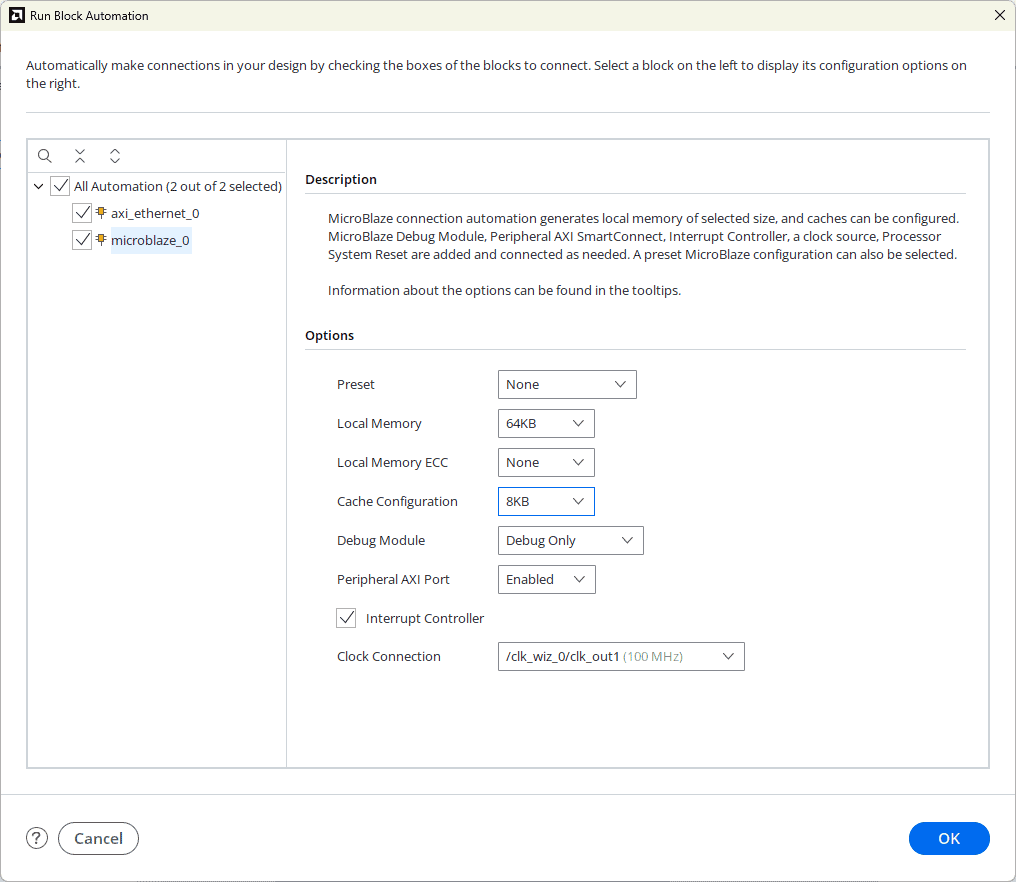
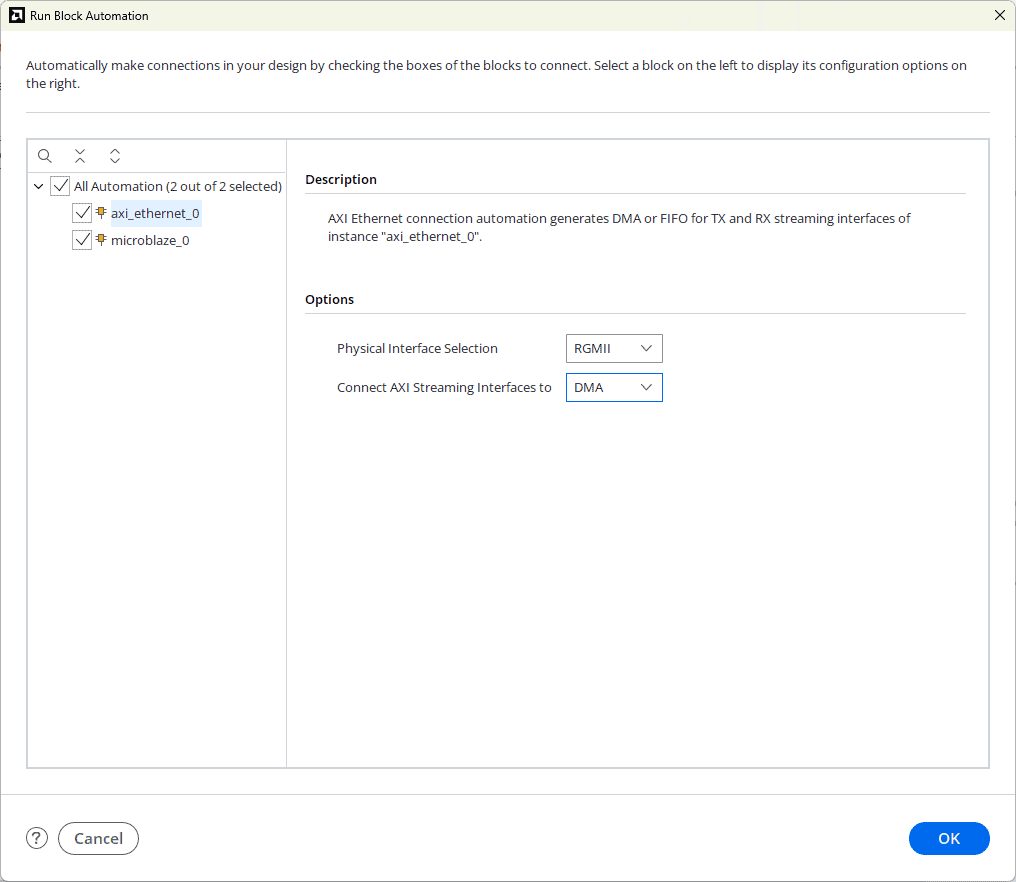
Click “Run Block Automation” present in the “Designer Assistance available” bar on the top left corner of the window to complete the design. Select the settings as shown in the following image. Click “OK” for Vivado to automatically configure the blocks for you. Once Block Automation is complete, run “Connection Automation” so Vivado can connect the blocks to make a complete system.
For microblaze_0, Enable the “Interrupt controller” and make “local Memory” as 64KB.
For axi_ethernet_0, select “DMA” for the AXI Streaming interface.
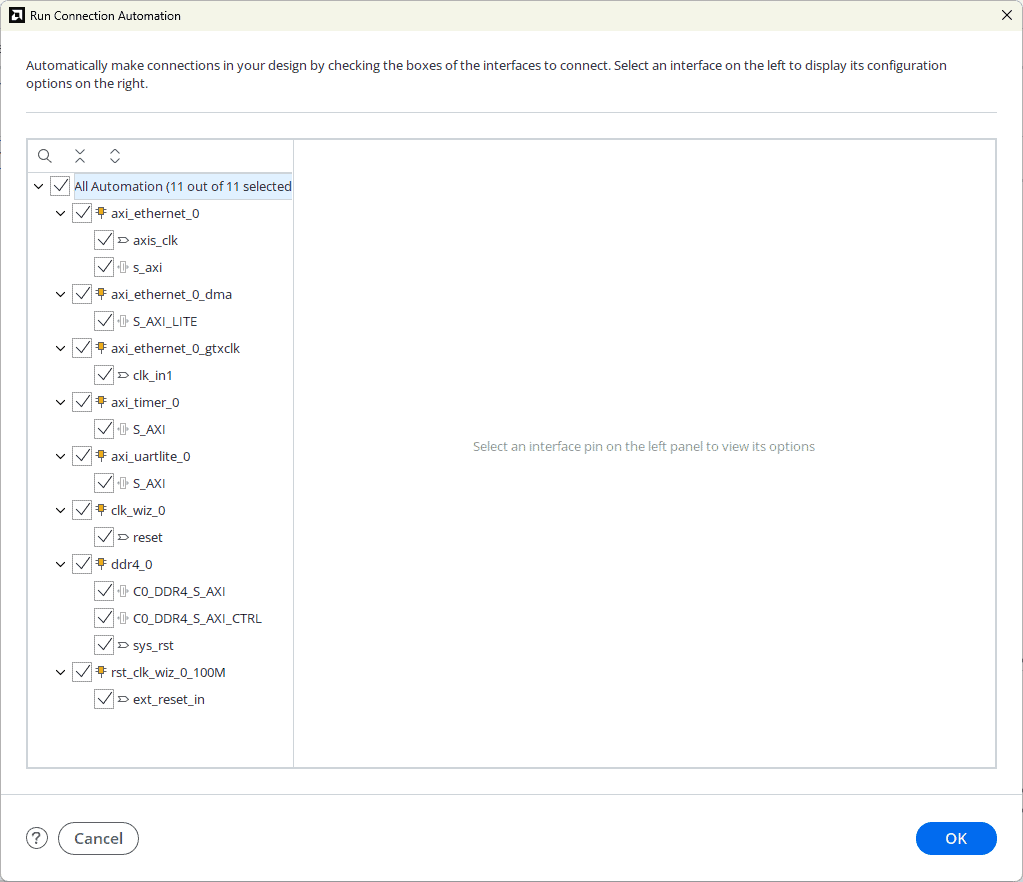
Click Run Connection Automation. Select the All Automation option and click OK.
Step 9:
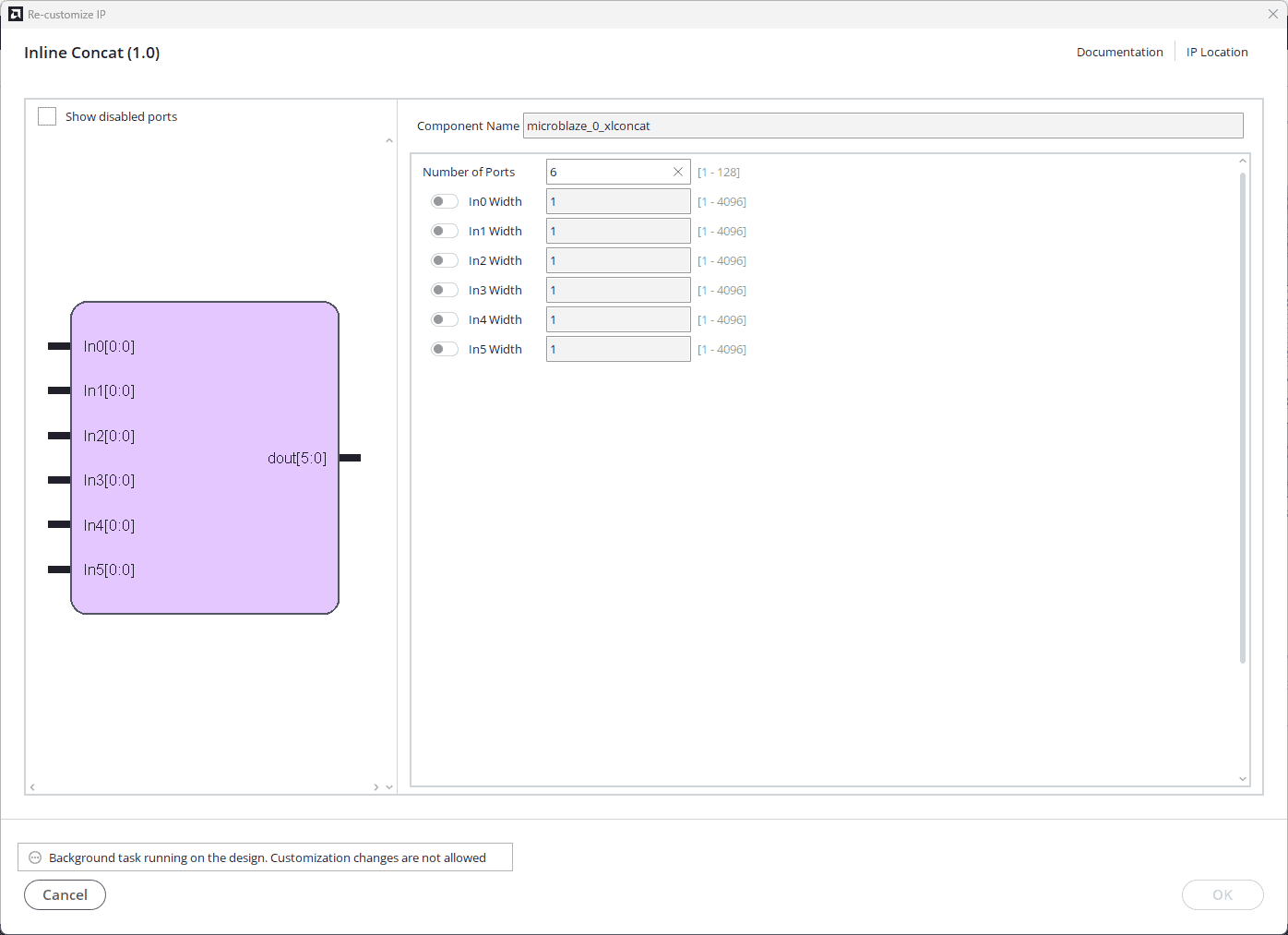
Customize the Concat IP block as shown below.
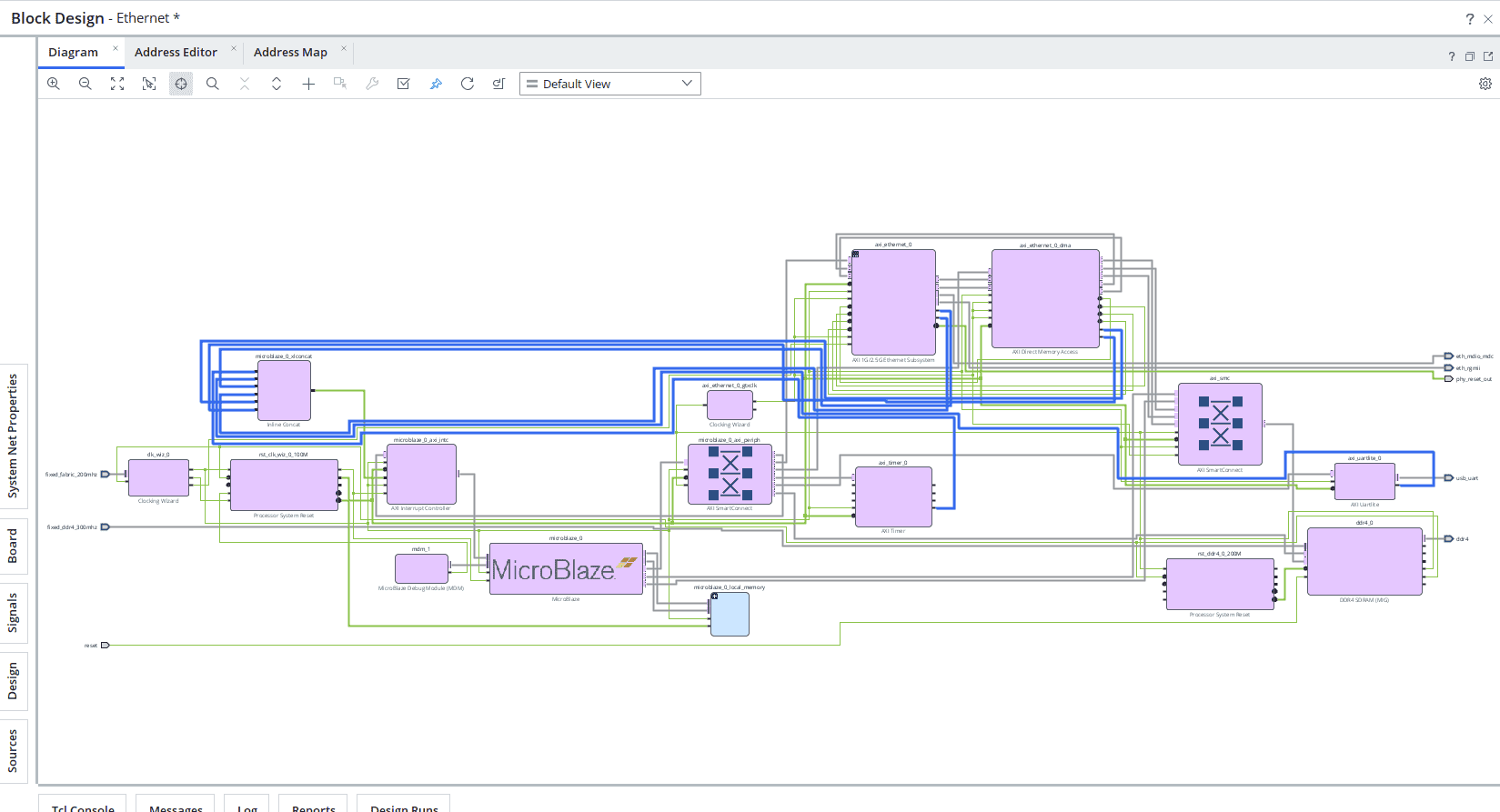
Connect interrupt output lines from “AXI Timer”,“UARTLite”, “axi_ethernet_0” and “axi_ethernet_0_dma” to the “Concat” block as shown in the figure. Select the “Validate Design” option from the Tools menu to make sure that connections are correct.
Step 10:
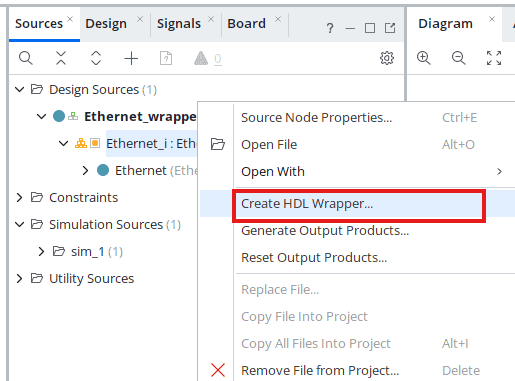
Right-click “Ethernet” in the “Sources” window, and select “Create HDL Wrapper” from the pop-up menu. Click “OK” on the window that appears to finish generating a wrapper.
Step 11:
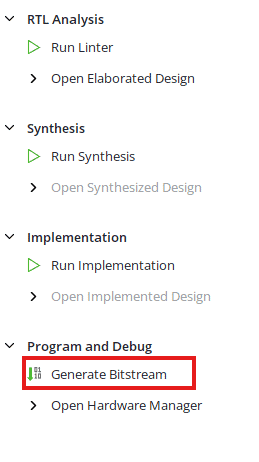
Click “Generate Bitstream” under the “Program and Debug” section to synthesize, implement, and generate a bitstream.
Step 12:
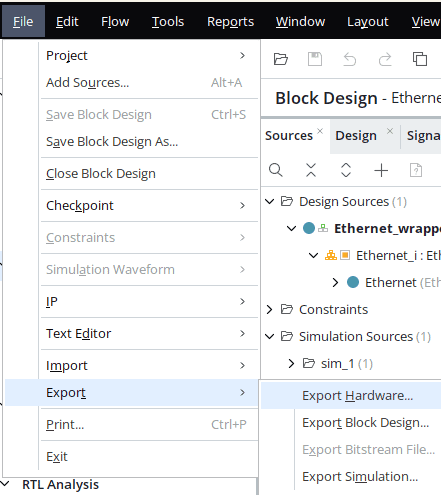
After generating the bitstream successfully, select Export -> Export Hardware from the File menu. Click Next.
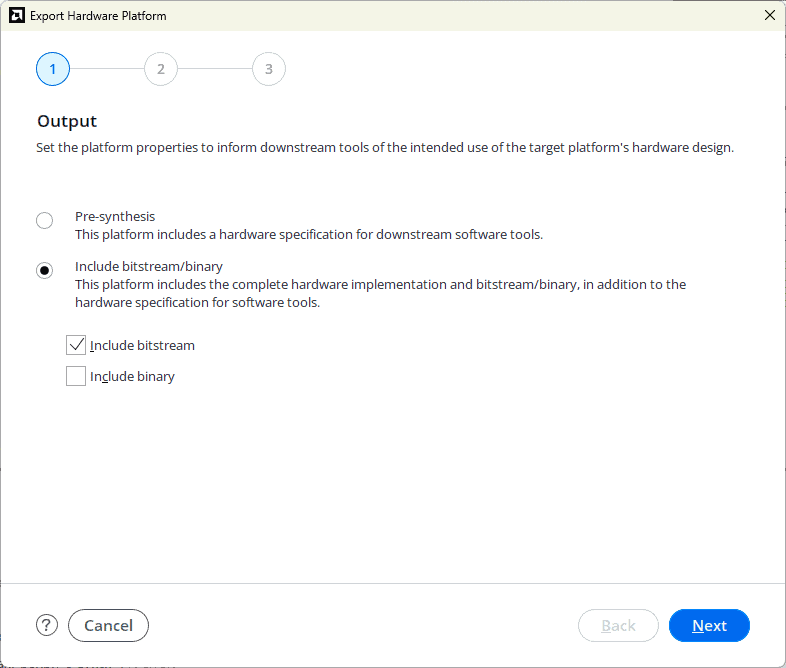
Select the “include bitstream” checkbox and click Next.
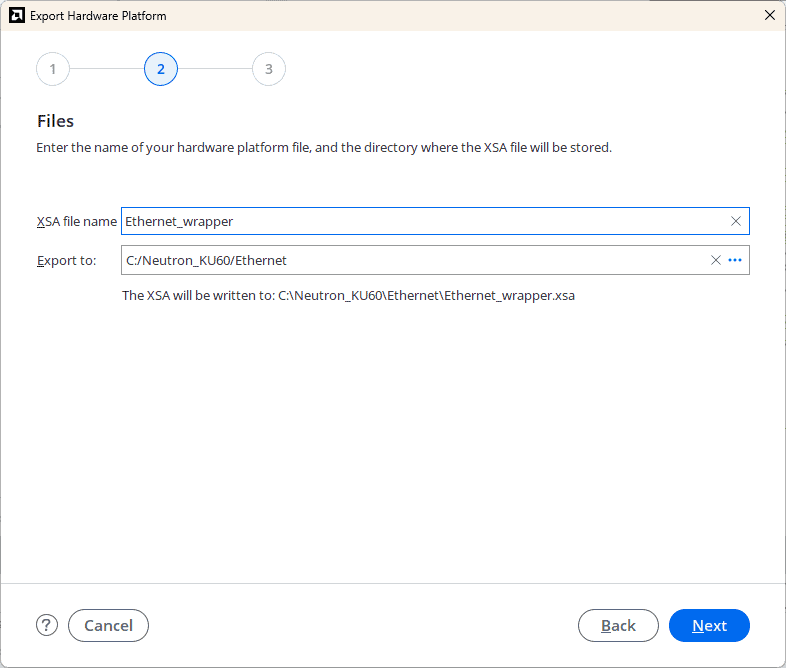
Provide the XSA file name and save it at a suitable location. Click Next and click Finish in the next dialog box.
Step 13:
Launch the Vitis IDE from the Tools section in Vivado.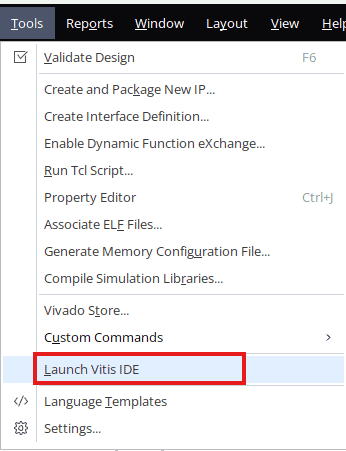
Step 14:
After launching the Vitis IDE, create a new workspace directory where the Vitis project will be stored.
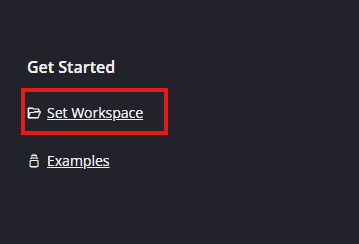
Step 15:
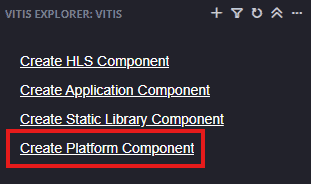
After setting the workspace, create a new platform for the project, by selecting “Create Platform Component”, click “Next”, in the Flow tab select the XSA file saved using the step 12 and finally click “Next” and “Finish” respectively.
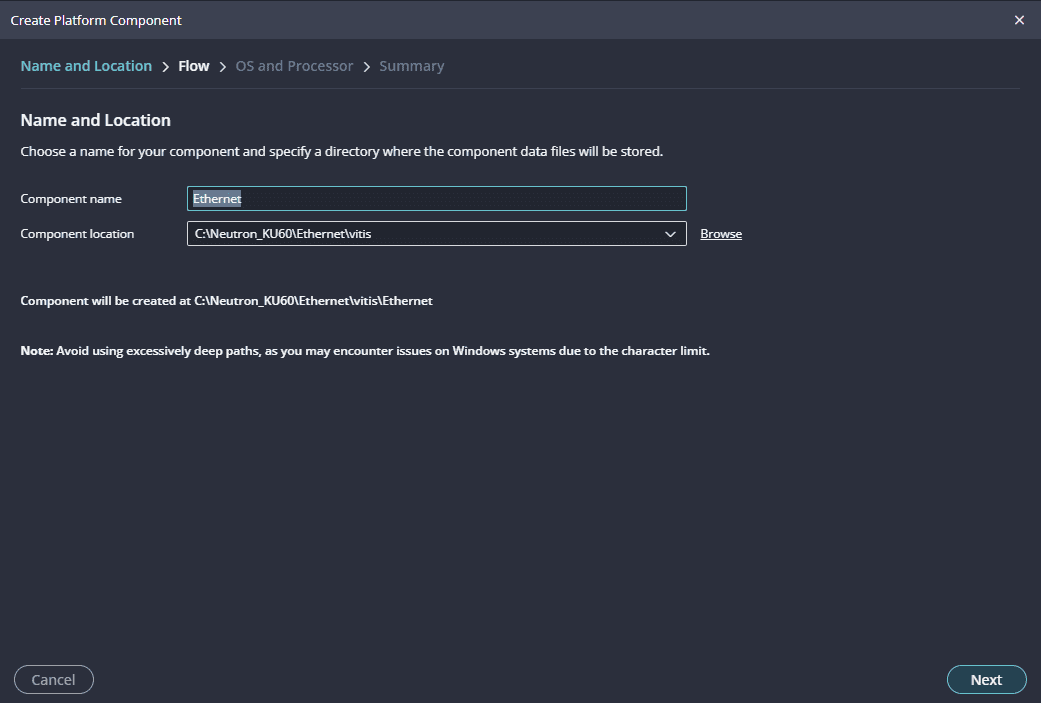
After successful creation of the platform, build the platform.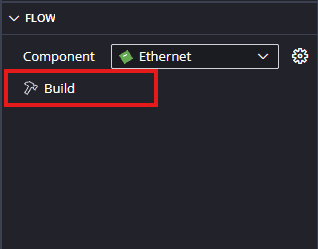
Step 16:
After building the platform go to Board Support Packages configuration of the newly created platform and add lwip220 library to the platform.
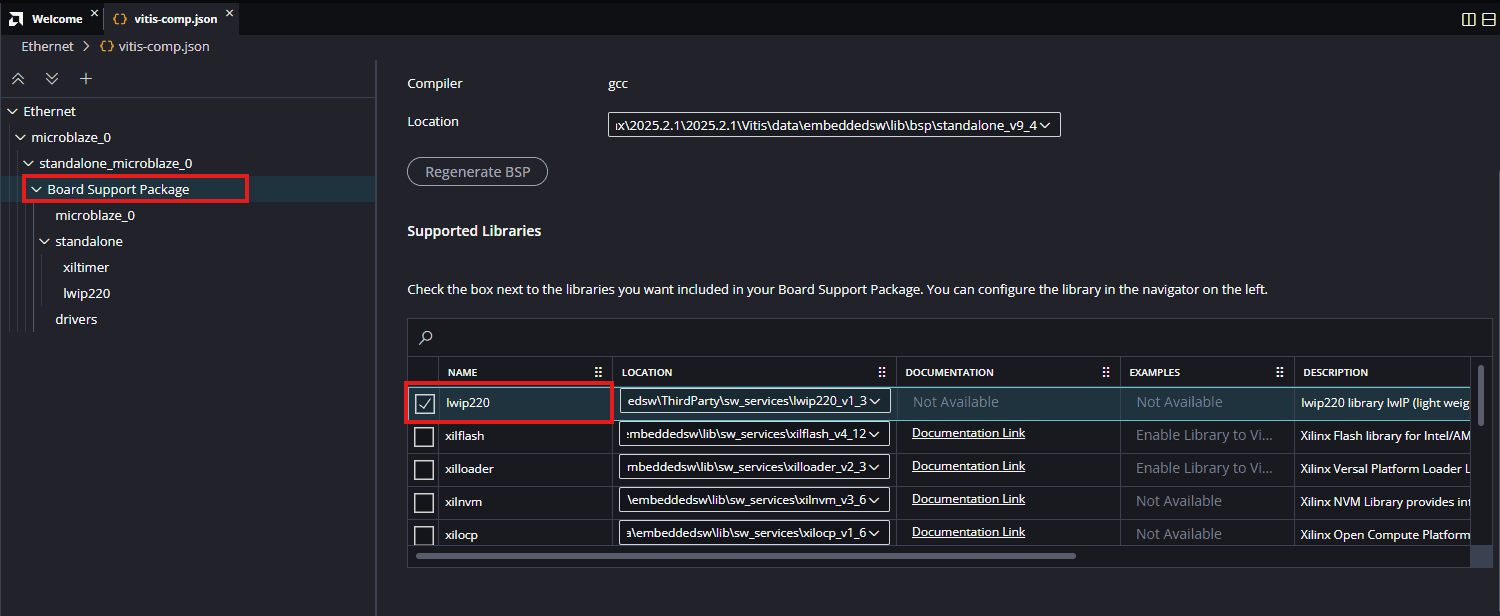
Step 17:
After adding the lwip220 to the platform , click on the lwip to configure the lwip library.
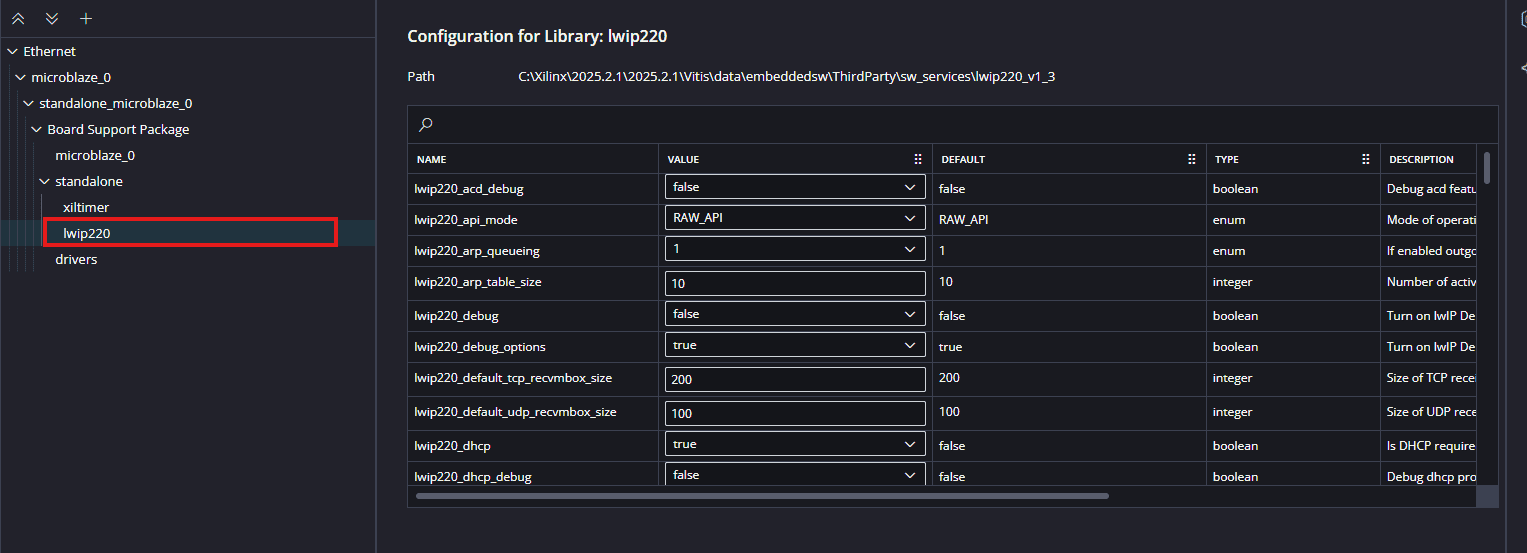
Initially, configure the platform to use Dynamic Host Configuration Protocol (DHCP). This is essential for adding the application. Set the following parameters to:
Initial Setup (DHCP)
lwip220_dhcp: True
lwip220_lwip_dhcp_does_acd_check: True
lwip220_pbuf_pool_size: 2048
xiltimer: XILTIMER_en_interval_timer: True
Once these parameters are set, you can add the lwIP echo server application to the platform.
Step 18:
Next create the lwip echo server Application component by selecting the “IwIp Echo Server” template from the “examples”.
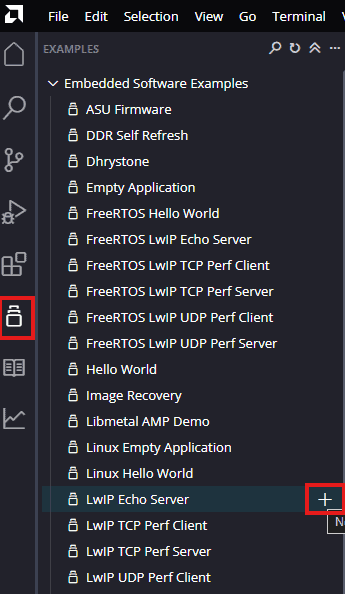
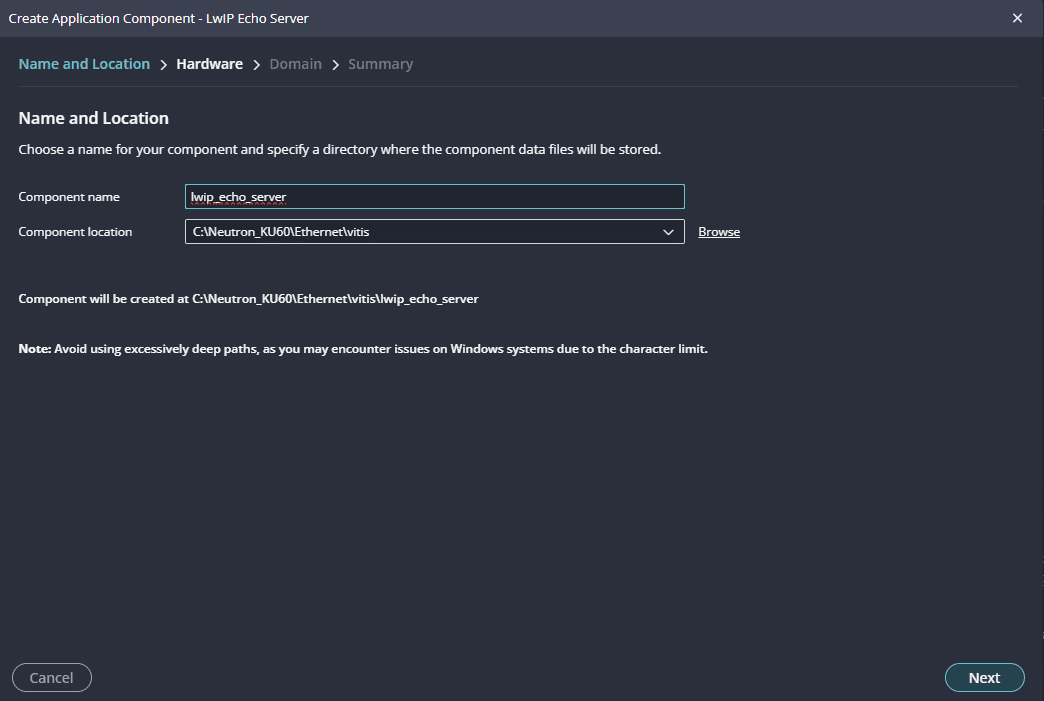
In “Create Application Component” tab specify project name and location, click “Next”.
Select newly created Platform and click “Next”.
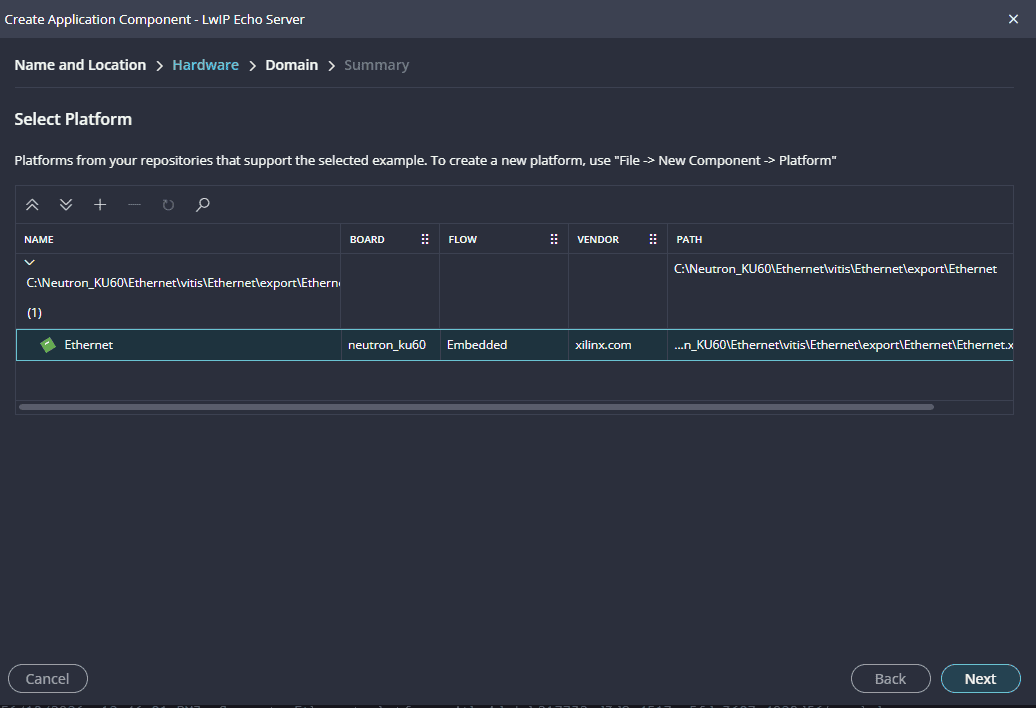
Select the domain as “Standalone_microblaze_0” and click “Next” and click on “Finish”.
When the lwip project is added successfully, build the project manually.
Static IP Configuration:
After adding the application, if you want it to use a static IP address instead of DHCP, you must reconfigure the build. Set the following parameters to False:
lwip220_dhcplwip220_lwip_dhcp_does_acd_checklwip220_dhcp_options
Finally, rebuild the application for the changes to take effect. This will allow the echo server to operate with a static IP.
NOTE: Vitis does not include built-in support for KSZ Ethernet PHY drivers. To enable compatibility, the xaxiemacif_physpeed file must be manually updated with the KSZ driver modifications. Replace the existing xaxiemacif_physpeed.c file in your project with the provided file, which includes the necessary changes to support KSZ PHY drivers. This ensures proper Ethernet functionality in your application.
After modifying the xaxiemacif_physpeed.c file , Build the project again.
Step 19:
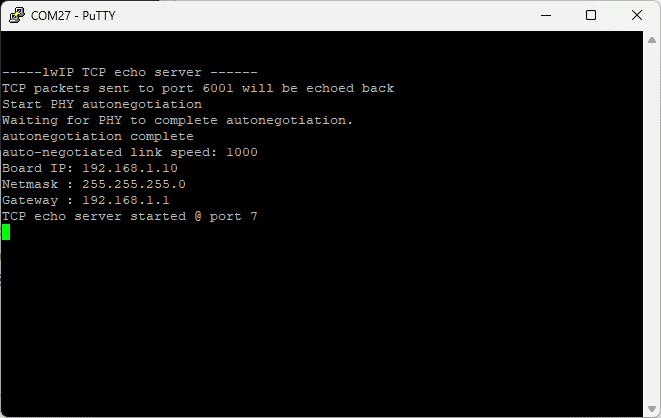
Once the build is completed successfully, Power up the Neutron KU60 and connect the JTAG or USB-JTAG to the board. Follow the steps mentioned under Programming Neutron KU60 FPGA Development Board Using USB-JTAG in the product user manual. Open any serial terminal program (such as PuTTY, Teraterm, etc.) and open the port corresponding to Neutron KU60 with a 9600 baud rate (the default baud rate given in UART IP).
Step 20:
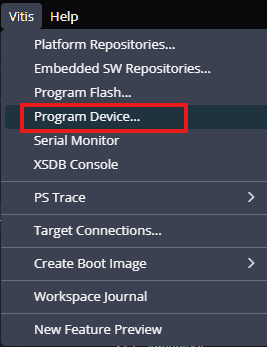
Program the Kintex Ultrascale (KU60) FPGA on Neutron KU60 with a simple boot loop program by selecting the Program Device option from the Vitis menu.
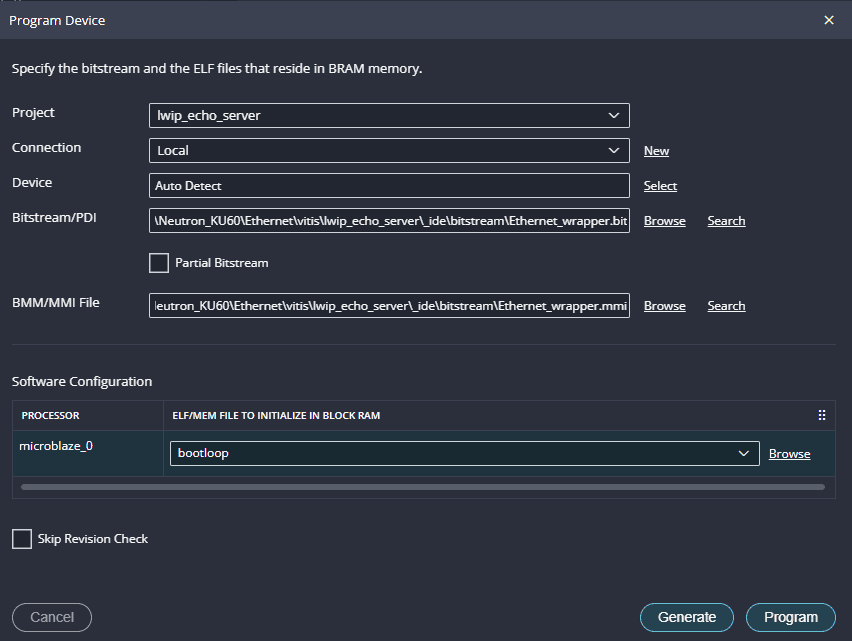
Once the “Program Device” window opens give the path for .bit and .mmi files .
If the “BMM/MMI” File is not selected , manually browse and select the file .Once the files are selected click on “Program” .
Step 21:
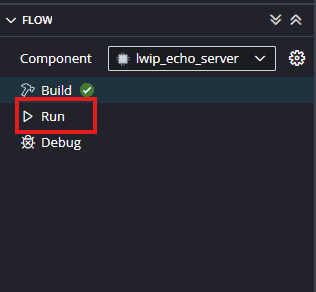
Run the application by selecting the “Run”.
Observe the details displayed on the serial terminal.
Step 22:
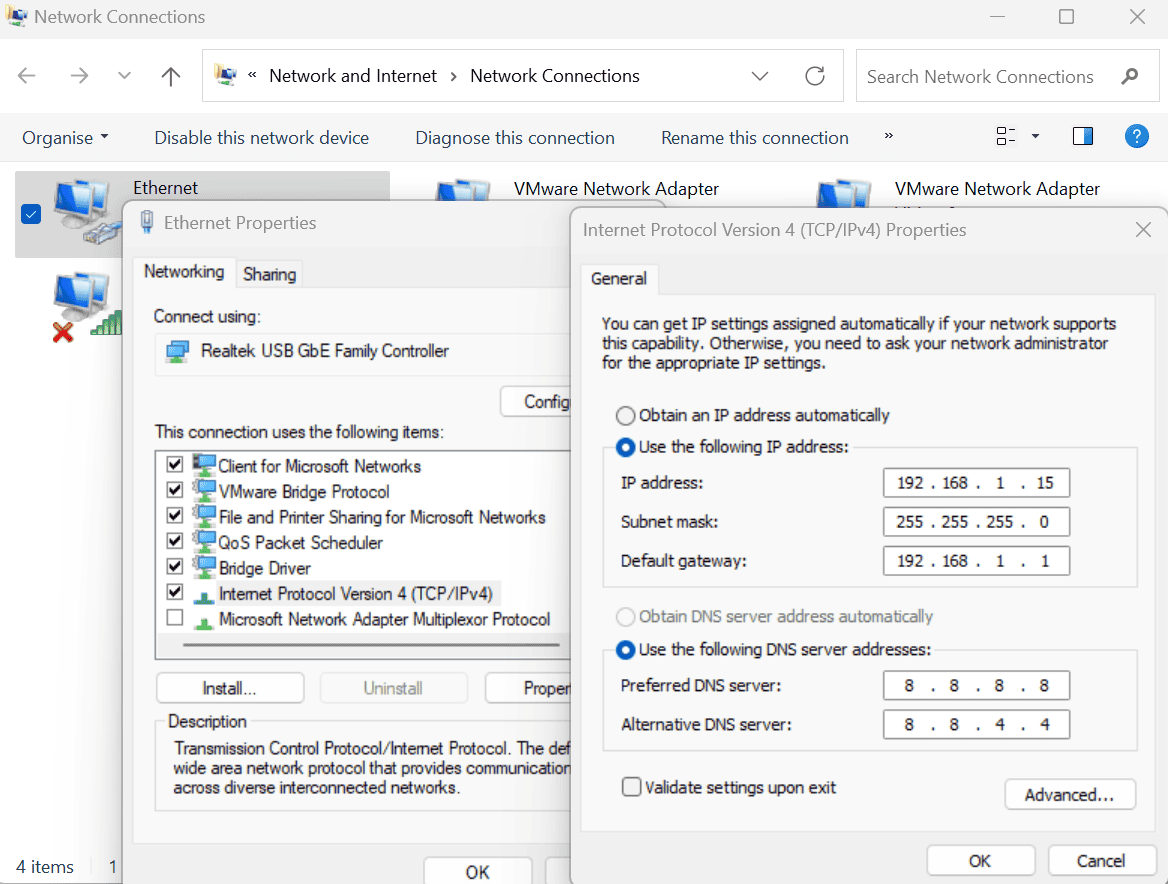
Connect the Ethernet cable to the board and the other end to the PC Ethernet port. Go to Control Panel. Go to Network and Internet -> Network and Sharing Centre -> Change adapter settings. Select “Change adapter settings”. Right-click on Ethernet, click properties, and select “IPv4”. Change the IPv4 address to 192.168.1.15 (any IP address can be used) and the default gateway to 192.168.1.1.
Step 23:
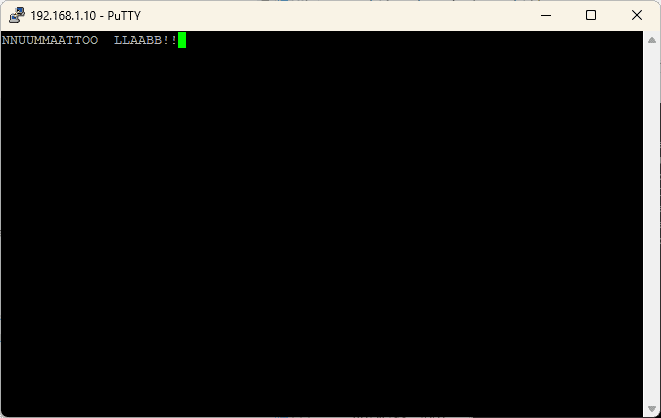
Open a telnet session with IP Address 192.168.1.10 (IP address as per main.c) at port 7, give input through the keyboard and observe the output. If you enter a character from the keyboard, you can observe the transmitted and echoed characters on telnet as shown.