Numato Lab’s SenzConnect Monitor windows application provides a centralised dashboard to monitor all your SenzConnect devices in one place.
With real-time status updates and seamless connectivity over WiFi, the application enables efficient monitoring of multiple devices simultaneously.
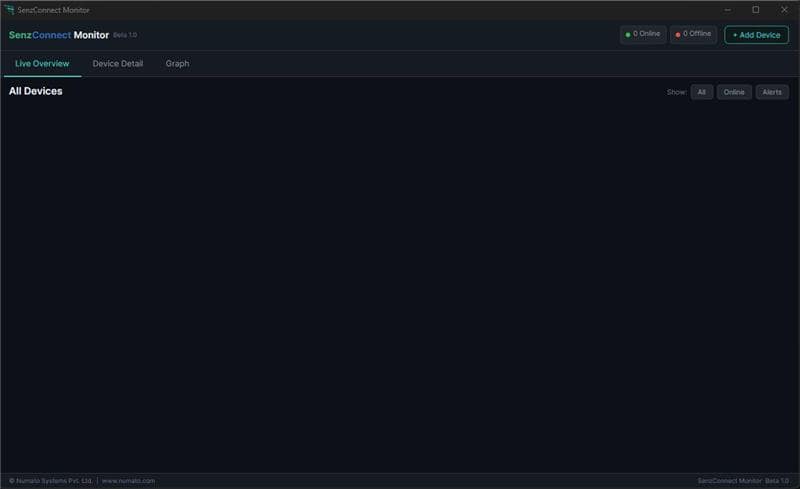
Adding a SenzConnect Device
1.Click “Add Device” and enter the Device Name, configured IP address, username, and password.
2.Click “Test Connection” to verify device availability, then select “Save & Add”.
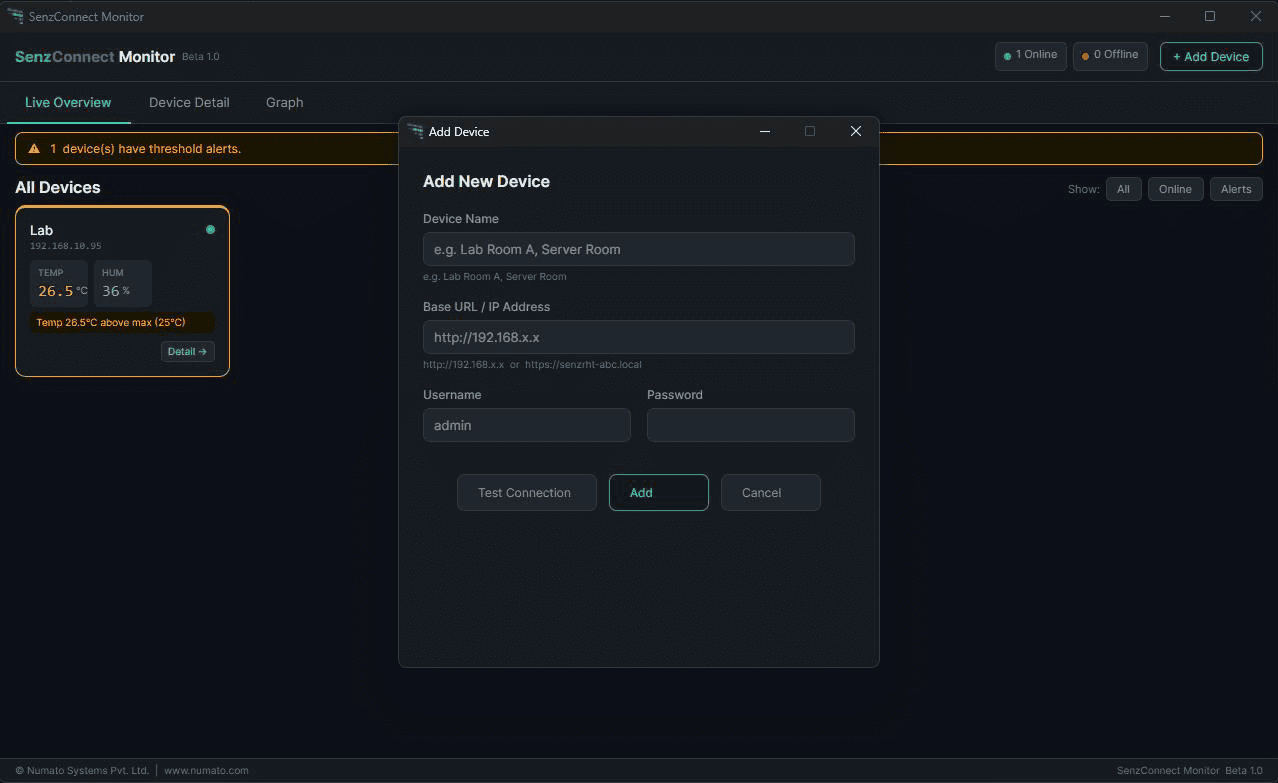
3.The device is now successfully added to your dashboard.
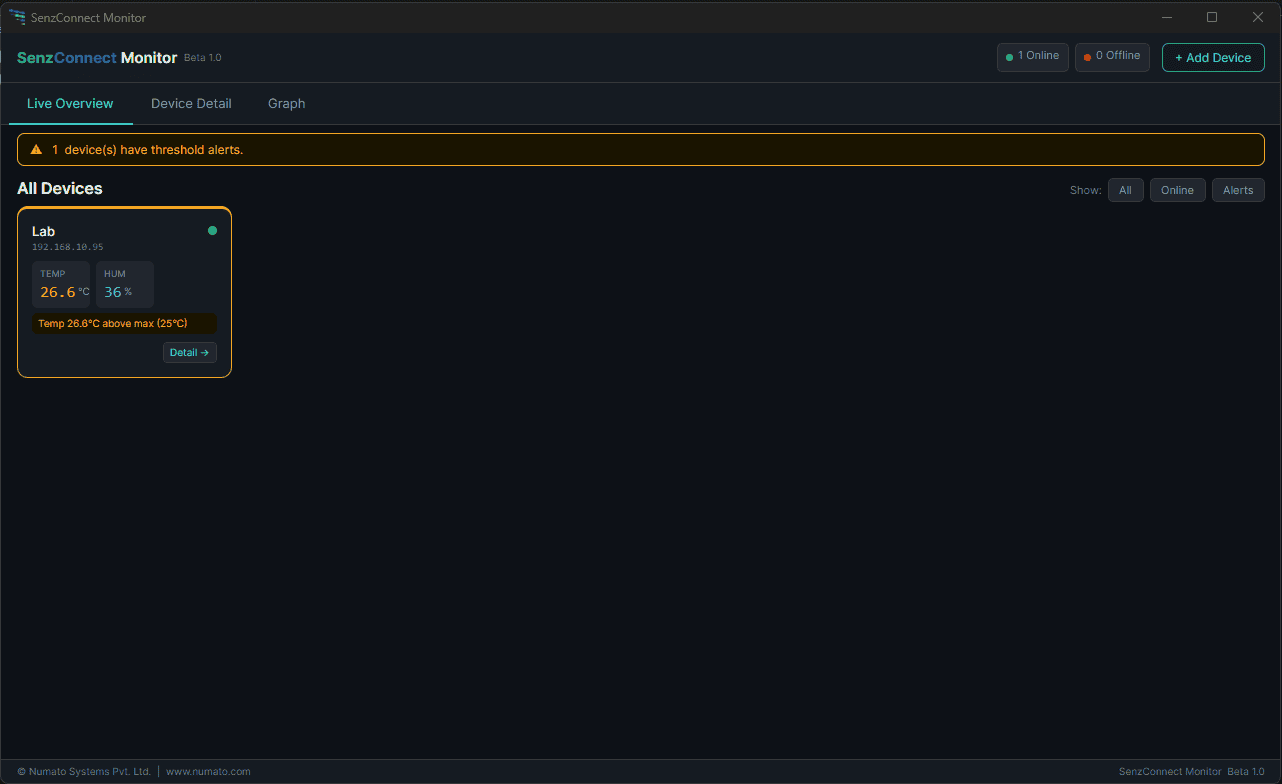
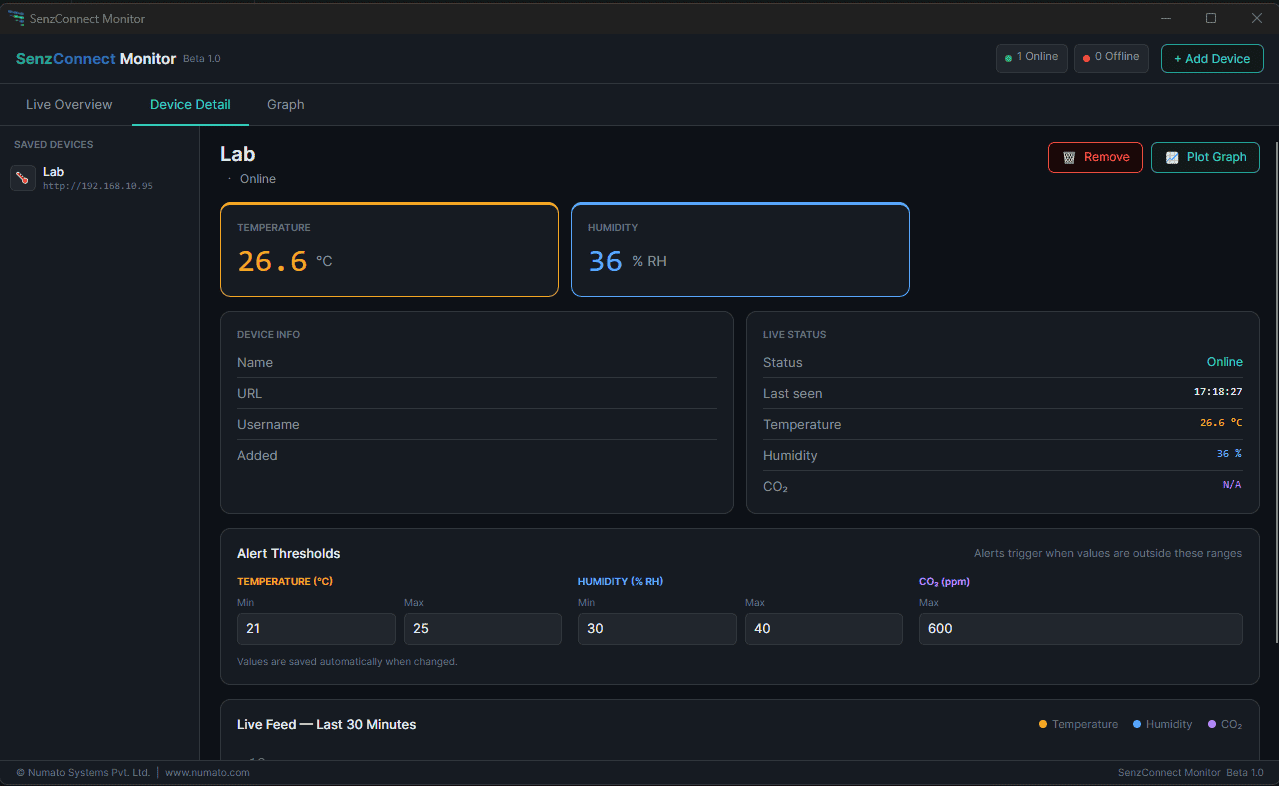
4.Click “Detail” (or “Device Detail”) to view detailed information about the selected device.
5.Navigate to the “Graph” page to analyse device parameters visually. Data is retrieved from the device and displayed as graphs. To use this feature, ensure the device is configured to back up data on the device configuration on SenzConnect and is connected to the network.
Select the device(s) of interest, date range, and data type, then click “Plot” to generate the graph.
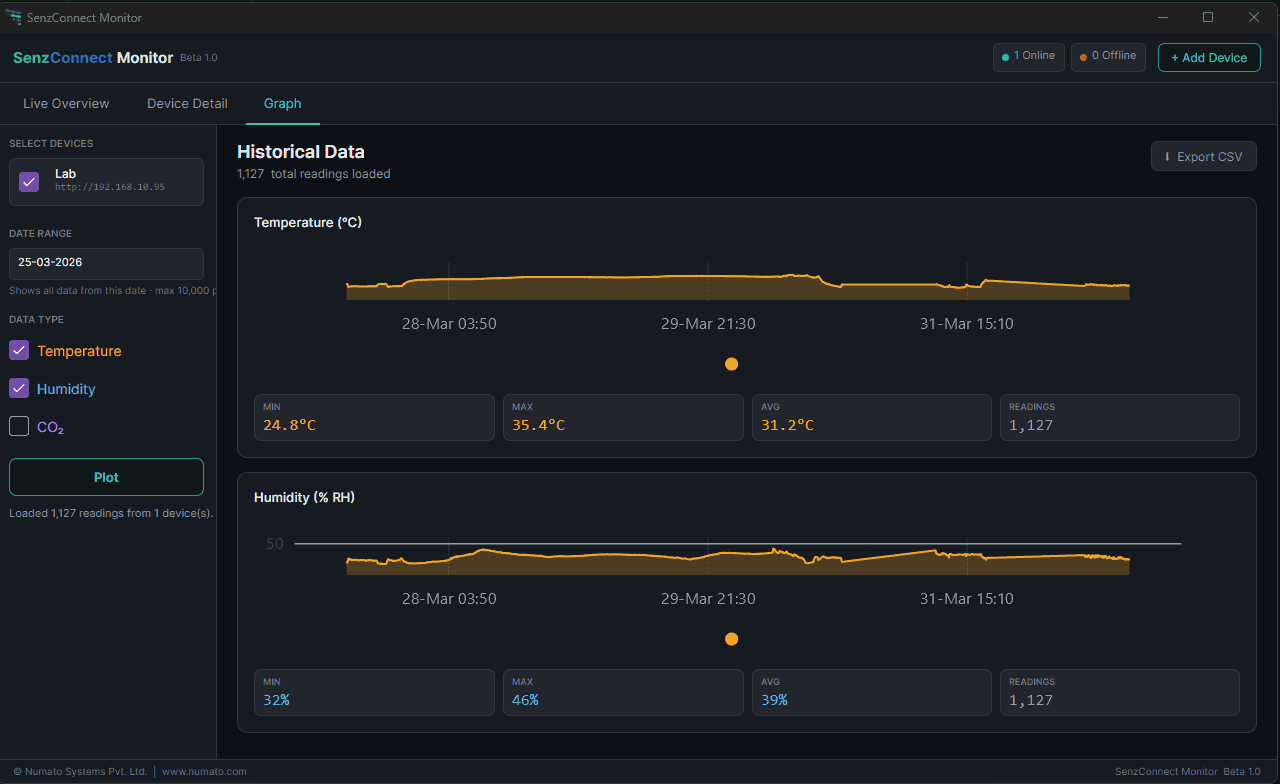
6.Click “Export” to download the data as a CSV file.
Summary
You are now ready to start monitoring and managing your SenzConnect devices using the Windows application. With centralised control, real-time insights, and easy data access, the platform is designed to simplify your workflow and improve visibility across all connected devices.