Introduction
The Numato Lab’s UR8A – 8 Channel USB Relay Module is a precision-engineered control interface designed for professionals who demand reliability, simplicity, and intelligent automation in a single, compact module.
The UR8A module enables effortless relay control and digital input monitoring over USB through a clean, human-readable command interface. This streamlined approach removes unnecessary complexity, allowing developers, engineers and integrators to focus on building systems, not decoding protocols.
Crafted with a modern, industrial-grade architecture, the UR8A – 8 Channel USB Relay Module is built to perform consistently in all environments.
At its core lies the powerful Smart Action Engine, transforming the device from a simple interface into an autonomous control unit. With support for intuitive, rule-based automation, the module can independently execute logic such as event-triggered actions, elimination the need for constant host supervision.
To further enhance precision and system resilience, the module includes:
- Relay Timer for accurate and repeatable output behavior.
- Integrated IO Failsafe Engine to ensure safe operations.
As a result the UR8A – 8 Channel USB Relay is a device that delivers clarity in control, intelligence in operation, and confidence in deployment.
Whether used for industrial automation, testing infrastructure, or system integration, the UR8A – 8 Channel USB Relay Module sets a new standard for smart, reliable, and user-centric control solutions.
Applications
- Industrial Automation and Control
- Building and Facility Automation
- Remote Monitoring and Control Systems
- Power Management and Sequencing
- Safety and Failsafe Systems
- Edge Automation (Standalone Operation)
- Test and Measurement Automation
- DIY and Hobby
Board Features
- 8 Relay Outputs (7A Switching Capacity)
- 8 High-Voltage Digital Inputs (Up to 24V)
- Dedicated Relay Status LEDs
- Secure Command-Line Interface over USB
- Smart Action Engine (Rule-Based Automation)
- Advanced Relay Timer Functionality
- Configurable Failsafe Input
- DIN Rail Mount Compatibility
- RGB Status Indicator
- Device Reset and Factory Reset Switch
Technical Specifications
| Parameter * | Value | Unit |
|---|---|---|
| Basic Specifications | ||
| Number of relays | 8 | |
| Number of digital Inputs | 8 | |
| Digital circuit power supply voltage (External) | 12/24 | V |
| Maximum current drawn by digital circuitry | 300 | mA |
| Digital Inputs Specifications |
||
| Minimum DI sink current | 2.05 | mA |
| Maximum DI sink current | 30 | mA |
| Recommended sink current | 10 | mA |
| Maximum Low Voltage (VIL) | 10.2 | V |
| Minimum High Voltage (VIH) | 10.5 | V |
| Maximum High Voltage | 24 | V |
| Relay Specifications |
||
| Nominal relay coil voltage | 12/24 | V |
| Nominal coil power consumption (per relay) | 450 | mW |
| Relay contact material | Silver Alloy, silver metal-oxide | |
| Contact rating | 10A 250VAC 10A 30VDC | |
| Maximum switching voltage | 250VAC/30VDC | |
| Maximum switching current (recommended) | 7 | A |
| Maximum switching power | 2500VA/300W | |
| Contact resistance | 100 | mΩ (at 1A 6VDC) |
| Insulation resistance | 1000 | MΩ |
| Life expectancy (Electrical) | 100000 50000 | Operations (at 10A 250VAC resistive load, room temp) Operations (at 10A 250VAC, resistive load, at 85°C) |
| Life expectancy (Mechanical) | 10000000 | Operations |
| Maximum switching on response time | 1 | second |
| Maximum switching off response time | 9 | second |
| shock resistance (Functional) | 294 | m/s2 |
| Shock resistance (Destructive) | 980 | m/s2 |
| Vibration resistance | 10Hz to 55Hz, 1.5mm DA | |
| Other Information |
||
| USB Vendor ID | 0x2A19 | |
| USB Product ID | 0x0C1B | |
* All parameters considered nominal. Numato Systems Pvt Ltd reserve the right to modify products without notice.
* Datasheet – HF32FV-G Relay
How to use the module
The following section describes how to use this module.
Components/Tools required
Along with the module, you may need the items in the list below for easy and fast installation.
- USB Type-C Cable
- 12V/24V 1A DC power supply
- Medium-sized Philips screwdriver
Connection Details

DC Power Supply
 This board can be operated with a single DC power supply. Use a 12V/24 1A DC power supply on the DC jack on the Board for both the logic circuit and relays.
Connecting the power supply incorrectly can cause damage to the module and/or other devices
USB Interface
The UR8A – 8 Channel USB Relay Module is designed for quick and intuitive operation. With its human-readable command set and standard USB CDC interface, the device can be used with widely available serial terminal applications, no specialised software required.
It is compatible with most common terminal tools, including:
- Windows
- Tera Term
- PuTTY
- Linux
- GNU Screen
- PuTTY
- MAC OS X
- Screen Command
- CoolTerm
Note: The device is not limited to the above tools and can be used with any standard serial terminal software.
Getting started with the device involves just a few simple steps:
- Connect the Device: Plug the module into a USB port on your host system.
- Install Drivers (Windows Only): Driver is available on the product page.
- Open the COM Port: Open the COM Port assigned to the device using your preferred serial terminal software.
- Send Commands: Control, monitor and configure the device with simple human-readable commands, similar to using DOS or Bash terminal.
- Automate via scripts: Integrate with your application or scripts using language of choice such as C, python, Node.js, Perl, or others.
- Enable Standalone Automation: Configure Smart Actions and Relay Timers to allow the device to operate independently without a host system.
Use a USB-A to USB-C/ USB-C to USB-C cable to connect to a PC. Please visit accessories to buy cables and accessories for this product.
Relay Contacts
The UR8A – 8 Channel USB Relay Module is equipped with 8 independent SPST relay channels, each capable of switching loads up to 7A.
All relay terminals are brought out to screw terminals for secure and convenient field wiring.
Each relay provides two terminals:
- IN (Common)
- OUT (Load Output)
When the relay is ON, the electrical connection is established between IN and OUT, allowing current flow to the connected load. When the relay is OFF, the connection is open, and the load is disconnected.
| Relay State | IN to OUT Connection | Load Condition |
|---|---|---|
| OFF | Open | Load Disconnected |
| ON | Closed | Load Energized |
Digital Input Contacts
In addition to the onboard relays, the UR8A – 8 Channel USB Relay Module features 8 high-voltage digital input channels, designed for reliable interfacing with external signals in industrial environments.
Input Voltage Range
- Recommended Operating Voltage: Up to 24V
- Logic LOW (Max): <= 10.2V
- Logic HIGH (Min): >= 10.5V
Input Current Characteristics
- Minimum Sink Current: 2.05 mA
- Maximum Sink Current: 30 mA
Each input channel detects the presence of an external voltage signal and interprets it as a digital HIGH or LOW based on the defined thresholds. These inputs can be used to monitor signals from switches, sensors or any other control systems.
Important Notes
- Ensure input voltages remain within the specified limits to prevent damage.
- Always use proper grounding and wiring practices in industrial environments.
LED Indication
The UR8A – 8 Channel USB Relay module provides visual feedback for reset operations through the onboard LED indicator:
- On Power-On: Solid Red Turns ON, indicating the device is ready for use.
- Device Reset: The Red LED briefly turns OFF and ON, indicating that the device is restarting.
- Factory Reset: The Red LED blinks continuously while the factory reset process is in progress.
Multipurpose Switch
The UR8A – 8 Channel USB Relay Module is equipped with a versatile multipurpose switch that enables a range of device management functions:
| Action | LED Indication | Function |
|---|---|---|
| Single Click | The Red LED briefly turns OFF and ON, indicating that the device is restarting. | Device Reset: Resets the device and reinitializes. |
| Press for 5-7 seconds | The Red LED blinks continuously while the factory reset process is in progress. | Factory Reset: Device erases all the settings and restores to factory defaults. |
Important: Use the Factory reset feature only to recover the Username/Password. A factory reset will erase all user settings, restoring the board to its default configuration. After resetting, access the board using the default credentials listed in the table.
Connection Diagram
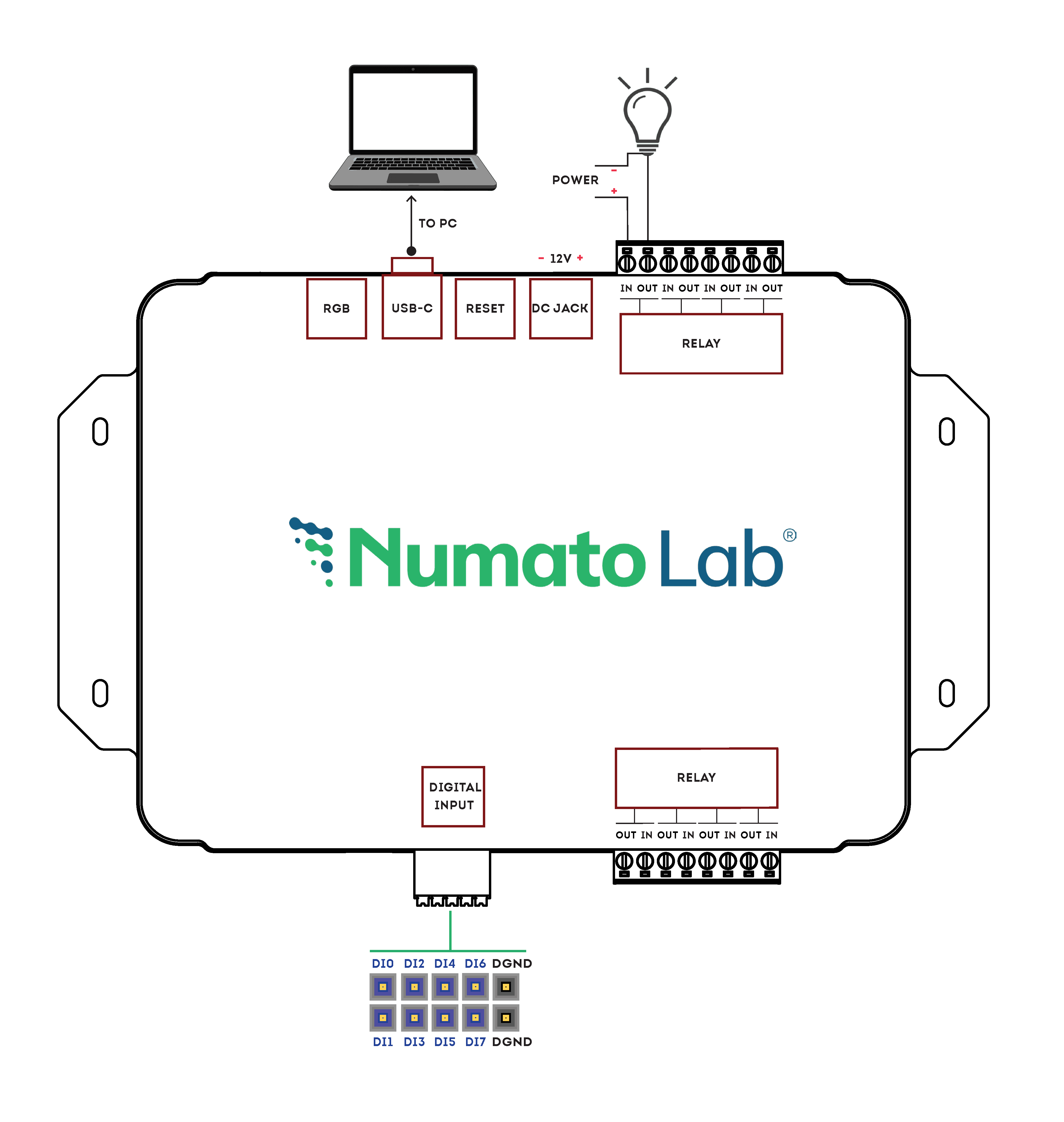
Factory Reset
The UR8A – 8 Channel USB Relay Module provides a factory reset feature to restore all settings to their original default values.
HOW to Perform a Factory Reset
You can initiate a factory reset using either of the following methods:
- Using the Multipurpose Switch: Press and hold the REST switch for 5 – 7 seconds.
- Using Command Interface: Execute the factory reset command via the USB console.
Important Notes
- This operation will reset all user-configured settings, including:
- Username and Password
- Device ID
- Smart Actions and Timer configurations
- All other user-configured parameters.
- After reset, the device will revert to factory default credentials, as listed in the table below.
Factory Default Settings
The default configuration after a factory reset is provided in the table below.
| User name | admin |
| Password | admin1234 |
| Device ID | 00000000 |
| Smart Action | Disabled |
| Relay Power-On | Disabled |
| GPIO Notify Feature | Disabled |
| IO Failsafe | Disabled |
Smart Action Engine
The Smart Action Engine enables real-time, rule-based automation by directly mapping digital inputs to relay outputs. It allows the module to respond instantly to input conditions using configurable logic modes such as LOW, HIGH, or FOLLOW.
This feature transforms the device from a simple USB relay interface into an intelligent control system, capable of operating independently without continuous host intervention.
Relay Timer Engine
The Relay Timer Engine provides precise time-based control of relay operations. It supports configurable modes such as Delayed ON, Delayed OFF, and Toggle, enabling automation of sequencing, scheduling, and timed switching tasks.
With persistent configuration, the timer functionality continues to operate even after power cycles, making it ideal for autonomous and repeatable control applications.
IO Failsafe Control
The IO Failsafe Control feature ensures safe and predictable system behaviour by monitoring a designated digital input. When the configured input reaches the specified trigger condition, the module automatically drives the relays to a predefined state.
This is essential for implementing safety mechanisms such as emergency shutdowns, fault handling, and enforcing defined system states based on input-triggered conditions.
Driver Installation
Installing Numato Lab CDC Driver - Windows Desktop and Server Editions
The driver package for Numato Lab’s products can be downloaded from the product page at ttp://numato.com. To install the driver, unzip the contents of the downloaded driver package to a folder. Attach USB cable to the PC and when asked by Windows device installation wizard, point to the folder where driver files are present. When driver installation is complete, the module should appear in Windows Device Manager as a serial port. The picture below shows a 1 Channel USB Relay Module visible in Windows Device Manager. For other devices (USB GPIO and USB Relay modules), the name will be different but how the device is displayed and used is exactly same.
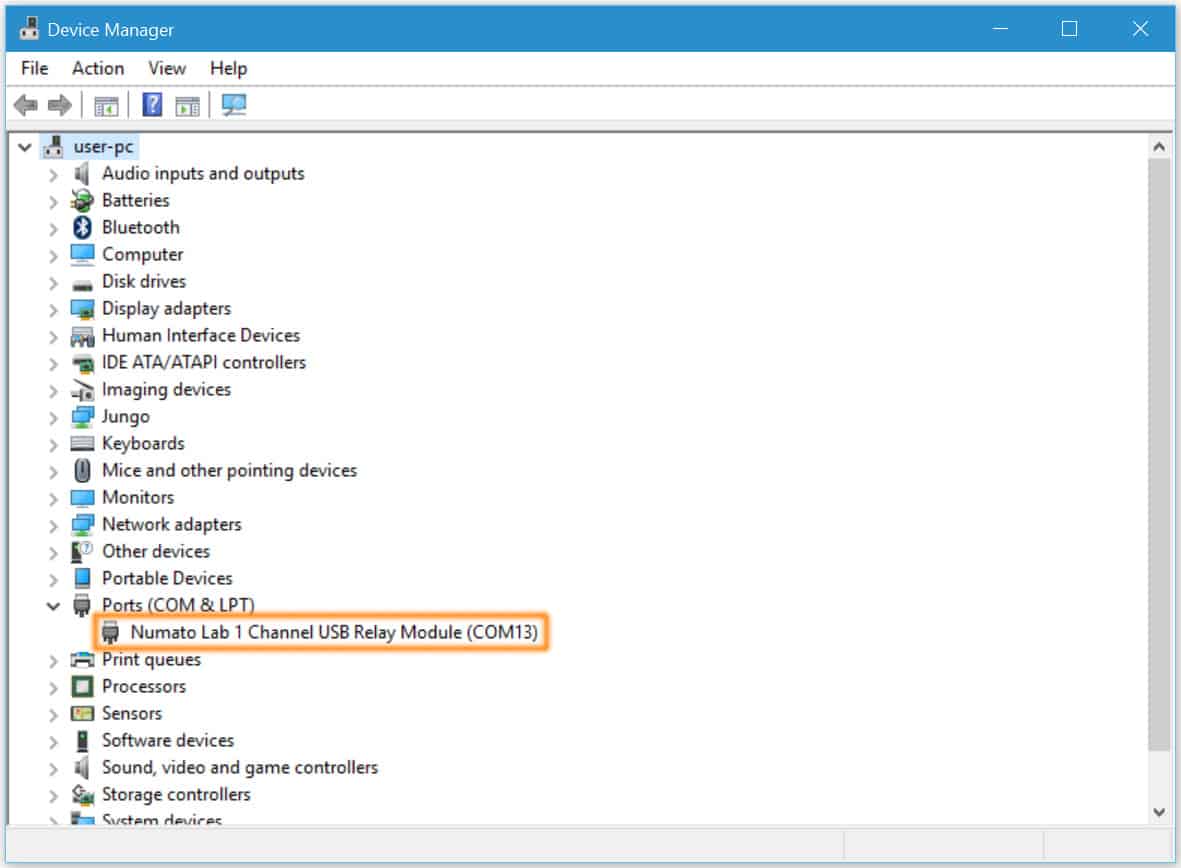
Note down the name of the serial port (COM1, COM2, etc..). This information is required to control the module from the PC.
You may notice that the driver package does not come with a .sys or .exe file as most driver packages do and are expected to be that way. The driver binary necessary in this case is shipped with all copies of Windows Desktop/Server editions and gets installed automatically while Windows is installed for the first time. The .inf and .cat files present in the driver package downloaded from http://numato.com merely associate this pre-existing driver with the attached Numato Lab device.
The following video demonstrates how to install the driver on Windows 10.
Installing on Windows Embedded Editions
Windows Embedded editions do not install the infrastructure necessary for the USB CDC by default in favor of a smaller footprint. This will cause the driver to install to fail unless the necessary files are manually installed prior to installing the driver. Please follow the steps below to install the prerequisites and drivers correctly. These steps are tested on Windows 7 Embedded Edition.
- Locate winemb-inf-mdmcpq.cab on Win 7 Embedded DVD/ISO image
- Copy winemb-inf-mdmcpq.cab to a folder Ex: C:Temp
- Run command DISM.exe /online /Add-Package /PackagePath:C:Temp
- Wait for Windows to restart (Restart machine manually if DISM does not restart the machine automatically)
- After reboot is complete, plug the device to a USB port and install driver normally (Driver is available for download at the product page)
Installing on Linux
To use any device that uses the USB CDC protocol with Linux, the USB CDC driver needs to be compiled into the kernel. Fortunately, most Linux distributions (Ubuntu, Redhat, Debian, etc..) have this driver pre-installed. The chances of you requiring to rebuild the kernel to include the USB CDC driver is very slim. When connected to a Linux machine, this product should appear as a serial port under /dev directory. Usually, the name of the device will be ttyACMx or similar. The name may be different depending on the Linux distribution you have. The image below shows the result of ls /dev command on a Linux Mint system with a USB GPIO/Relay device attached.
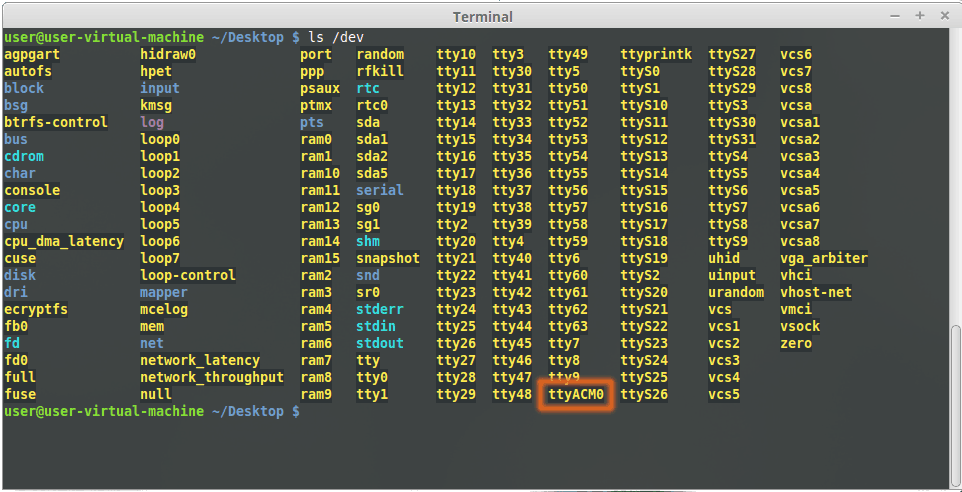
In this particular case, the device shows up as ttyACM0 (highlighted in orange color) but it could be ttyACM1 or ttyACM2, etc… depending on the specific system and other connected devices. Once the device is visible under /dev directory, it can be treated just like any other serial device. Commands can be sent to the device using any mechanism that is valid for regular serial ports such as screen command or Serial Terminal Emulation applications. If there is more than one device connected to the same host computer, each device will be displayed as separate serial devices with unique names. These separate serial devices can be used to control individual devices attached.
Installing on Mac OSX
Mac OSX is usually shipped with USB CDC driver pre-installed. When connected to a Mac computer, this product should appear as a serial port under /dev directory. Usually, the name of the device will be tty.usbserialportx or similar. The name may be different depending on the Mac OSX version you have. The image below shows the result of ls /dev/*usb* command on a Mac OSX Yosemite system with a USB GPIO/Relay device attached.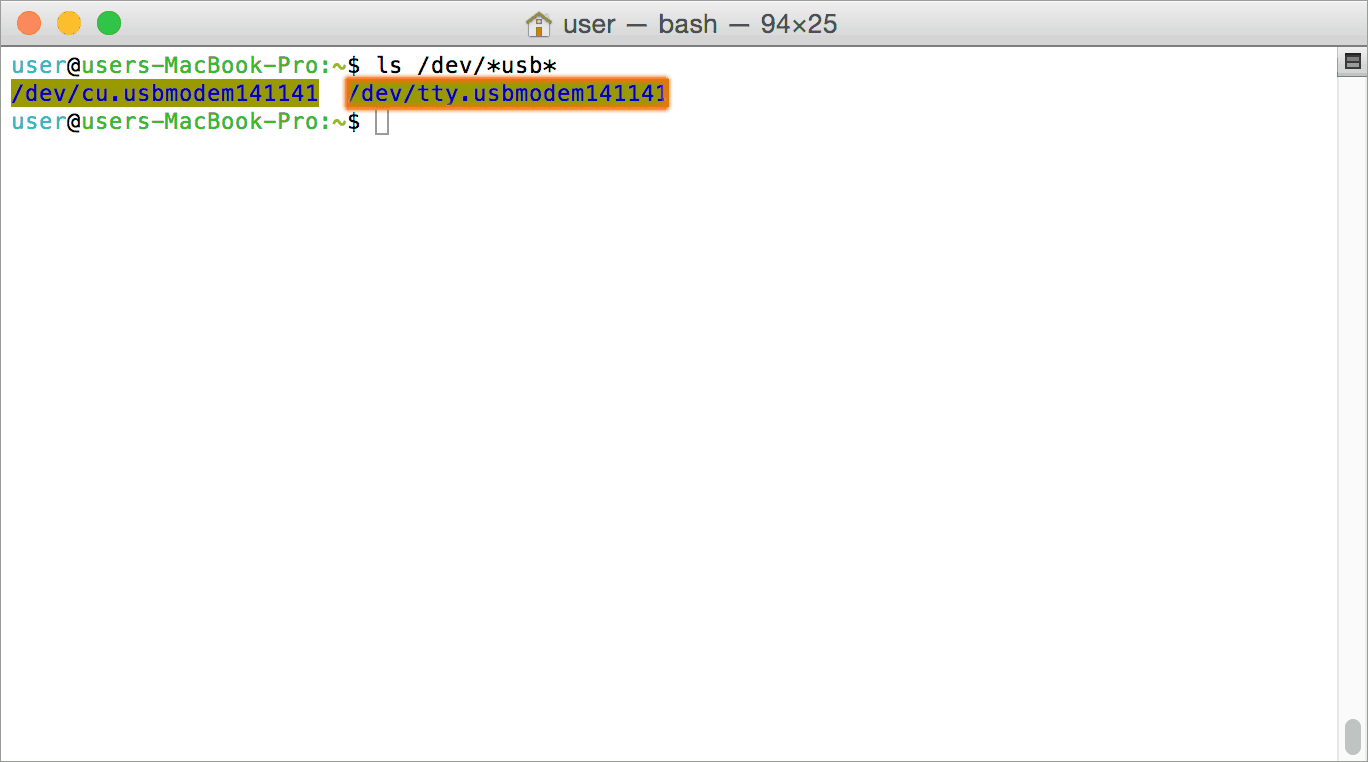
In this particular case, the device shows up as tty.usbmodem141141 (highlighted on orange color) but it could be any name starting tty.usbmodem or even a completely different name depending on the exact version of operating system and other connected devices. Once the device is visible under /dev directory, it can be treated just like any other serial device. Commands can be sent to the device using any mechanism that is valid for regular serial ports such as screen command or Serial Terminal Emulation applications. If there is more than one device connected to the same host computer, each device will be displayed as separate serial devices with unique names. These separate serial devices can be used to control individual devices attached.
Installing CDC Devices On Android
Most Android versions have a built-in driver that supports external USB Devices. Due to the presence of a built-in driver any external USB device including Numato Lab’s USB GPIO/Relay products connected to Android-based gadget will be enumerated by Android OS. Such enumerated devices can be listed/viewed by using apps such as USB Device Info. The image below shows info about a Numato Lab USB device printed by the USB Device Info app. All Numato Lab’s USB GPIO and USB Relay modules will be displayed the same way.
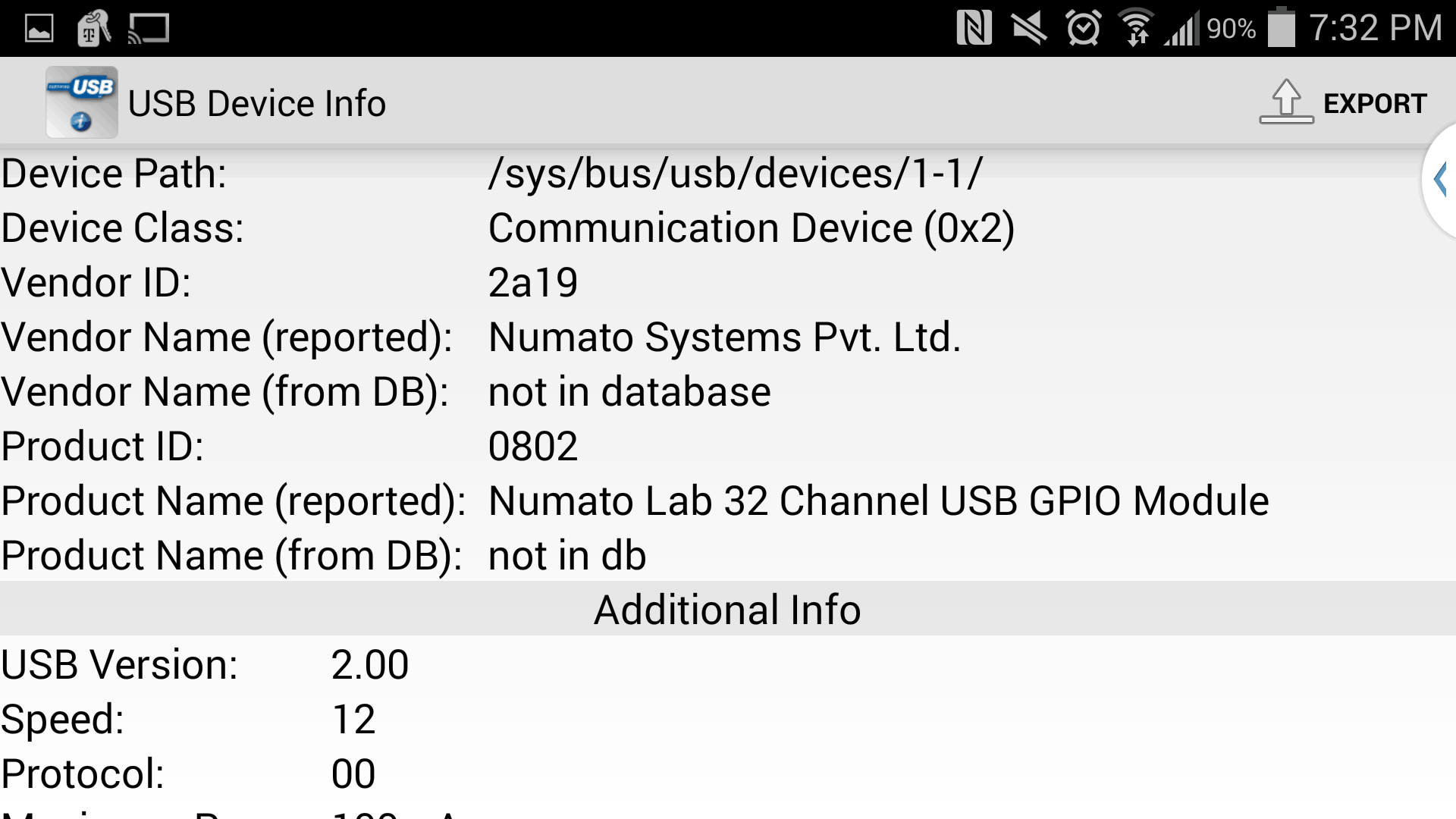
Devices detected by Android can be controlled by using an off the shelf Serial Terminal App such as USB Serial Terminal Lite.
Supported Error Codes
The UR8A – 8 Channel USB Relay Module returns error codes to indicate invalid commands or incorrect parameter usage.
These codes help in quickly identifying and resolving issues during operation.
| Error Code | Error Name | Description |
|---|---|---|
| -3 | Invalid Command | The entered command is not recognised by the device |
| -2 | Invalid Argument | One or more parameters are incorrect |
| -51 | Invalid Relay Timer Limit | Timer delay is outside the allowed range |
Notes:
- Error codes are returned immediately upon command validation failure
- Ensure all commands and parameters follow the defined format and limits
- Refer to individual command sections for valid parameter ranges
Sending Commands
One of the most powerful features of this module is the simple easy to use command set it supports. This command set hides the complex USB protocol and gives a very simple interface to access the features of the module. The following sections give details of the command set and how to use the command set.
The command set
This product support a very simple command set that is designed to be less cryptic and easy to use manually (using serial terminal emulation programs) or through a program written in many supported languages.
List of currently supported commands.
| No. | Command | Parameters | Example | Description |
|---|---|---|---|---|
| 1 | ver | None | ver | Returns firmware Version |
| 2 | id | get/set xxxxxxxx | id get, id set 12345678 | Reads/Sets id of the module |
| 3 | usr | get/set xxxxxxxx | usr get, usr set admin | Reads/Sets User name |
| 4 | pass | get/set xxxxxxxx | pass get, pass set admin | Reads/Sets Password |
| 5 | usr auth | get/on/off | usr auth get, usr auth on, usr auth off | Returns User Auth status, Enable/Disable Authentication |
| 6 | relay | on/off/status [relay number]/ on all/off all/ write [relay_group] [relay_map]/ pwron [relay_group] [relay_map]/ tmr get [relay_number]/disable [relay_number]/[relay_number] [mode] [delay_seconds] | relay on 000,relay off 000, relay status 000, relay on all, relay off all, relay write A 00ff, relay poweron A 00ff, relay tmr get 000, relay tmr disable 000, relay tmr 000 M0 2 | Relay Control |
| 8 | gpi | gpi read [input number], gpi notify on/off/get | gpi read 000, gpi read, gpi notify on, gpi notify off. gpi notify get | Monitor General Purpose Input |
| 11 | smart | get/-i/-r/disable/ [input] [mode] [target_output] [value] | smart get 000, smart -i 000, smart -r 000, smart disable, smart 000 L 000 1 | Read configured data, clear configured input, clear configured relay, disable entire smart action feature, configure smart feature |
| 7 | fs | get input_number/reset/disable/ [input] [mode] [relay_group] [relay_map] | fs get 000, fs reset, fs disable, fs 000 L A 0012 | Read status of IO failsafe, Manual Reset Failsafe, Disable Failsafe, Configure Failsafe |
| 9 | info | none | info | Display information about the module including Smart Action, Power-on status, and IO Failsafe |
| 10 | power | reset | power reset | Power reset does a soft-reset. |
The table below has more detailed information about available commands.
| No. | Command | Example | Description |
|---|---|---|---|
| 1 | ver | ver | Returns current firmware version. |
| 2 | id | id get id set xxxxxxxx | Id get reads the module ID. Id set will assign a new ID to the module. “x” stands for alphanumeric characters including symbols. The new ID must be exactly 8 characters in length. |
| 3 | usr | usr get usr set xxxxxxxx | usr get reads the default User name. usr set will assign a new usr name to the module. “x” stands for alphanumeric characters including symbols. The new User name can be 1 – 8 characters length. |
| 4 | pass | pass get pass set xxxxxxxx | pass get reads the default Password. pass set will assign a new Password to the module. “x” stands for alphanumeric characters including symbols. The new Password can be 1 – 8 characters length. |
| 5 | usr auth | usr auth get | Returns USB Authentication status |
| usr auth on | Enable USB Authentication | ||
| usr auth off | Disable USB Authentication | ||
| 6 | relay | relay on xxx | Turns a particular relay on. The parameter “xxx“ stands for the relay number. The relay number starts from zero. See some examples below. relay on 000 – Turns on relay 0 xxx can be 000-007 |
| relay off xxx | Turns a particular relay off. The parameter “xxx“ stands for the relay number. The relay number starts from zero. See some examples below. relay off 000 – Turns off relay 0 xxx can be 000-007 |
||
| relay status xxx | Returns the status of a particular relay. The parameter “xxx” stands for the relay number. The relay number starts from zero. See some examples below. relay read 000 – Returns status of relay 0 xxx can be 000-007 The data returned in response to this command will be either “on” or “off” depending on the current status of the relay |
||
| relay status | Reads the status of all relays in a single operation. The return value will a hexadecimal number with binary value 1 at bit positions for relays in ON state and 0 for relays in OFF state. Eg: a return value 00 (binary 0000 0000) means all relays are OFF. A value FF (binary 1111 1111) means all relays are ON relay readall – Returns status of all relays |
||
| relay on all | Turns on all relays. | ||
| relay off all | Turns off all relays. | ||
| relay write A 00xx | Control all relays in a single operation. A hexadecimal value must be specified with desired bit positions set to 0 or 1. A value 0 at a bit position will turn off the corresponding relay. A value 1 at a bit position will turn on the corresponding relay. relay writea A 00ff – Turns on all relays. The 'A' denotes group of relays 0-15. |
||
| relay pwron A 00xx | Sets the relay power on value. relay poweron A 0003 : Turn OFF and ON relays on power-on the module according to the specified hexadecimal value. A - Group of first 16 Relays. 0 – Turn OFF the relay, 1 – Turn ON the relay. '0003' - 0000 0000 0000 0011 : Relays 0 and 1 will be turned on once entered to the telnet mode or on power reset. xxxx can be in range 0000-00FF : UR8A xxxx can be in range 0000-FFFF : UR16A |
||
| relay tmr get xxx | Returns the current configuration and status of a specific relay timer. The parameter "xxx" stands for the relay number. The relay number starts from zero. See some examples below. relay tmr get 000 - Returns the timer status for Relay 0 xxx is relay number (range: 000 to 007) Response to the command: The device responds with the current timer configuration, which includes: - Timer Mode - Delay Value (in seconds) |
||
| relay tmr disable xxx | Disables the relay timer configuration on relay xxx, where xxx is relay number (range: 000 to 007) | ||
| relay tmr disable | Disables entire relay timer feature. | ||
| relay tmr [relay_number] [timer_mode] [timer_delay] | This command is used to configure the timer behavior of a specific relay channel, enabling precise control over relay operation based on time.
Examples
Important Notes
|
||
| 8 | gpi | gpi read xxx | Reads the digital status present at the input mentioned. Here “xxx” stands for the number of GPIO. The response will be either “1” or “0” depending on the current digital state of the GPIO. Please see examples below. gpio read 000 – Reads GPIO 0 status xxx can be 000 - 007. |
| gpi read | Reads the status of all GPIOs in single operation. gpio readall – Read all GPIO status and print ‘xx’ xx is a hexadecimal value, with binary 1 at positions for GPIOs in high state and 0 for GPIOs in low state |
||
| gpi notify on | This command enables the gpio input change notification. When the gpio notify feature is enabled, changes to the input pins will be detected and a notification is sent to the host. The GPIO change notification is sent to the host is in the below format. If GPIO change notification is “# FE FF”, then 1. Previous GPIO values are FF. 2. Current GPIO values are FE. The GPIO 0 value is changed from logic 1 to 0. This change triggered the device to send this notification. |
||
| gpi notify off | This command disables the gpio input change notification feature. | ||
| gpi notify get | Returns whether Notify feature is enabled or disabled. | ||
| smart | smart get xxx | This command returns the current Smart configuration for a specific input channel xxx. Parameters xxx Digital input number Range: 000 to 007 Digital input numbering starts from 0 Description Example smart get 000 – Returns Smart Action configuration for Digital input 0Notes |
|
| smart -i xxx | This command disables the configured digital input xxx, where xxx is relay number (range: 000 to 007). | ||
| smart -r xxx | This command disables the configured relay xxx, where xxx is relay number (range: 000 to 007). | ||
| smart disable | This command disables the entire smart action feature. | ||
| smart [input] [mode] [target_output] [value] | This command configures the Smart Action feature Smart Action maps digital inputs to relay outputs and automates relay control based on input state Parameters mode:Defines the trigger condition for the relay Supported modes: target_output value Relay output state when triggered Description Examples smart 000 L 000 1 – When digital input 0 goes LOW, Relay 0 turns ONsmart 001 H 002 0 – When digital input 1 goes HIGH, Relay 2 turns OFFsmart 003 F 003 – Relay 3 follows digital input 3 (LOW → OFF, HIGH → ON)Notes |
||
| fs | fs get xxx | Returns the IO failsafe configured on xxx. where xxx is digital input 000. Command response: returns the configured digital input mode and mapped relays. |
|
| fs reset | This command is used to perform manual failsafe reset to continue the device operation. | ||
| fs disable | This command disables the IO failsafe feature completly. | ||
| fs [input] [mode] [relay_group] [relay_value] | This command is used to configure the IO Failsafe feature, enabling the module to automatically set relay states based on a defined digital input condition. It is designed to ensure predictable and safe system behavior during fault conditions or specific input event. input: Specifies the digital input used for failsafe triggering On UR8A, only Digital Input 0 supports this feature mode: Defines the input condition that triggers the failsafe action relay_group: Specifies the relay group to be controlled A – Group A (supported on UR8A) relay_value: Defines the output state of relays when failsafe is triggered, using a hexadecimal value Each bit represents a relay state 0 – Relay OFF 1 – Relay ON Example: 0003 - 0000 0000 0000 0011 - Relays 0 and 1 ON, all others OFF Value Range UR8A: 0000 to 00FF UR16A: 0000 to FFFF Examples fs 000 L A 0012When Digital Input 0 goes LOW, relays are set according to 0012. - Relay 1 and Relay 4 turn ON, all others turn OFF. fs 000 H A 0012When Digital Input 0 goes HIGH, relays are set according to 0012. - Relay 1 and Relay 4 turn ON, all others turn OFF. |
||
| 9 | info | info | Display information about the module including Smart Action, Power-on status and IO Failsafe |
| 10 | power reset | power reset | Power reset does a soft-reset. |
Additional Information
Using GPIO's with switches
It is possible to read the position of a switch that is connected to a GPIO. A SPST or SPDT switch is recommended to use with GPIO’s. Push switches do maintain the contacts closed only for a very short time so using them is 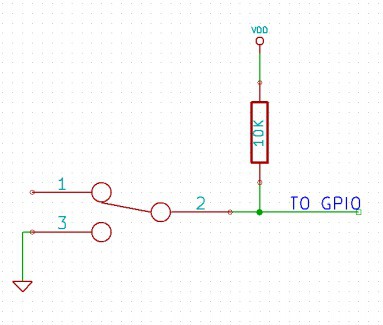 discouraged. The fundamental idea of using a switch with GPIO is to have the switch cause a voltage level change at the GPIO pin when pressed. Usually this is achieved by using an external pull-up resistor along with the switch. The pull up resistor is connected between the GPIO and VDD and the switch is connected between the GPIO and ground. When the switch is not pressed, the pull-up resistor will cause the GPIO to stay at VDD voltage level. When the switch is pressed, the GPIO is short circuited to ground and stays at zero voltage. This change in voltage and thus the position of the switch can be read using “gpio read” command. Please see the recommended connection diagram below
Using relay modules with inductive loads
It is important to take additional care when using relays with inductive loads. An inductive load is pretty much anything that has a coil and works based on magnetic principles like Motors, Solenoids and transformers. Inductive loads produce back emf when the magnitude of the load current changes. The back emf can be in the order of tens or even hundreds of voltage (See this Wikipedia article http://en.wikipedia.org/wiki/Counter-electromotive_force). This effect is most severe when power is disconnected from inductive load because the rate of change of current is maximum at that point. Even though the back emf lives only for a very short time (a few milliseconds) it can cause sparks between the relay contacts and can deteriorate the contact quality over time and reduce the life span for the relays considerably.
So it is important to take countermeasures to suppress the back emf to acceptable levels to protect relay contacts. 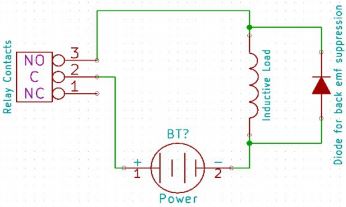 Usually this requires connecting electronic devices in parallel with the load such that they absorb the high voltage components generated by the load. For solenoids, connecting a diode (fast switching diode is recommended) in parallel to the load (in reverse direction to the load current) is very effective. A diode used for this purpose is usually called a freewheeling diode. Please see the diagram on the right for connection details.
A capacitor with proper rating is recommended for protecting the relay contacts when a motor is used as load. The capacitor should be rated enough to withstand the back emf that is generated by the motor. Please see the diagram below for connection details.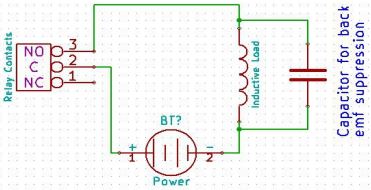
Please note that the relay modules are NOT shipped with back emf suppression devices pre-installed. The exact kind of suppression device and the parameters of the selected device can vary depending on the load itself. Some of the parameters that affects the suppression device selection are the inductance of the load, power supply voltage, load current, physical size/structure of the load etc.. It is obvious that it is impossible for us to predict these parameters and design required back emf suppression device and incorporate that on the board. So we believe this is a task best left to the module user. There is an excellent article on designing back emf suppression on Wikipedia at http://en.wikipedia.org/wiki/Flyback_diode
FAQ
Q. I need a customized version of this product, can Numato do the customization for me?
A. Yes, we can definitely do customization but there may be minimum order requirements depending on the level of customization required. Please write to sales@numato.com for a quote.
Q. Where can I buy this product?
A. All Numato products can be ordered directly from our web store http://www.numato.com. We accept major credit cards and Paypal and ship to almost all countries with a few exceptions. We do have distributors in many countries where you can place your order. Please find the current list of distributors here.
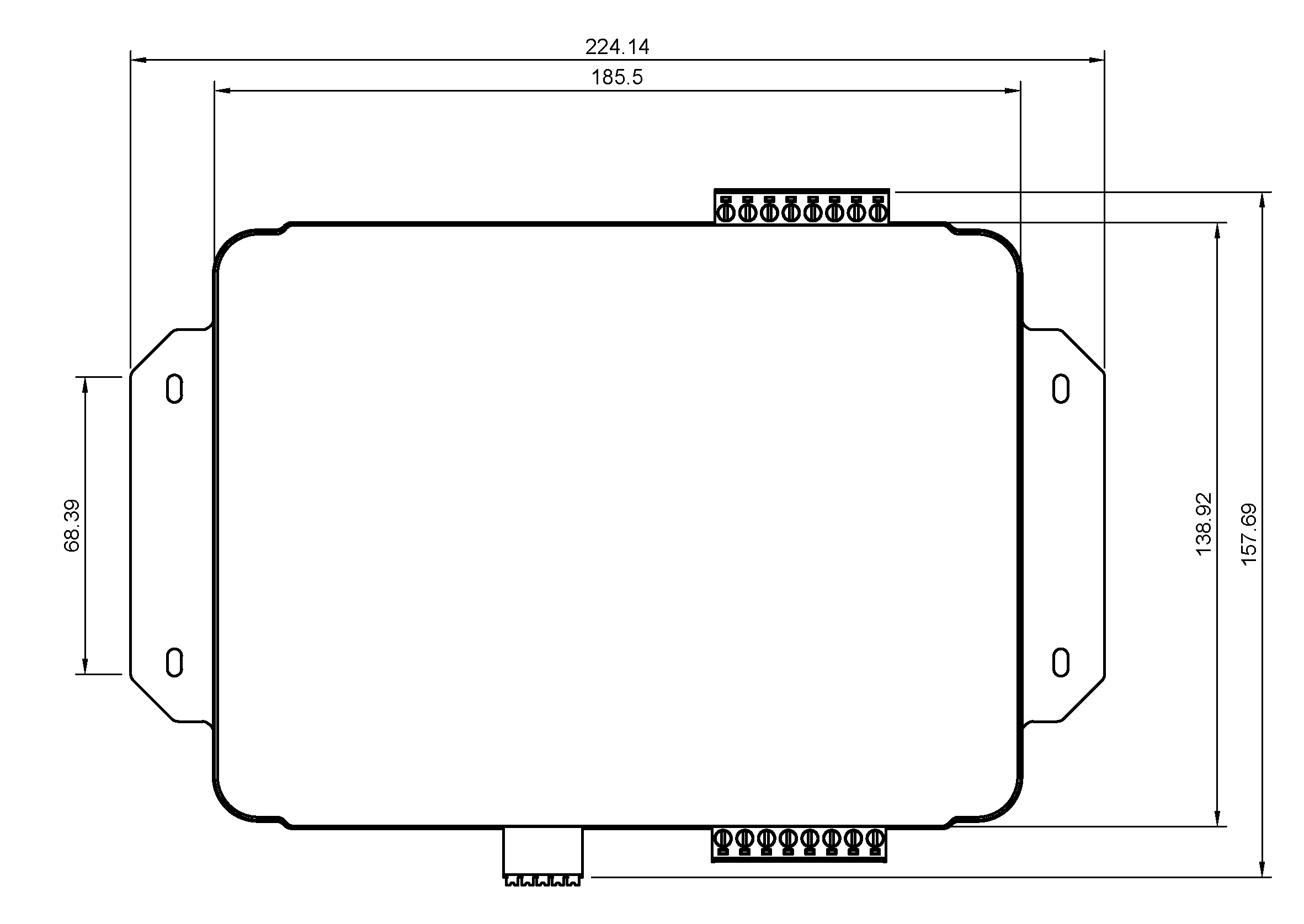
Mechanical Dimensions