Introduction
Numato Lab’s EIGER WR8 : 8 Channel Web Relay Module is a versatile product for controlling electrical and electronic devices remotely from a PC over an Ethernet link and is designed for modern IoT, industrial, and smart automation applications.
It combines powerful data acquisition capabilities with seamless cloud connectivity and local control features. With integrated support for Wi-Fi 2.4GHz, MQTT/MQTTS (compatible with AWS, Azure, and other cloud platforms), and REST API, the Module empowers users to monitor, control, and automate processes remotely and securely. Ease of use and wider operating system compatibility are the primary goals behind this product’s design.
This simplicity allows the use of off-the-shelf Terminal Emulation programs such as HyperTerminal and TeraTerm for controlling the module with a simple set of human-readable commands through Telnet/Web page/Wi-Fi and/or REST API commands. For power users, this module can be controlled by writing programs in various programming languages. This highly versatile device allows users to create fully automated systems with minimal setup time. It is ideal for both professionals and hobbyists looking to integrate reliable automation and data acquisition into their systems.
Applications
- Industrial Automation: Monitor sensor inputs and control actuators, machines, or alarms based on configurable logic.
- Smart Home & Building Automation: Automate lighting, HVAC systems, and appliances using environmental data and remote control.
- IoT & Cloud-Based Monitoring: Stream real-time data to AWS, Azure, or private MQTT brokers for centralized dashboards and alerting.
- Environmental Monitoring: Use the onboard temperature and humidity sensor for weather stations, greenhouses, or storage rooms.
- Remote Control Systems: Operate devices from anywhere using the onboard web server or REST APIs.
- Data Logging and Analytics: Log inputs, outputs, and sensor data locally for historical analysis and compliance tracking.
- Smart Agriculture: Monitor field conditions and control irrigation or other systems based on environmental triggers.
- Test Fixtures
- DIY and Hobby
Board Features
- 8 Relay Outputs: Control external devices such as fans, alarms, or lighting with 8 independent relay channels, 10A maximum switching current.
- 8 Digital High Voltage Inputs supports Maximum Input Voltage of 24V.
- Relay LED indication: Each relay has individual LEDs for status indication.
- Password-protected Web console, Wi-Fi console, REST API and Telnet communication interface.
- 2-in-1 Sensor: Temperature and humidity sensing in a single device.
- Wi-Fi (2.4GHz): Provides stable wireless communication.
- DIN Rail Support: Supports standard DIN rail for easy installation.
- Cloud Integration: Supports MQTT, MQTTS for AWS, Azure, and more.
- Data Logging: Onboard Data Logging for secure, local storage of sensor and control data.
- Web Server & REST API: Built-in Web Server for configuration, monitoring, and remote control.
- Sensor and ADC Calibration: On-device calibration for accuracy.
- AP Mode for Device Configuration: Simplified configuration without a network.
- RGB Indicator: Easily shows device status with a color-coded RGB LED.
Technical Specifications
| Parameter * | Value | Unit |
|---|---|---|
| Basic Specifications | ||
| Number of relays | 8 | |
| Number of GPIOs | 8 | |
| Digital circuit power supply voltage (External) | 12/24 | V |
| Maximum current drawn by digital circuitry | 300 | mA |
| Digital Inputs Specifications |
||
| Maximum DI sink current | 2.05 | mA |
| Maximum DI sink current | 44 | mA |
| Recommended sink current | 10 | mA |
| Maximum Low Voltage (VIL) | 10.2 | V |
| Minimum High Voltage (VIH) | 10.5 | V |
| Maximum High Voltage | 24 | V |
| Relay Specifications |
||
| Nominal relay coil voltage | 12/24 | V |
| Nominal coil power consumption (per relay) | 450 | mW |
| Relay contact material | Silver Alloy, silver metal-oxide | |
| Contact rating | 10A 250VAC 10A 30VDC | |
| Maximum switching voltage | 250VAC/30VDC | |
| Maximum switching current | 10 | A |
| Maximum switching power | 2500VA/300W | |
| Contact resistance | 100 | mΩ (at 1A 6VDC) |
| Insulation resistance | 1000 | MΩ |
| Life expectancy (Electrical) | 100000 50000 | Operations (at 10A 250VAC resistive load, room temp) Operations (at 10A 250VAC, resistive load, at 85°C) |
| Life expectancy (Mechanical) | 10000000 | Operations |
| Maximum switching on response time | 1 | second |
| Maximum switching off response time | 9 | second |
| shock resistance (Functional) | 294 | m/s2 |
| Shock resistance (Destructive) | 980 | m/s2 |
| Vibration resistance | 10Hz to 55Hz, 1.5mm DA | |
| Other Information |
||
| USB Vendor ID | 0x2A19 | |
| USB Product ID | 0x0C1B | |
* All parameters considered nominal. Numato Systems Pvt Ltd reserve the right to modify products without notice.
* Datasheet – HF32FV-G Relay
How to use the module
The following section describes how to use this module.
Components/Tools required
Along with the module, you may need the items in the list below for easy and fast installation.
- CAT 5e Ethernet Cable(Straight through cable)
- 12V/24V 1A DC power supply
- Medium-sized Philips screwdriver
Connection Details

USB Interface
Onboard USB port is available; the onboard USB Interface helps to communicate and configure this module seamlessly. This module is detected as a COM port, and the user can configure the module using any serial emulator program like Hyper Terminal, TeraTerm, etc. Use FTDI drivers for the USB COM port device.
Use a USB-A to USB-C/ USB-C to USB-C cable to connect to a PC. Please visit numato.com to buy cables and accessories for this product.
Ethernet Interface
 The onboard Ethernet port supports Ethernet 10/100 Mbps transmission speed that helps a computer to communicate and control this module easily.
You can connect the module to a Local Area Network(LAN) via a common straight-through Ethernet cable.
Eg: Connecting the module to a switch in a network.
Wi-Fi Interface
The EIGER WR8 : 8-channel Web Relay Module offers effortless wireless connectivity with built-in 2.4GHz Wi-Fi, ensuring smooth and reliable network integration. With AP Mode, setup is quick and hassle-free, requiring no additional hardware. Once connected, the device efficiently transmits data to the cloud using MQTT/MQTTS, enabling real-time monitoring across multiple platforms. In STA Mode, once the device is configured, it will stay connected to the specified network and continuously publish data to the cloud, ensuring seamless data communication without the need for manual intervention. Secure access is provided through HTTP/HTTPS REST APIs, allowing for robust and real-time data communication. For added convenience, the module features a secure, built-in web interface that can be accessed directly from any browser for easy configuration and monitoring.
Relay Contacts
This module has eight Relays that can switch up to 10A current. All contacts on each relay are  available externally on screw terminals for easy user access. The relays are rated for AC switching supply voltages. Please see the electrical parameter table for more details. Each relay has two contacts (IN and OUT). For the Relay, the contact will be established between the IN and OUT contacts when the relay is turned on and will be disconnected when the relay is turned off. The table below summarises possible relay contact positions.
| Relay State | Connection between IN/- and OUT/+ |
|---|---|
| OFF | Open |
| ON | Close |
DC Power Supply
 This board can be operated with a single DC power supply. Use a 12V/24 1A DC power supply on the DC jack(J1) on the Board for both the logic circuit and relays.
Connecting the power supply incorrectly can cause damage to the module and/or other devices
LED Indication
The EIGER module has a multifunctional RGB LED Indicator. The device indicates the Power status, Configuration mode, Network status, MQTT connectivity, and Multipurpose switch state.
| Color | State | Indication |
|---|---|---|
| Red | Solid (2 seconds) | Device is powered on |
| Purple | Blinking | AP Mode: Waiting for STA Device to get conneted |
| Purple | Solid | AP Mode: STA Device is connected |
| Green | Blinking | Station Mode: Trying to connect to Wi-Fi network |
| Green | Solid | Station Mode: Connected to Wi-Fi network |
| Blue | Blinking | Trying to connect to MQTT broker / Not connected |
| Blue | Solid | Connected to MQTT broker |
| Blue + White Blink | Solid Blue with White Blinking in the Background | MQTT publishing is active — white LED blinks at every publish interval |
| Yellow | Solid | Falling back to AP (Configuration mode) |
| Red | Blinking | Factory reset initialized |
Multipurpose Switch
The EIGER WR8 : 8-channel Web Relay Module is equipped with a versatile multipurpose switch that enables a range of device management functions:
| Action | LED Indication | Function |
|---|---|---|
| Single Click | Solid RED Indication | Device Reset: Resets the device and reinitializes. |
| Press for 5-7 seconds | Solid Yellow Indication | Configuration Mode: Device enters AP mode for device reconfiguration. |
| Press for 15 seconds until solid RED indication | Red LED Blinks | Factory Reset: Device erases all the settings and restores to factory defaults. |
Important: Use the Factory reset feature only to recover the Username/Password/Hostname. A factory reset will erase all Network, MQTT, and other settings, restoring the board to its default configuration. After resetting, access the board using the default credentials listed in the table below.
Connection Diagram
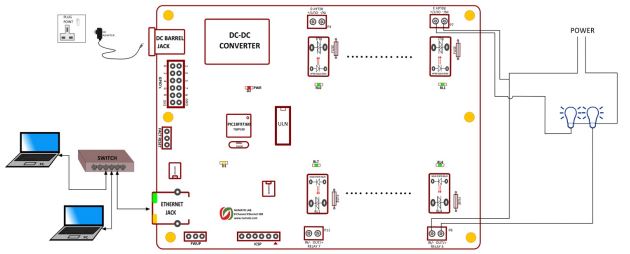
Connection Diagram for AC Solid State Relay
The pictures above show the basic connection diagrams for AC loads that can be used in most situations. Please make sure to use a freewheeling diode or snubber circuit if the load is inductive. More details about using inductive loads are available elsewhere in this document. Use a Straight Through Ethernet cable for communication when connecting the board to a switch or router.
It is important to make sure that the wires used to connect loads are sufficiently rated to handle the expected load current. Exercise caution while working with high voltages. Short circuits can cause damage to the module. The following sections identify individual connections in detail.
Factory Reset
The Multipurpose switch/the factory reset on the webpage is used to reset the settings on board to factory defaults. To execute a factory reset, please follow the steps below.
- Press the RST (Multipurpose switch) for 15 seconds. (Or)
- On the Device Settings page, under the Device management section, select the factory reset option, then click on the reboot button.
- The RGB LED will blink for 5 seconds, and a solid RED colour will appear once the factory reset is done.
Please use this feature only for recovering the username/password. This action will reset the User name, Password, Device ID and also other settings as well. After reset, the board can be accessed using the default User name and Password as shown in the table below.
The factory default settings will be as below table.
| User name | admin |
| Password | *Factory set default unique Password. |
| Host Name | *Factory set default unique Hostname. |
| Device ID | 00000000 |
| IP Address | 169.254.1.1 |
| Telnet Authentication | ON |
| Telnet Port | 23 |
| Access IP | Disabled |
| IP0 to IP9 | 255.255.255.255 |
| Access MAC | Disabled |
| MAC0 to MAC9 | FF FF FF FF FF FF |
| DHCP Status | Enabled |
| Smart Action | Disabled |
| Relay Power-On | Disabled |
| GPIO Notify Feature | Disabled |
Configure EIGER WR8 : 8 Channel Web Relay Module
Connect a DC power supply and power up the device as mentioned in the DC Power Supply section above. A red LED (PWR) will glow, which indicates active power. For configuration over USB, connect a USB-A to USB-C/USB-C to USB-C cable to the module, and also connect the module to a PC or a Switch/Router as mentioned in the Ethernet Interface section above. Run the Hyper Terminal program or any serial terminal program like PuTTY, TeraTerm, etc.
NB: By default, the module is configured with factory settings. To log in to USB configuration settings, users need to send a ‘reboot’ command from telnet or do a factory reset.
Select the module’s COM port and use the default settings, similar to the images below and connect.
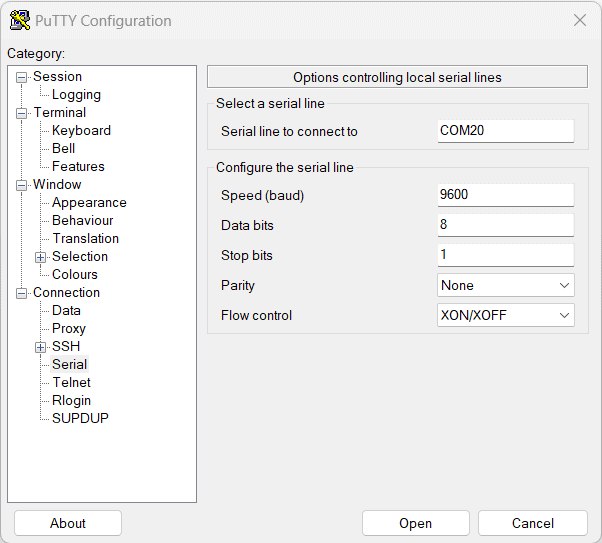
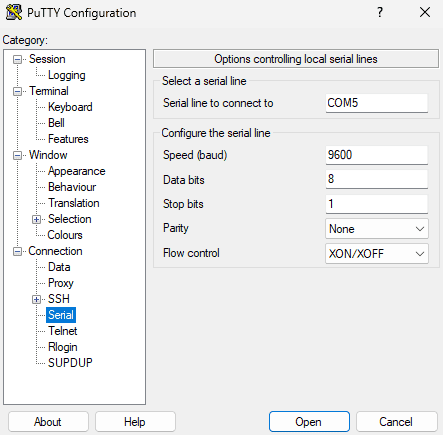
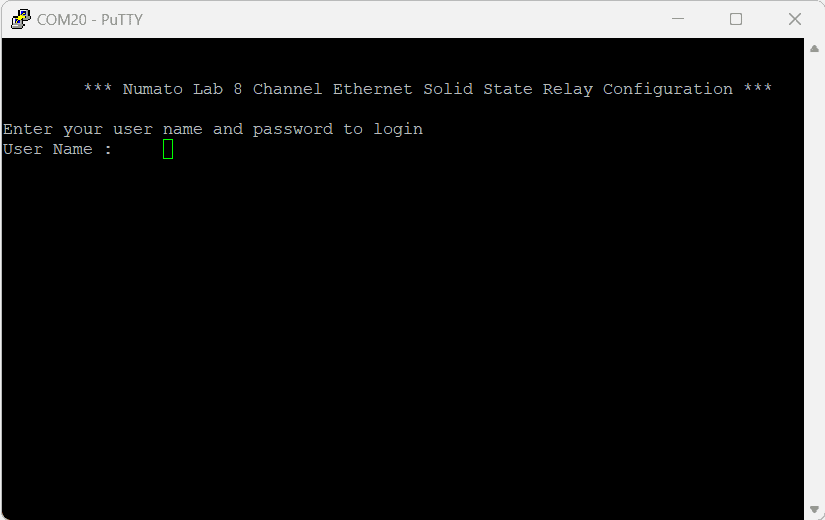
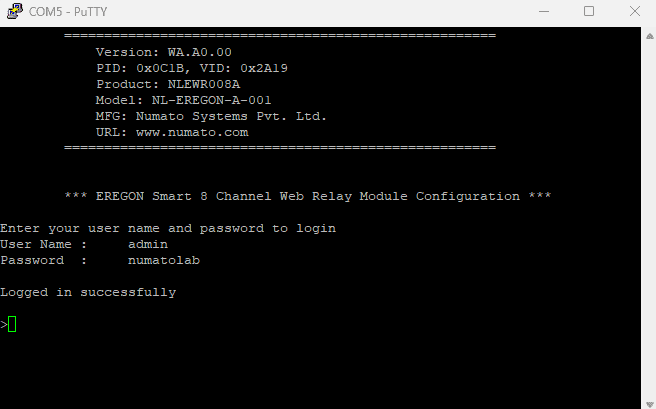
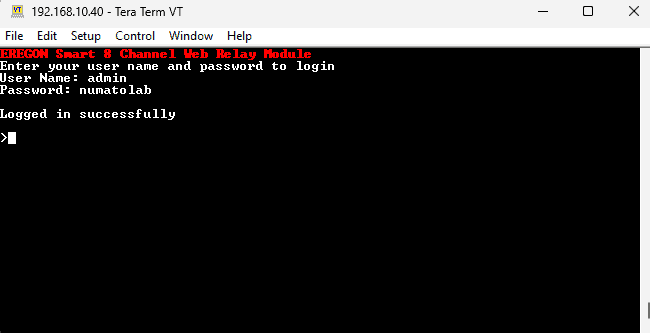
Users will be prompted to enter the User name and Password. The default User name is ‘admin‘ and Password is ‘numatolab‘. You may change the User name and Password once logged in.
If the user name and password are correct, we will be able to see the login successfully message.
The EIGER WR8 : 8 Channel Web Relay Module offers a simple and hassle-free configuration process through its built-in Access Point (AP) mode. Follow these easy steps to get started:
Connect to the Access Point:
- Turn on the EIGER WR8 : 8 Channel Web Relay Module and wait for it to enter AP mode a Purple LED blinks indicating that the device is in Configuration mode.
- On your PC or mobile device, go to the Wi-Fi settings and connect to the EIGER WR8 : 8 Channel Web Relay Module‘s Wi-Fi network. The network name (SSID) will typically be “Default Hostname” and the network password will the “Default Password”.
- Once the connection is established successfully, a Solid Purple LED Indication is visible.
Access the Configuration Page:
- Open any web browser and enter the default IP address of the EIGER WR8 : 8 Channel Web Relay Module (192.168.4.1) in the address bar.
- When prompted, enter the default password to log in and access the device’s configuration interface.
Configure the Device:
- Once logged in, you can easily configure Wi-Fi settings, MQTT cloud integrations, and more via the web interface.
Important Note: After you have saved all your settings on the device (such as device configuration, network, sensor, or MQTT configurations), the changes will only take effect after the device is rebooted. You can reboot the device either:
- From the Webpage: Use the Reboot option on the device management section to apply all settings.
- From the Multi-Functionality Switch: Click for 15 seconds, reboots the device with new configuration set.
Configuration Command Set
| No. | Command | Example | Description |
|---|---|---|---|
| 1 | usr | usr set xxxxxxxx | Sets the new username for telnet, where x can be any alphanumeric character. The username can be 1-8 characters long. |
| usr get | Read the current username of telnet. The default username is "admin". | ||
| 2 | pass | pass set xxxxxxxx | Sets the new password for telnet, where x can be any alphanumeric character. The password can be 1-8 characters long. |
| pass get | Read the current password of telnet. The default password is "admin". | ||
| 5 | telnet | telnet auth on/off | Enable and disable the telnet authentication. telnet auth on enabling the telnet authentication and telnet off disabling the telnet authentication. |
| telnet auth get | Read the status of telnet authentication. | ||
| telnet port set xx | Sets the telnet port, where xx can be in the range of 00 to 99. The default value of telnet port is 23. |
||
| telnet port get | Shows the telnet port. | ||
| 6 | access | access ip on/off | Enable or disabling the IP based access to the module, this command adds filtering. Once the command is enabled, the stored IP using the access ip set command will be able to access the module. By default access IP is disabled. |
| access ip set N xxx.xxx.xxx.xxx | Set the acceptable IP in the network and save the same. Where N is the number 0-9, maximum 10 IP we can store in the non-volatile memory. Eg: access ip set 0 192.168.0. 2 |
||
| access ip get | Read the stored IP in the memory. | ||
| access mac on/off | Enable or disabling the MAC-based access to the module, this command adds filtering. Once the command is enabled, the stored MAC using the access mac set command will be able to access the module. By default access MAC is disabled | ||
| access mac set N XX XX XX XX XX XX | Set the acceptable MAC in the network and save the same. Where N is the number 0-9, maximum 10 MAC we can store in the non-volatile memory. Eg: access mac set 0 D4 93 98 D2 4A 34 |
||
| access mac get | Reads the stored MAC in the memory. | ||
| 7 | dhcp | dhcp on/off | Enable or disable the DHCP of the module. |
| dhcp get | Shows the DHCP status. | ||
| 8 | ip | ip set xxx.xxx.xxx.xxx | Sets the static IP to the module. Eg: ip set 192.168.5.48 |
| ip get | Read the status of DHCP and the static IP. If DHCP is enabled it will display the DHCP status and if it is disabled it will display the static IP too | ||
| 9 | sm | sm set xxx.xxx.xxx.xxx | Sets the Subnet Mask to the module. Eg: sm set 255.255.255.0 |
| sm get | Read the Subnet Mask. If DHCP is enabled it will display the DHCP status and if it is disabled it will display the Subnet Mask value. | ||
| 10 | gw | gw set xxx.xxx.xxx.xxx | |
| gw get | Reads the Gateway. If DHCP is enabled it will display the DHCP status and if it is disabled it will display the Gateway value. | ||
| 11 | mac id get | mac id get | Read the MAC id of the module. |
| 12 | relay | relay poweron A xxxx | Sets the relay power on value. relay poweron A 0003 : Turn OFF and ON relays on power-on the module according to the specified hexadecimal value. A - Group of first 16 Relays. 0 – Turn OFF the relay, 1 – Turn ON the relay. '0003' - 0000 0000 0000 0011 : Relays 0 and 1 will be turned on once entered to the telnet mode or on power reset. xxxx can be in range 0000-00FF : Smart 8 Channel Web Relay xxxx can be in range 0000-FFFF : Smart 16 Channel Web Relay |
| 13 | smart action | smart action get | Shows the smart action status |
| smart action M N xxxx YYYY | Sets the smart acttion value. M – Group Identifier, Group of IOs from 0 to 15. N – Operating Mode, 0 : Manual IO Low 1 : Manual IO High 2 : Live Sync 3 : Watchdog Failsafe xxxx – GPIO Enable Mask yyyy – Relay Control Mask Each GPIO is directly mapped to a corresponding relay. 1. smart action A 0 000f 000f: Group A, Mode 0, only IO0 - IO3 are enabled and the relays Relay0-Relay3 are controlled. When the selected IOs are in low state the given relay action takes place. For more details refer to Understanding Smart Action in EIGER Modules. |
||
| smart action off | Turns off the smart action which is enabled. | ||
| 14 | power reset | power reset | Power reset does a soft-reset. |
| 15 | reboot | reboot | Exit the configuration interface and enter to the application mode and start the telnet communication. |
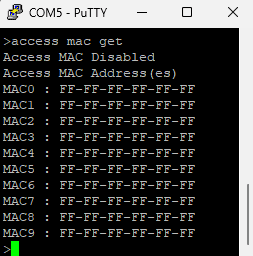
Configuration command Images
Example commands and results after executing the commands.
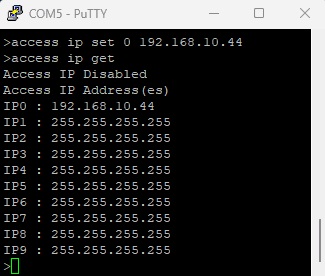
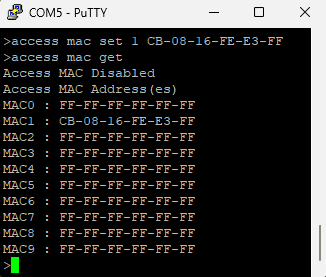
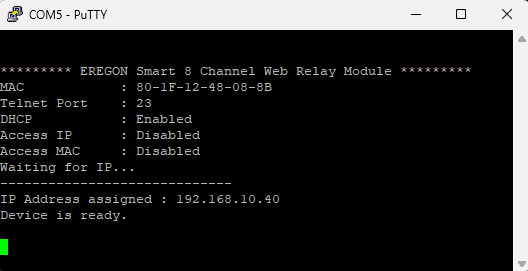
Powering Up EIGER WR8 : 8 Channel Web Relay Module
Connect a DC power supply and power up the device as mentioned in the DC Power Supply section above. An RGB LED will glow Red for 2 seconds, which indicates active power. Connect the module to a Switch/Router as mentioned in the Ethernet Interface section above. Run Numato Lab Device Discoverer.jar, and click on Discover Devices. The window will display the IP address, Host Name, MAC Address, and Other information.
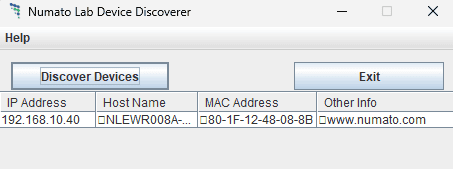
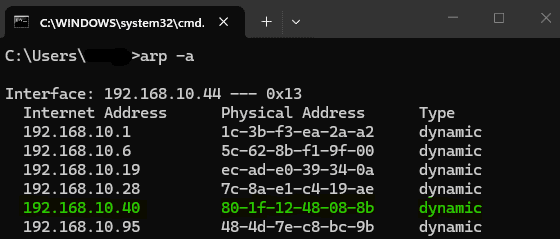
IP Address and MAC Address can be seen in the command prompt also, only after connecting the module through the web page. Open the command prompt and type the command ‘arp -a‘. This will display the available network interfaces and connected devices along with the MAC address and IP address of each device. Look for the IP address that corresponds to your device’s MAC address. The MAC address for each Relay Module is printed on a label on the board for your convenience. Use the IP address obtained to access the device.
Accessing the module
The module can be monitored and controlled by using the interfaces below.
- Through HTML/Web Page served from the device.
- Through HTML/Web Page served from the WI-Fi interface.
- Through a Serial terminal Emulator that supports TELNET (Eg: Hyper Terminal, TeraTerm, PUTTY…).
- Through REST API commands.
Accessing the module using Ethernet web interface
The easiest method for controlling the module is through web page served from the device. To open the administration web page, type in the IP address in to the address bar of any web browser and press enter.
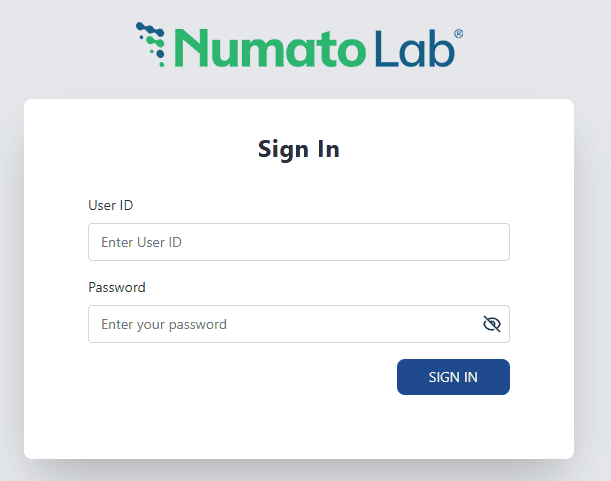
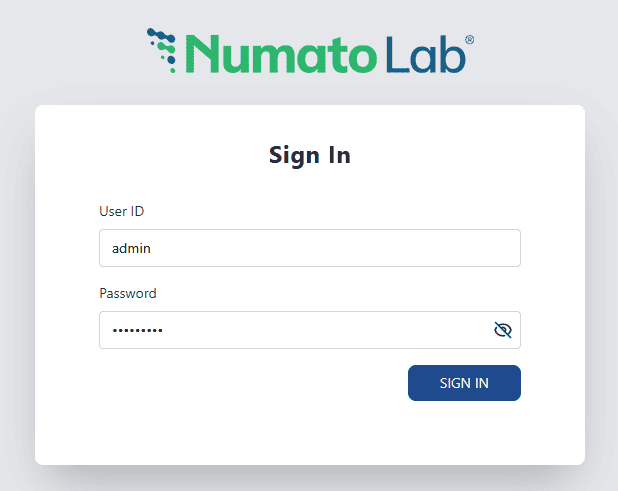
You will be prompted to enter your Username and Password. The default username is ‘admin,’ and the default password is unique for each device or the default “numatolab”. Once logged in, you may change the Username and Password.
Enter the default User name and Password, then click Sign In.
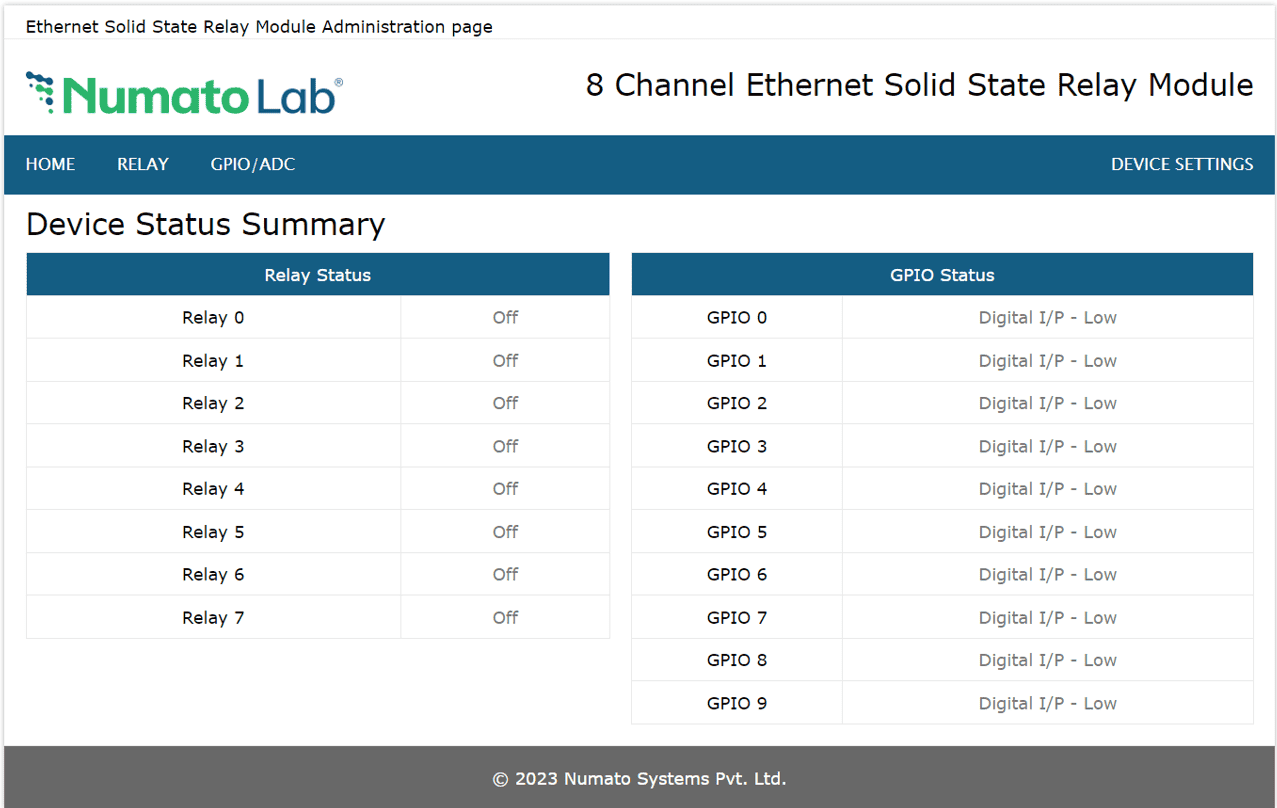
You will be presented with the device home page that shows the status of Relays and GPIOs
GPIO, Relay Status and Control
8 Relays on the board can be controlled over Ethernet. The Relay Index shows the corresponding relay on board. Relays on the board can be turned on/off by clicking the Toggle Relay button next to the corresponding relay index. The Status of the relays change automatically for easy identification.
This board has 8 general-purpose high-voltage inputs. The status of GPIOs is shown on the home page.
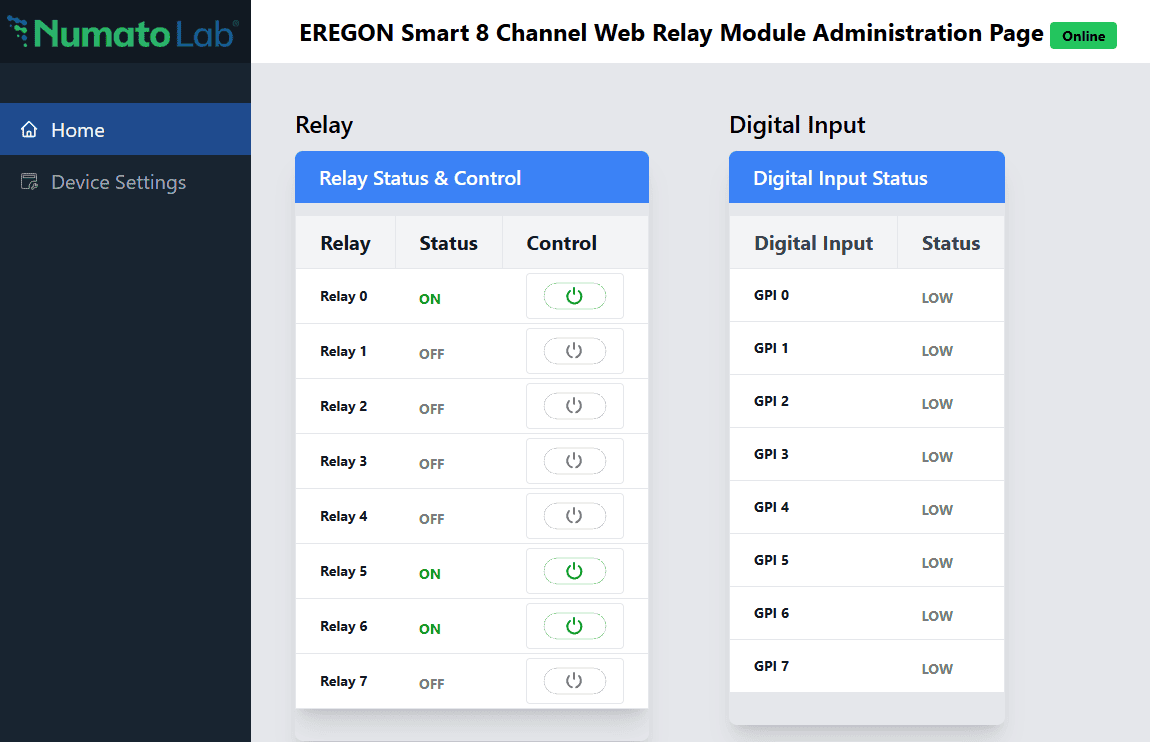
In the above image, we can see that Relay 0,5 and 6 are in ON position and rest of the relays are in OFF position.
Device Settings
The device Settings page displays the current firmware version, Device ID, Account Settings, and Basic Network Settings. A logged-in user can change and save the Device ID, User name, Password, and network settings.
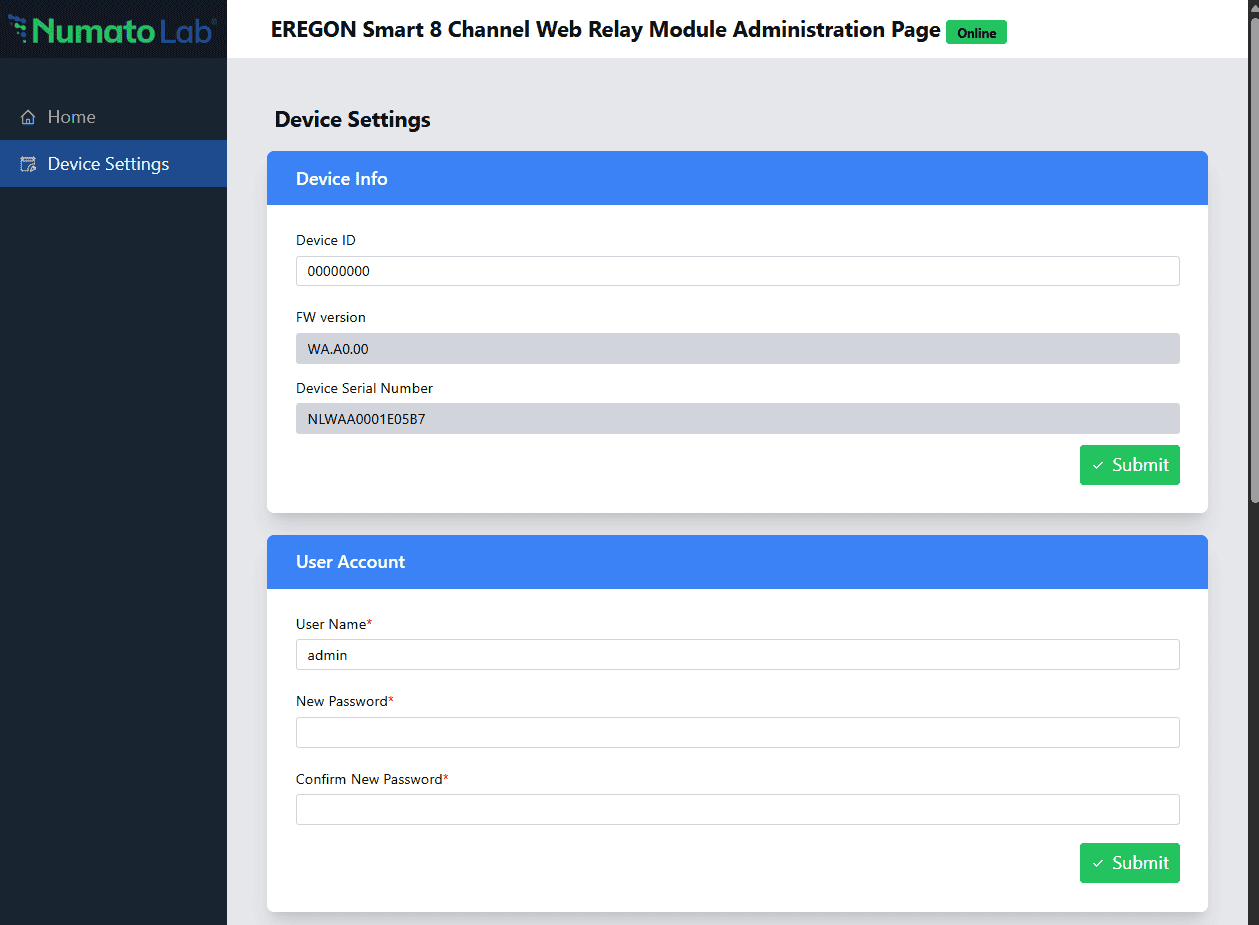
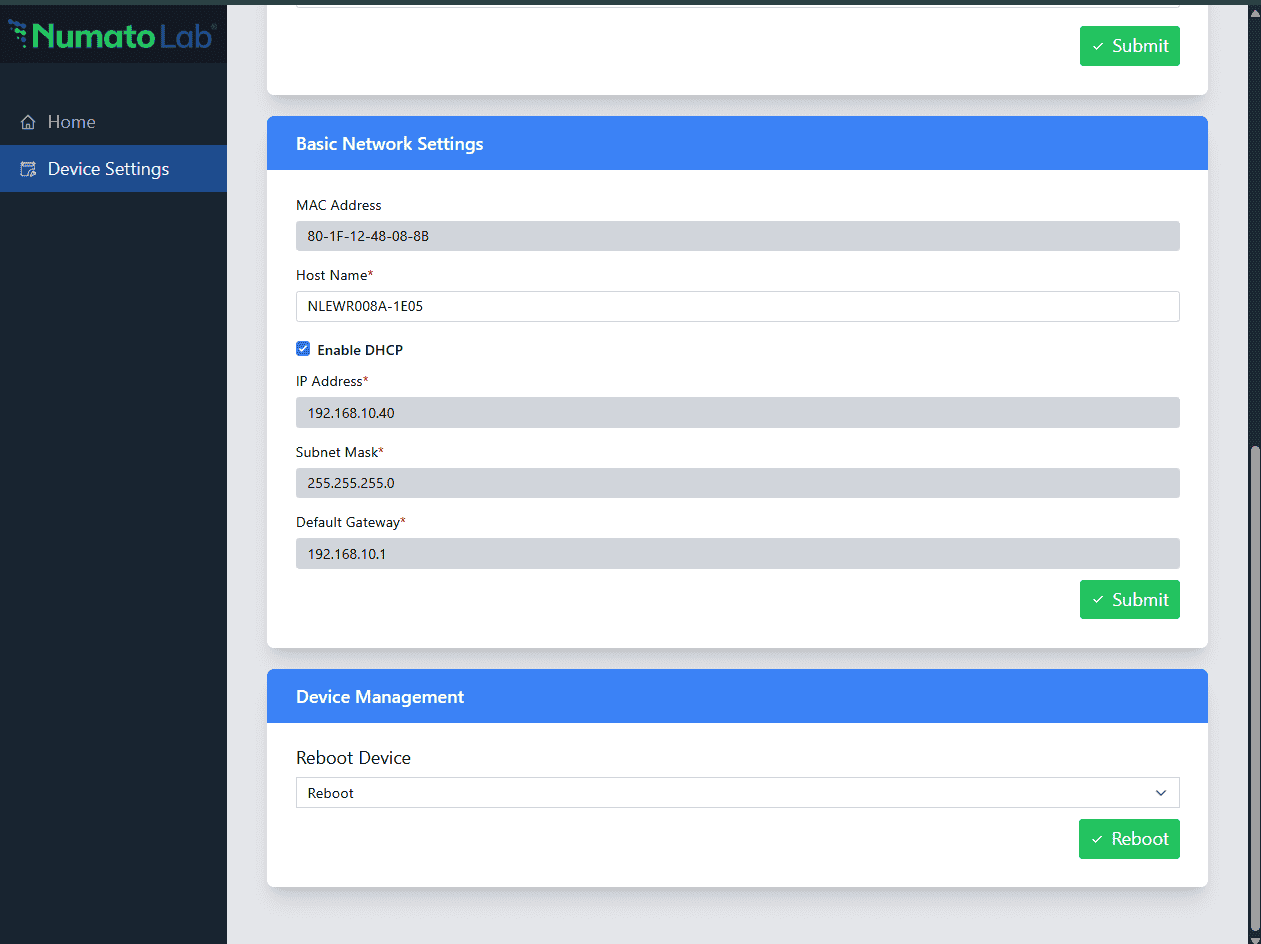
In the above image, the firmware version is displayed as WA.00.01, default device ID 00000000, default User name is ‘admin’, and Password is ‘numatolab’. The user can change and save the Device ID, User name, and Password as explained in the command set or by changing the appropriate field on this page and clicking on the save button on the right side, and reboot the page from the Device Management section. The User name and Password can be reset to factory defaults via Factory Reset explained elsewhere in this document. The Basic Network Settings shows the Device’s MAC address, Host Name, DHCP Status, IP Address, Subnet Mask and Gateway. The default hostname and IP Address can also be changed according to the user’s wish. After saving changes, and rebooting the board will reboot with the new network settings.
Accessing the module using Wi-Fi web interface
The easiest method for controlling the module is through web page served from the device. To open the administration web page, type in the IP address in to the address bar of any web browser and press enter.
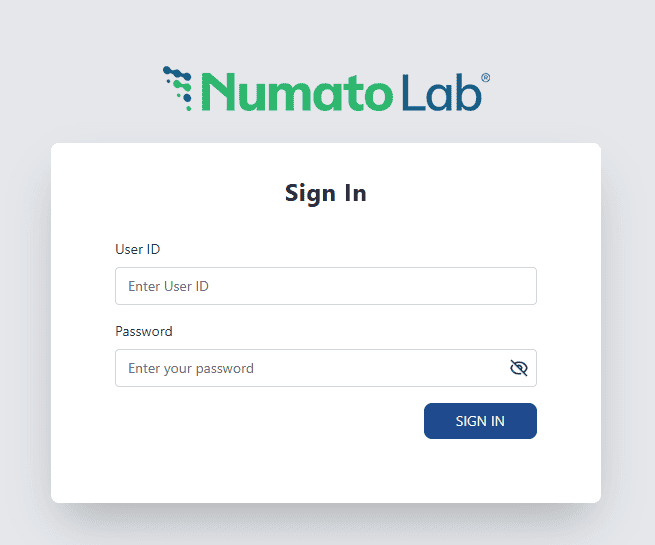
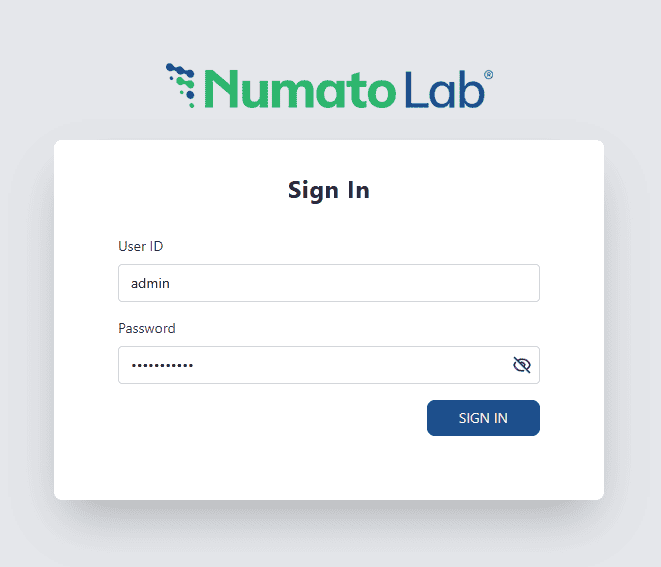
You will be prompted to enter Your username and Password. The default username is ‘admin,’ and the default password is unique for each device. Once logged in, you may change the username and Password.
Enter the default User name and Password then click Sign In.
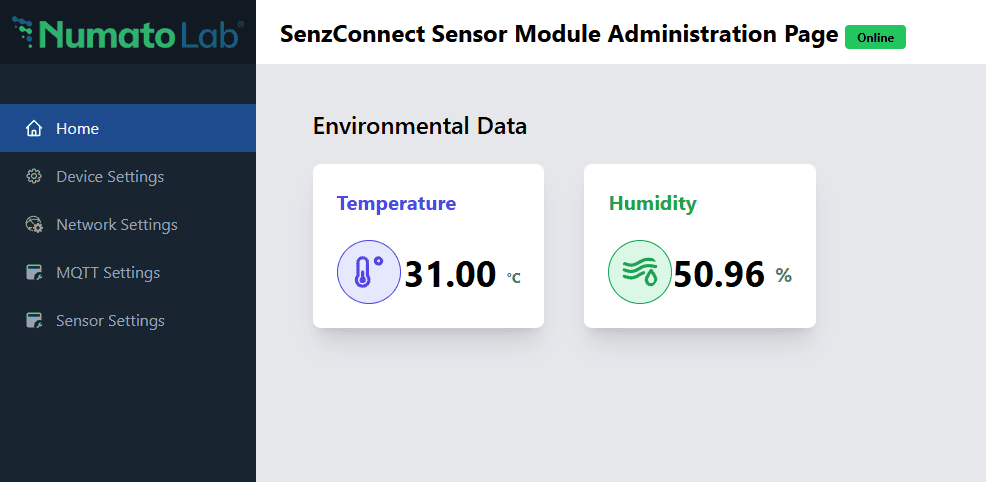
You will be presented with the device home page where you can monitor the sensor data.
Device Settings
Device Info
The Device Info section provides detailed information about your device. This section is read-only, which means you cannot modify the device information here, but you can refer to it when needed.
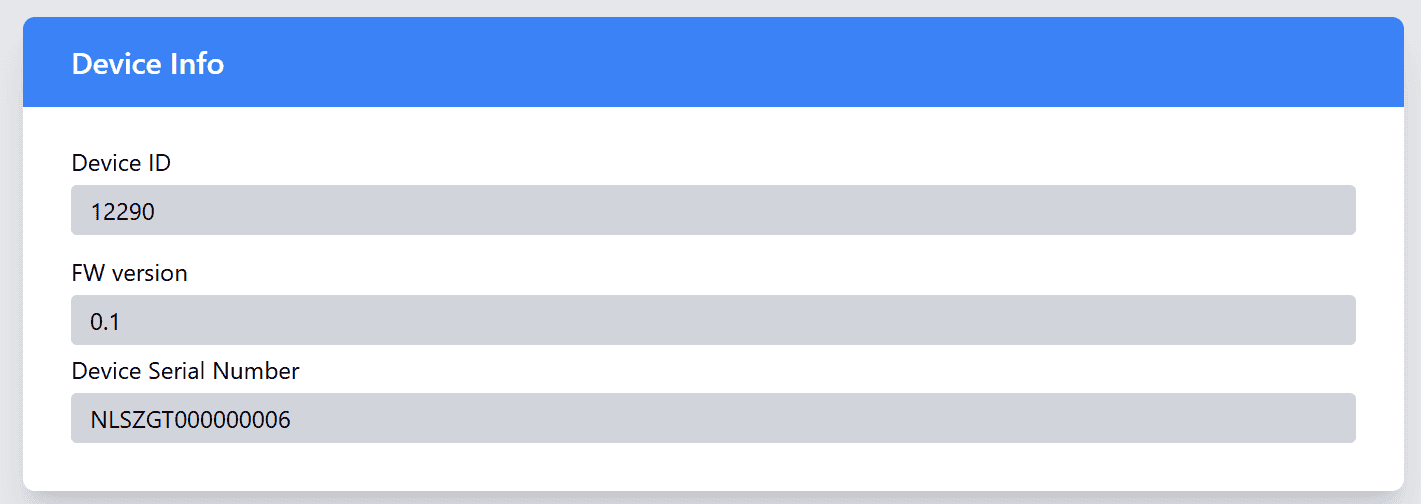
| Field | Description |
|---|---|
| Device ID | Displays Device ID. |
| Firmware Version | Displays the current version of the firmware installed on your device. |
| Device Serial Number | The serial number specific to your device. This number is used for identification and support purposes. |
These details are displayed in a simple, easy-to-read format.
User Account
In the User Account section, you can manage your web login and Access Point credentials, including updating your Username and Password. This is important for keeping your account secure and ensuring only authorized users can access the device settings.
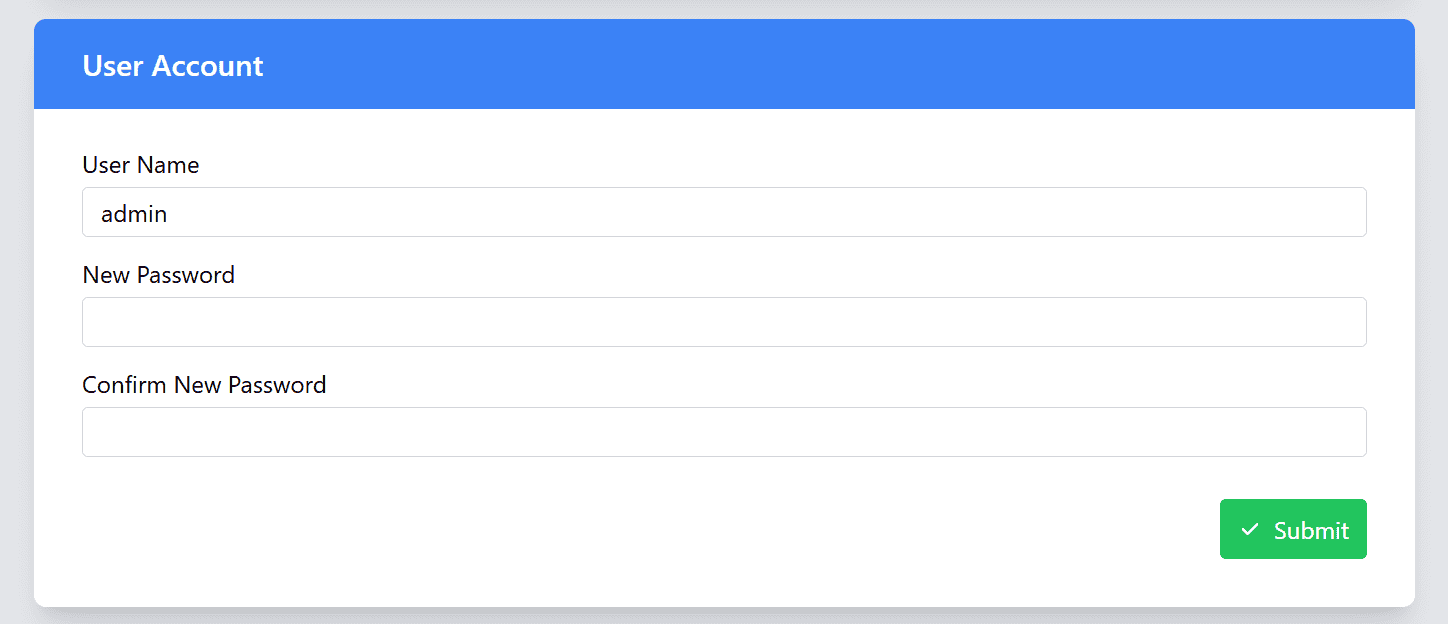
| Field | Description |
|---|---|
| Username | You can change your username by entering a new one in the provided field. Make sure to choose a unique and memorable username for easy access. |
| Password | Enter your new password here. Please follow the password strength requirements to ensure your password is strong and secure. |
| Confirm Password | Re-enter the new password here to confirm that both entries match. If they do not match, an error message will appear to help you correct it. |
Important Note: Your password will only be updated if both the New Password and Confirm Password fields match exactly. If there is a discrepancy, a Warning message will be displayed, and you will need to correct it before proceeding.
Important Update Information: Once you update the User Account Password, both the web login password and the Access Point password will be updated simultaneously. This means that the new password will be used for both the web login to your device’s dashboard and for accessing the device through its wireless Access Point. Make sure to remember this new password for all future logins to your device.
OTA Firmware Update
The Firmware Update section allows you to keep your device up to date with the latest features and improvements.
Important: Do not upload any unauthorized images via OTA. Doing so may permanently damage the device.
Backup Management
The Backup Management section allows you to configure how your device logs sensor data locally for future analysis. You can choose from five different logging scenarios, depending on your needs. This enables you to control when and how sensor data is captured and stored on the device. In addition to selecting the logging scenario, you can also set the backup interval and choose the timezone for timestamping the logs when the device is connected to the network.
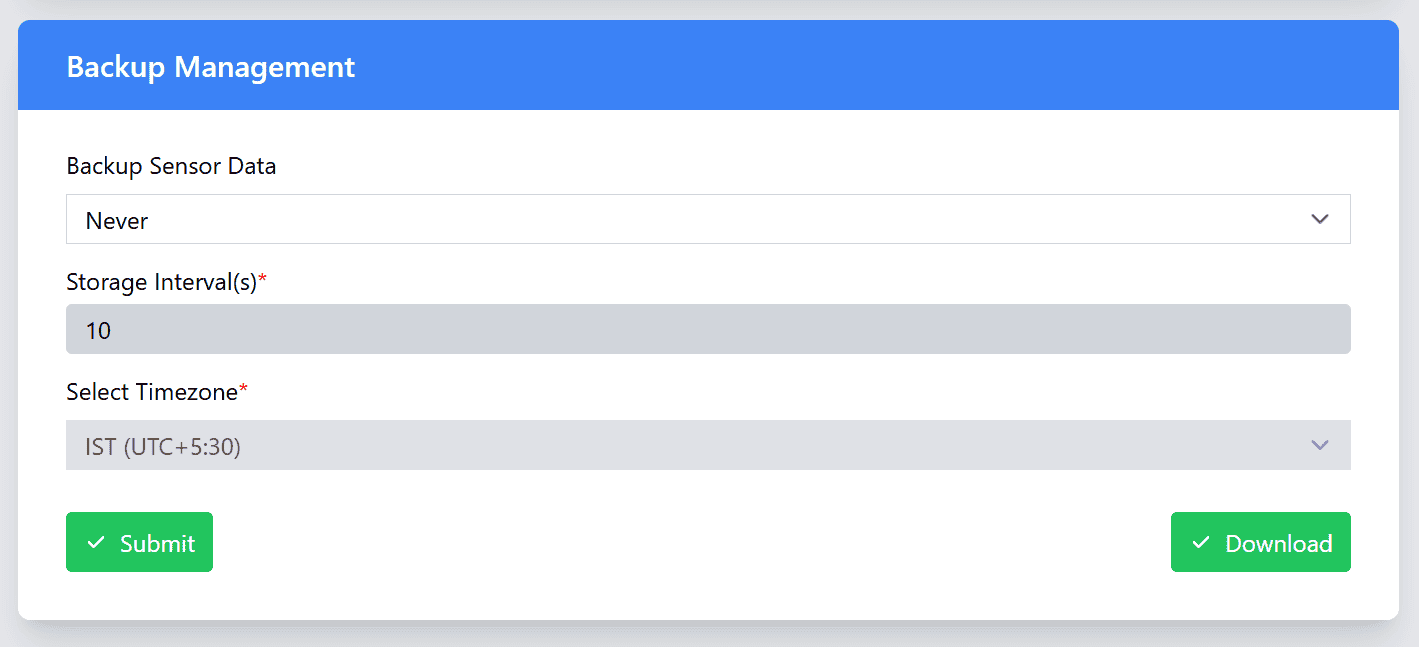
- Logging Scenarios:
| Field | Description |
|---|---|
| Never | Disables local sensor data logging entirely. No data will be stored on the device. |
| Network Connected | Logs sensor data only when the device is connected to an access point. Data is captured only when network connectivity is active. |
| Network Disconnected | Logs sensor data whenever the device is disconnected or loses its connection to the configured network. This ensures data is captured during network interruptions. |
| MQTT Disconnected | Logs sensor data when the device loses connection to the MQTT/MQTTS broker, ensuring data is stored even during disruptions to real-time communication. |
| Always | Continuously logs data in both AP mode (Access Point mode) and STA mode (Station mode), providing the most comprehensive dataset for analysis. |
- Backup Interval: Set how often the device should back up sensor data. You can choose the interval that best suits your needs (e.g., every 10 minutes, hourly, or daily). The interval determines how frequently the device logs and saves the data to the local storage.
- Timezone for Log Timestamp: Select the timezone that should be used to timestamp the logged sensor data when the device is connected to the network. This ensures that the data is recorded with accurate timestamps based on your local time zone, making it easier to analyze data in the context of your region.
Note:The device logs sensor data up to 500,000 data entries. Once the data reaches this limit, the device automatically overwrites the oldest data, starting from the first row, in a circular ring-buffer fashion.
Device Management
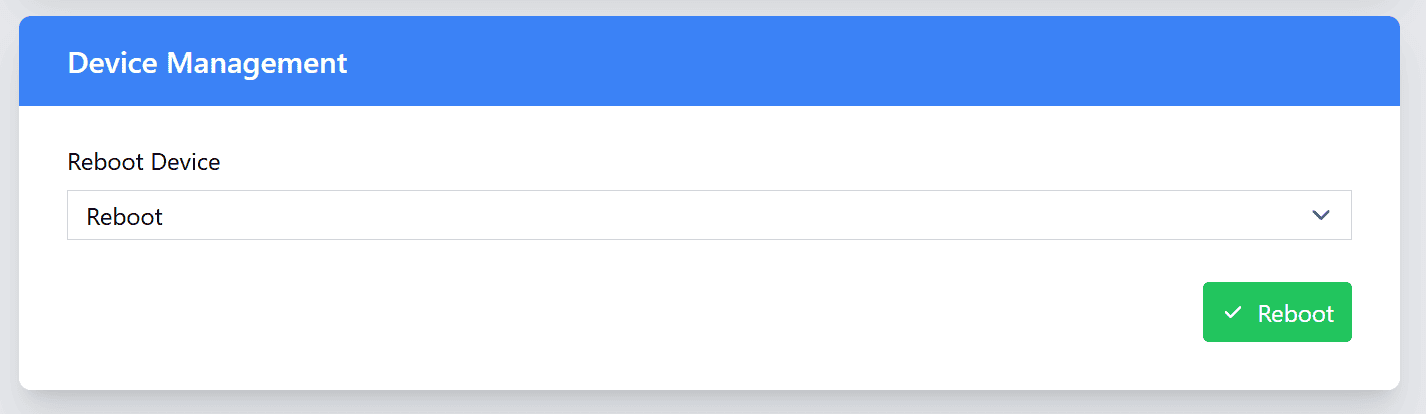
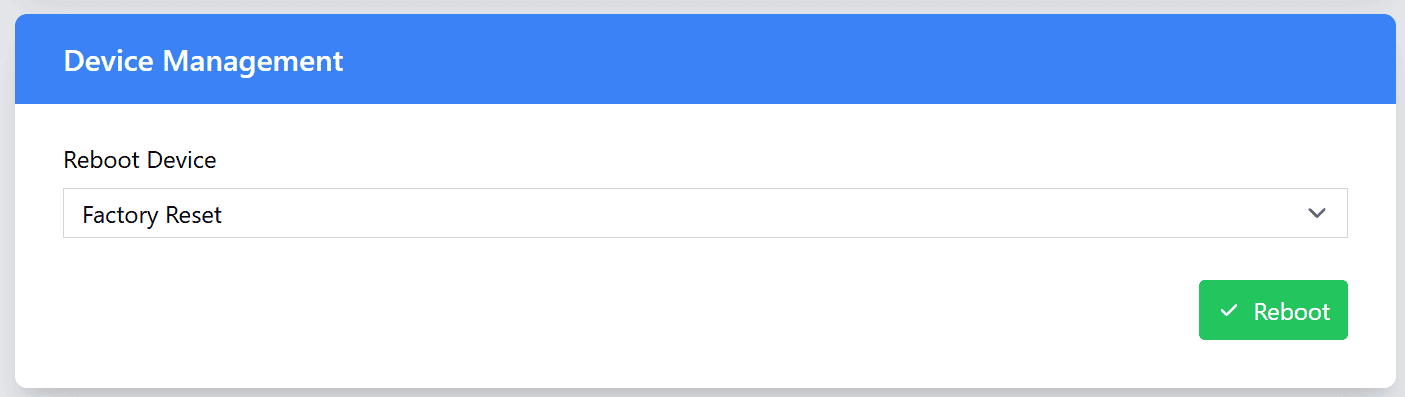
In the Device Management section, you can perform essential actions to manage your device, including rebooting the device and restoring it to its factory settings.
| Action | Description |
|---|---|
| Reboot | This option allows you to reboot the device. Rebooting can be useful if you want to apply the new configurations to the device. |
| Factory reset | Performing a Factory Reset will restore the device to its original factory settings, erasing all user-configured data and settings. This includes: User data: All settings, including any customized configurations, calibrations, passwords, network settings, and MQTT settings, will be erased. Sensor logs: All logged sensor data stored on the device will be cleared. Restoration of factory defaults: The device will revert to its default settings as it was when it first came out of the box, including any default network settings, device names, and configurations. |
Important Note: Factory Reset is a permanent action. Once performed, all user-set data and logged sensor data will be erased. This action cannot be undone, make sure to back up any important data before performing a factory reset.
Network Settings
The Network Settings section allows you to configure the network connectivity of your device. This includes the
- Wi-Fi Access Point Settings.
- Wi-Fi Station Settings
- HTTPS certificate settings.
Wi-Fi Access Point Settings
In this section, you can view the SSID of the device’s Access Point. The SSID is a unique name assigned to each EIGER Wi-Fi Device, allowing you to identify and connect to the device’s access point.
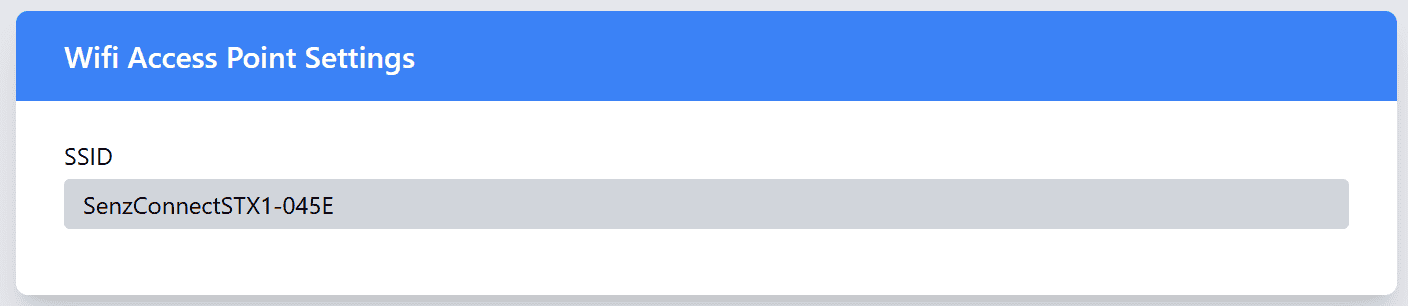
Note: The Password for the Access Point is the same as the User Account password. That is once you update your User Account password, The Access Point password will also be updated automatically.
Wi-Fi Station Settings
The WiFi Station Settings allow you to configure the device’s connection to an existing WiFi network. You can update the SSID, set the password, adjust the hostname, and configure the network settings according to your needs.
| Field | Description |
|---|---|
| SSID | Enter the SSID (network name) of the WiFi network that the device should connect to. This is the name of the wireless network that the device will search for and connect to. |
| Password | Enter the WiFi password for the SSID you've selected. This ensures secure communication between the device and your network. |
| Host Name | Set a unique hostname for the device. This is useful for identifying the device on the network and can be customized to reflect the device’s role or location. |
| MAC Address | Displays Device MAC Address. |
| DHCP IP | Enable DHCP: When enabled, the device will automatically receive its network settings. This option is suitable if you don't need a fixed IP address for the device. Disable DHCP: If you choose to disable DHCP, you will need to manually configure the device’s network settings. |
| Static IP | Static IP Configuration (only available when DHCP is disabled): Static IP: Enter a fixed IP address for the device. This ensures that the device always uses the same IP address, which can be important for consistent communication. Subnet Mask: Set the subnet mask for the network. This defines the network’s address space and helps devices identify which other devices are on the same network. Gateway: Enter the gateway IP address. This is typically the IP address of your router or another device that connects your local network to the internet or other networks. Primary DNS: Enter the primary DNS server address. This is used to resolve domain names into IP addresses. Secondary DNS: Optionally, enter a secondary DNS server address for redundancy. If the primary DNS server is unavailable, the device will use the secondary DNS server for name resolution. |
After configuration, the SenzConnect Module can be accessed via the DNS Hostname or the IP Address.
- Accessing via DNS Hostname:
- The device will be accessible via its DNS hostname. By default, the device will be configured with a device specific unique hostname. The device can be accessed with the postfix “.local” example: senzconnectstx.local.
- Accessing via IP address:
-
If the device was configured with a static IP address, you can access it directly by entering the static IP address into your browser.
-
If the device was set to use dynamic IP (DHCP), you can either check the IP address assigned to the device through your router’s DHCP table or use a “arp -a” on command tool and check the IP assigned to your device MAC.
-
Note:
- It is essential for the device to be connected to the WiFi network, to establish a connection to the MQTT broker, allowing it to publish data. Without an active network connection, the device will not be able to communicate with the MQTT broker, and as a result, data cannot be transmitted or received.
- Make sure the device has a stable connection to the network for proper data logging and remote communication. This connection is crucial for maintaining real-time data updates and ensuring that your device interacts with other systems in your setup.
HTTPS Settings
The HTTPS Settings section allows you to configure secure communication for your device by enabling HTTPS. HTTPS is essential for encrypting the data transmitted between the device and the web dashboard, providing an extra layer of security for sensitive information.
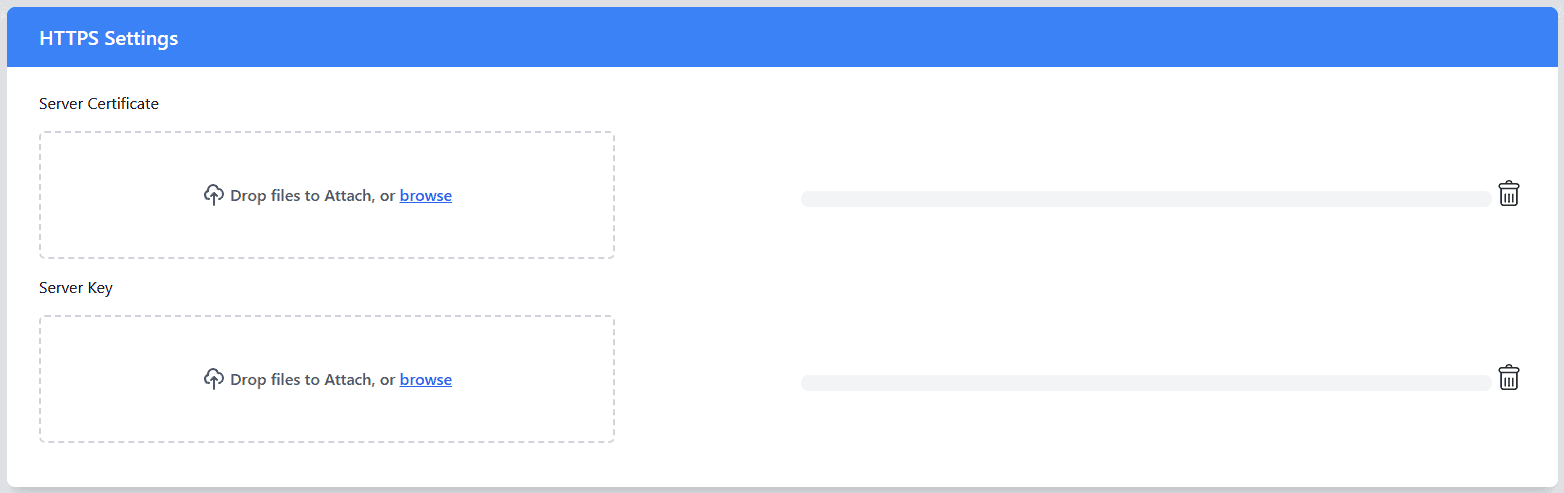
Configuration Requirements:
- Server Certificate: This is the SSL/TLS certificate that verifies the identity of the server and establishes a secure, encrypted connection.
- Server Key: The server key is the private key that corresponds to the server certificate. It is required to complete the encryption/decryption process for secure communication. This key should be kept confidential, as it is critical for maintaining the security of your HTTPS connection.
How to Configure:
- Obtain Server Certificate and Key: You must have a valid SSL/TLS certificate and its corresponding private key. These can be generated from a certificate authority (CA) or created using a self-signed certificate.
- Upload the Server Certificate and Key: Upload the server certificate and server key files in the respective fields. These will enable encrypted communication via HTTPS.
Important Notes:
- Security: Always ensure that the server key is kept secure and never shared publicly. If compromised, the security of the HTTPS communication will be at risk.
- Certificate Expiration: SSL/TLS certificates have an expiration date. Ensure that your certificate is valid and renewed before it expires to avoid loss of secure communication capabilities.
MQTT Settings
The MQTT/MQTTS Settings section allows you to configure the communication between your device and the MQTT broker. You can choose to use either MQTT (unencrypted) or MQTTS (secure, encrypted MQTT).
| Setting | Description | Mandatory for MQTT | Mandatory for MQTTS |
|---|---|---|---|
| Broker | Enter the MQTT broker address (IP or domain) with the appropriate protocol prefix (mqtt:// or mqtts://). For example, mqtt://broker.example.com or mqtts://broker.example.com. | YES | YES |
| Publish Interval (ms) | Set the publish interval in milliseconds. This defines how often the device will send data. | YES | YES |
| Client ID | Enter a unique Client ID for the device. This ID is used to identify the device on the MQTT broker. | YES | YES |
| Publish Topic | Define the topic for publishing data to the broker. Devices subscribing to this topic will receive the data. | YES | YES |
| Message Format | Specify the format of the message being sent to the broker. For example: {Temperature: ~t0_val~, Humidity: ~h0_val~}. The values ~t0_val~ and ~h0_val~will be replaced by the actual temperature, humidity, and CO2 data from the device. | YES | YES |
| Username | Enter the Username for authentication if the MQTT broker requires security. | YES, If security is required. | YES, If security is required. |
| Password | Enter the Password for authentication if the MQTT broker requires security. | YES, If security is required. | YES, If security is required. |
| CA Certificate | Upload the CA certificate used to verify the broker’s identity. This is required for secure MQTT communication (MQTTS). | NO | YES |
| Client Certificate | Upload the client certificate used to authenticate the device to the broker in secure communication (MQTTS). | NO | YES |
| Client Key | Upload the client key associated with the client certificate for encrypted communication (MQTTS). | NO | YES |
Sensor Settings
The Sensor Settings page allows users to calibrate the connected sensors to ensure accurate readings. Calibration is a crucial process to adjust sensor readings for environmental or operational factors that may affect their accuracy. Proper calibration helps to enhance measurement precision and ensures the data you receive is reliable.
| Sensor | Calibration Range | Description |
|---|---|---|
| Temperature (c) | +/- 10 degree celsius | Calibrate the temperature sensor to adjust for offsets in temperature measurements. This allows you to fine-tune the sensor's readings to align with a known reference. |
| Humidity (%) | +/- 10 % | Calibrate the humidity sensor to correct any drift in humidity readings. |
When to Calibrate:
- Initial Setup: Calibrate the sensors when the device is first set up to ensure the readings are accurate from the beginning.
- Periodic Calibration: Over time, sensors can experience drift, so regular calibration (e.g., every few months) is essential to maintain optimal performance.
- After Environmental Changes: If the device is moved to a new environment or exposed to significant changes in temperature, humidity, or air quality, recalibration may be required to adjust to the new conditions.
Controlling the module through TELNET interface
The simple set of ASCII based human readable command sets supported by this module makes controlling relays easy via TELNET protocol very easy. The following sections give examples of how to use the module with PuTTY and TeraTerm.
To use this module with PuTTY, please follow the steps below.
- Connect the module to the LAN.
- Open PuTTY and enter the IP address corresponding to the module, leaving the port number as 23.
- Click Open.
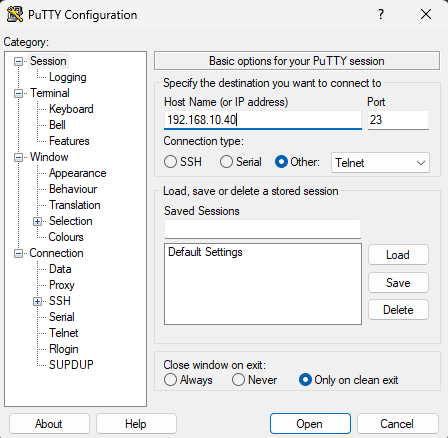
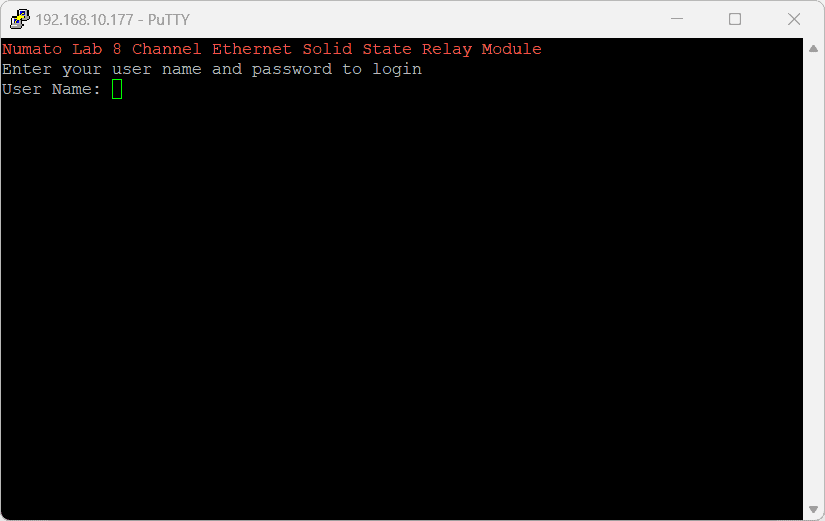
- If everything goes well, you should be presented with a screen as below.
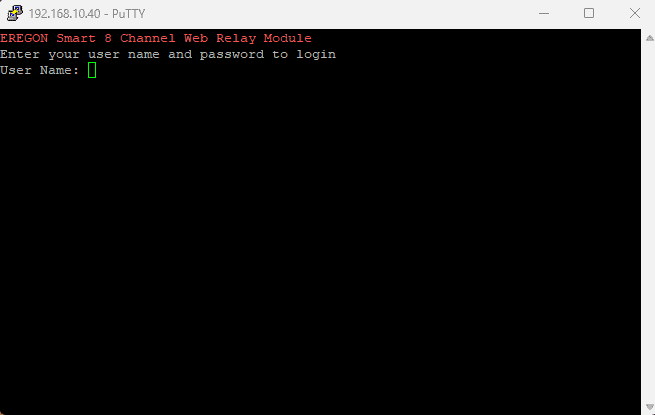
- Type in the TELNET User name and Password when asked and press enter key.
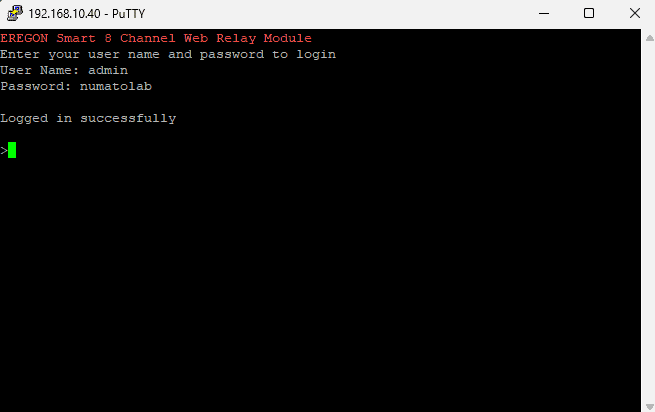
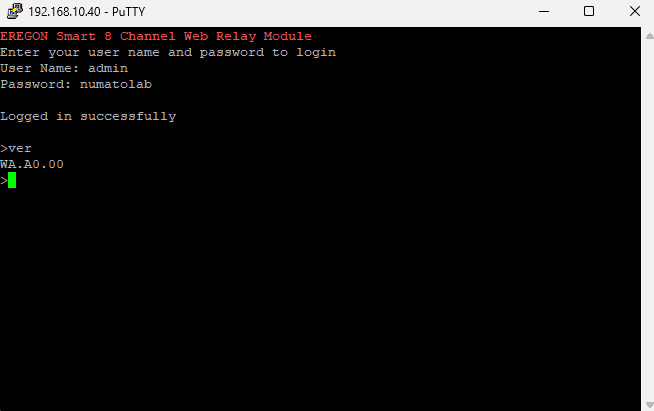
- Commands listed in the table in section “Sending Commands” can be entered here now. For example, here is the response for “ver” command.
- Using the relay module with TeraTerm is just as easy. Please follow the steps below.
TeraTerm is an open source software. A free copy can be downloaded from http://en.sourceforge.jp/projects/ttssh2/releases/
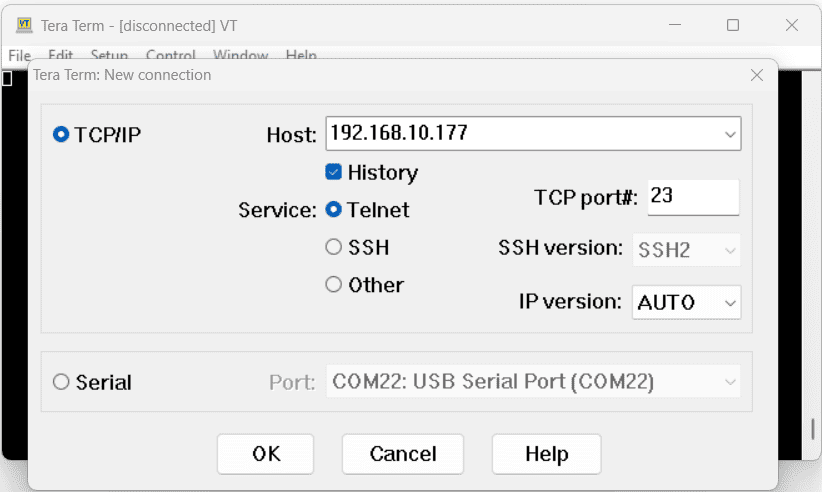
- Run TeraTerm and type in the IP address corresponding to the module in the “New connection” dialog and click OK.
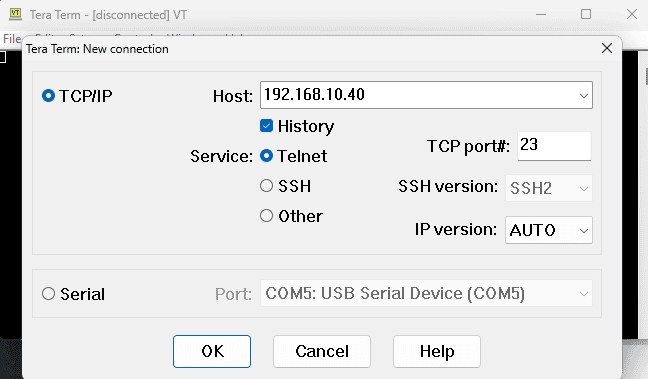
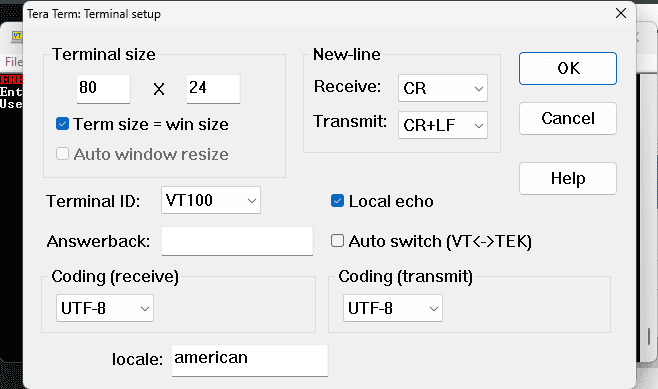
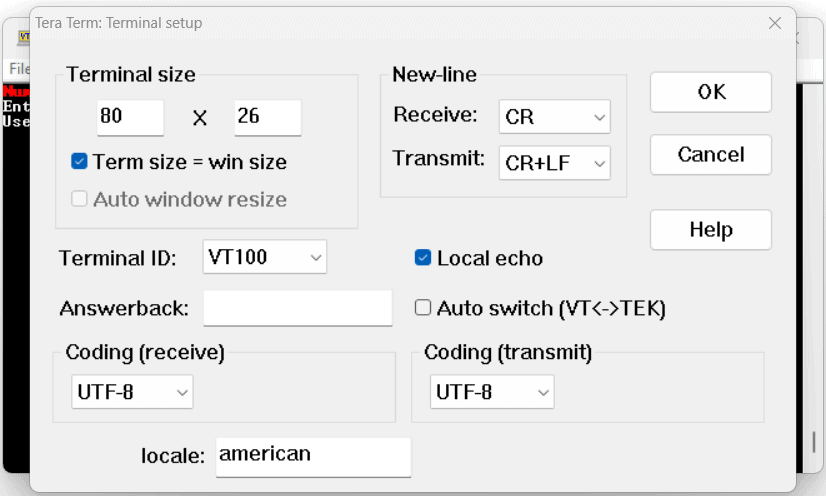
- Then select the terminal setup from the setup button and make sure the settings are as shown below, and press OK.
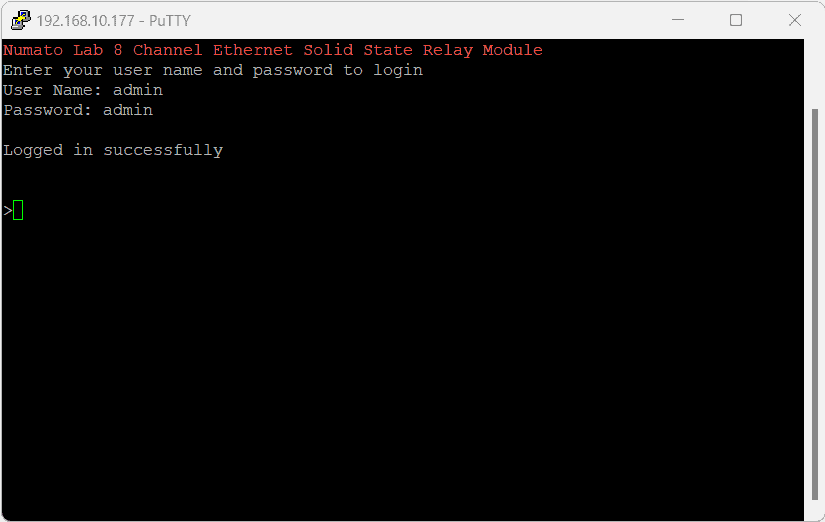
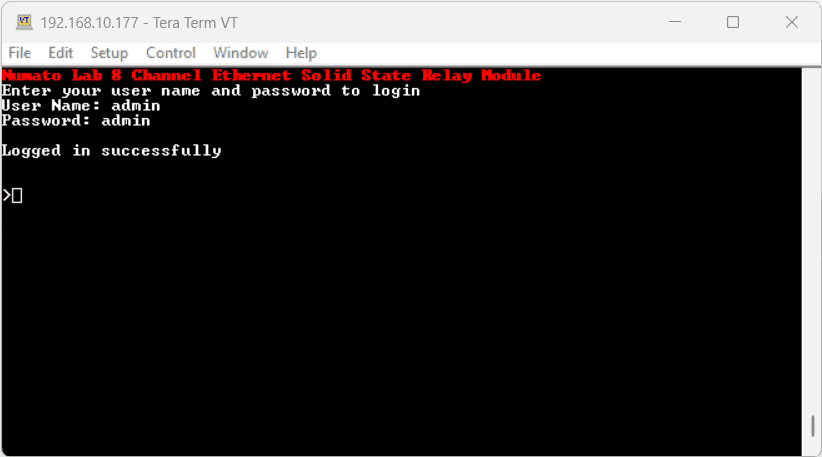
- Type the User name and Password when asked.
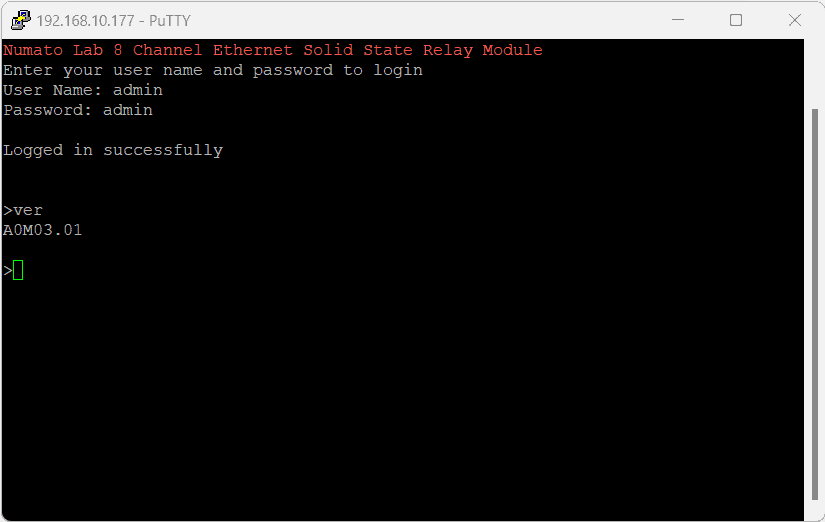
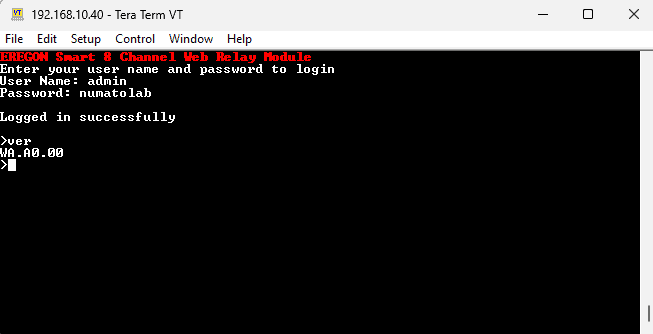
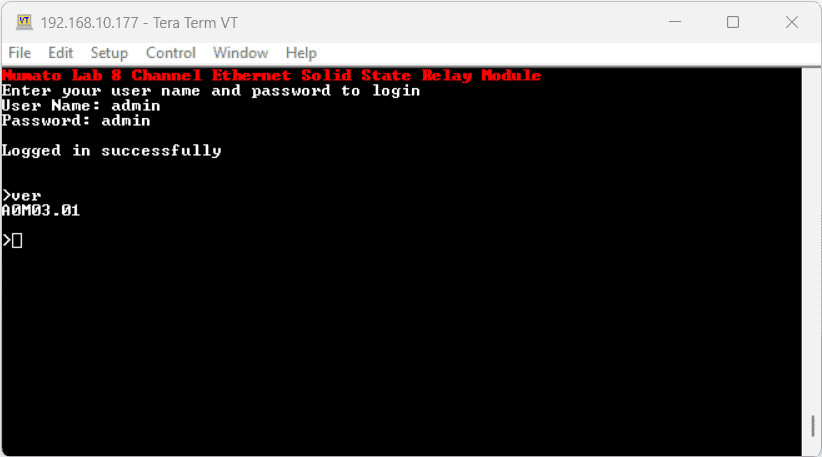
- Press ENTER key and the command prompt should appear. Commands listed in the table in section “Sending Commands” can be entered here now. For example, here is the response for “ver” command.
Controlling through REST API commands
This module supports REST API commands.
Refer to the ‘REST API Command Set‘ knowledge base to know more.
Below is the example image related to controlling these modules through REST API commands.
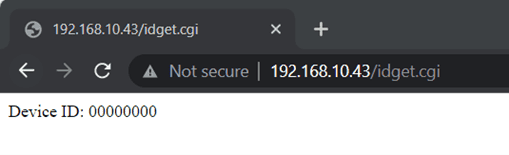
fig 1: Displays device ID
Sending Commands
One of the most powerful features of this module is the simple easy to use command set it supports. This command set allows for a very simple interface to access the features of the module through TELNET protocol. The following sections give details of the command set and how to use the command set
The command set
This product supports a very simple command set that is designed to be less cryptic and easy to use manually (using terminal emulation programs that support TELNET) or through a program written in one of the many supported languages
List of currently supported commands.
| No. | Command | Parameters | Example | Description |
|---|---|---|---|---|
| 1 | ver | None | ver | Returns firmware Version |
| 2 | id | get/set xxxxxxxx | id get, id set 12345678 | Reads/Sets id of the module |
| 3 | usr | get/set xxxxxxxx | usr get, usr set admin | Reads/Sets User name |
| 4 | pass | get/set xxxxxxxx | pass get, pass set admin | Reads/Sets Password |
| 5 | sn | sn get | sn get | Returns Device Serial Number. |
| 6 | relay | on/off/read, relay number readall/writeall/onall/offall/write/poweron | relay on 000,relay off 000, relay read 000, relay readall, relay writeall ff, relay onall, relay offall, relay write A 00ff, relay poweron A 00ff | Relay Control |
| 7 | reset | none | reset | Reset relays to default state (all relays turned off) |
| 8 | gpio | gpio read number, gpio readall, gpio notify on/off/get | gpio read 000, gpio readall, gpio notify on, gpio notify off. gpio notify get | Monitor General Purpose Input |
| 9 | info | none | info | Display information about the module including Smart Action and Power-on status |
| 10 | power | reset | power reset | Power reset does a soft-reset. |
| 11 | reboot | none | reboot | Exit the application mode and enter to the configuration interface and start the configuration via USB. |
The table below has more detailed information about available commands.
| No. | Command | Example | Description |
|---|---|---|---|
| 1 | ver | ver | Returns current firmware version. |
| 2 | id | id get id set xxxxxxxx | Id get reads the module ID. Id set will assign a new ID to the module. “x” stands for alphanumeric characters including symbols. The new ID must be exactly 8 characters in length. |
| 3 | usr | usr get usr set xxxxxxxx | usr get reads the default User name. usr set will assign a new usr name to the module. “x” stands for alphanumeric characters including symbols. The new User name can be 1 – 8 characters length. |
| 4 | pass | pass get pass set xxxxxxxx | pass get reads the default Password. pass set will assign a new Password to the module. “x” stands for alphanumeric characters including symbols. The new Password can be 1 – 8 characters length. |
| 5 | sn | sn get | Returns the device serial number. |
| 6 | relay | relay on xxx | Turns a particular relay on. The parameter “xxx“ stands for the relay number. The relay number starts from zero. See some examples below. relay on 000 – Turns on relay 0 xxx can be 000-007 |
| relay off xxx | Turns a particular relay off. The parameter “xxx“ stands for the relay number. The relay number starts from zero. See some examples below. relay off 000 – Turns off relay 0 xxx can be 000-007 |
||
| relay read xxx | Returns the status of a particular relay. The parameter “xxx” stands for the relay number. The relay number starts from zero. See some examples below. relay read 000 – Returns status of relay 0 xxx can be 000-007 The data returned in response to this command will be either “on” or “off” depending on the current status of the relay |
||
| relay readall | Reads the status of all relays in a single operation. The return value will a hexadecimal number with binary value 1 at bit positions for relays in ON state and 0 for relays in OFF state. Eg: a return value 00 (binary 0000 0000) means all relays are OFF. A value FF (binary 1111 1111) means all relays are ON relay readall – Returns status of all relays |
||
| relay writeall xx | Control all relays in a single operation. A hexadecimal value must be specified with desired bit positions set to 0 or 1. A value 0 at a bit position will turn off the corresponding relay. A value 1 at a bit position will turn on the corresponding relay. relay writeall ff – Turns on all relays |
||
| relay onall | Turns on all relays. | ||
| relay offall | Turns off all relays. | ||
| relay write A 00xx | Control all relays in a single operation. A hexadecimal value must be specified with desired bit positions set to 0 or 1. A value 0 at a bit position will turn off the corresponding relay. A value 1 at a bit position will turn on the corresponding relay. relay writea A 00ff – Turns on all relays. The 'A' denotes group of relays 0-15. |
||
| relay poweron A 00xx | Sets the relay power on value. relay poweron A 0003 : Turn OFF and ON relays on power-on the module according to the specified hexadecimal value. A - Group of first 16 Relays. 0 – Turn OFF the relay, 1 – Turn ON the relay. '0003' - 0000 0000 0000 0011 : Relays 0 and 1 will be turned on once entered to the telnet mode or on power reset. xxxx can be in range 0000-00FF : Smart 8 Channel Web Relay xxxx can be in range 0000-FFFF : Smart 16 Channel Web Relay |
||
| 7 | reset | reset | Resets all relays to off state which is the default state. GPIOs are not by affected by the command. |
| 8 | gpio | gpio read xxx | Reads the digital status present at the input mentioned. Here “xxx” stands for the number of GPIO. The response will be either “1” or “0” depending on the current digital state of the GPIO. Please see examples below. gpio read 000 – Reads GPIO 0 status xxx can be 000 - 007. |
| gpio readall | Reads the status of all GPIOs in single operation. gpio readall – Read all GPIO status and print ‘xx’ xx is a hexadecimal value, with binary 1 at positions for GPIOs in high state and 0 for GPIOs in low state |
||
| gpio notify on | This command enables the gpio input change notification. When the gpio notify feature is enabled, changes to the input pins will be detected and a notification is sent to the host. The GPIO change notification is sent to the host is in the below format. If GPIO change notification is “# FE FF”, then 1. Previous GPIO values are FF. 2. Current GPIO values are FE. The GPIO 0 value is changed from logic 1 to 0. This change triggered the device to send this notification. |
||
| gpio notify off | This command disables the gpio input change notification feature. | ||
| gpio notify get | Returns whether Notify feature is enabled or disabled. | ||
| 9 | info | info | Display information about the module including Smart Action and Power-on status |
| 10 | power reset | power reset | Power reset does a soft-reset. |
| 11 | reboot | reboot | Exit the application mode and enter to the configuration interface and start the configuration via USB. |
Additional Information
Analog to Digital Converter
8 Channel Ethernet Solid State Relay Module do support Analog to Digital Conversion on some of the IO terminals. A list of GPIO’s that supports analog function in this product is listed elsewhere in this document. There is no special command is required to execute to switch between analog and digital mode. Executing “adc” command will set the GPIO to analog mode and executing “gpio” command will set the GPIO back to digital mode on the fly. Resolution of the ADC is 10 bits unless otherwise noted. The input voltage range of the ADC is 0 – VDD (this product uses 3.3V power supply, so the range will be 0 – 3.3V). The result will be returned as a number starting at zero and ending at 1023. Zero indicates zero volts at the ADC input and 1023 indicates VDD (3.3V for this product) at ADC input.
Using GPIO's with switches
It is possible to read the position of a switch that is connected to a GPIO. A SPST or SPDT switch is recommended to use with GPIO’s. Push switches do maintain the contacts closed only for a very short time so using them is 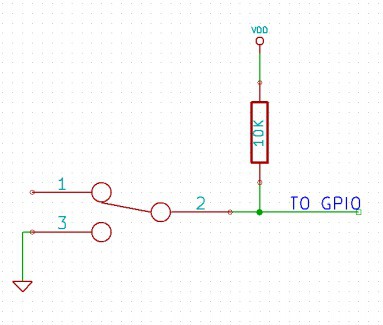 discouraged. The fundamental idea of using a switch with GPIO is to have the switch cause a voltage level change at the GPIO pin when pressed. Usually this is achieved by using an external pull-up resistor along with the switch. The pull up resistor is connected between the GPIO and VDD and the switch is connected between the GPIO and ground. When the switch is not pressed, the pull-up resistor will cause the GPIO to stay at VDD voltage level. When the switch is pressed, the GPIO is short circuited to ground and stays at zero voltage. This change in voltage and thus the position of the switch can be read using “gpio read” command. Please see the recommended connection diagram below
Using relay modules with inductive loads
It is important to take additional care when using relays with inductive loads. An inductive load is pretty much anything that has a coil and works based on magnetic principles like Motors, Solenoids and transformers. Inductive loads produce back emf when the magnitude of the load current changes. The back emf can be in the order of tens or even hundreds of voltage (See this Wikipedia article http://en.wikipedia.org/wiki/Counter-electromotive_force). This effect is most severe when power is disconnected from inductive load because the rate of change of current is maximum at that point. Even though the back emf lives only for a very short time (a few milliseconds) it can cause sparks between the relay contacts and can deteriorate the contact quality over time and reduce the life span for the relays considerably.
So it is important to take countermeasures to suppress the back emf to acceptable levels to protect relay contacts. 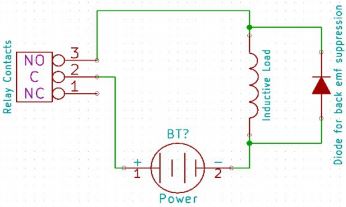 Usually this requires connecting electronic devices in parallel with the load such that they absorb the high voltage components generated by the load. For solenoids, connecting a diode (fast switching diode is recommended) in parallel to the load (in reverse direction to the load current) is very effective. A diode used for this purpose is usually called a freewheeling diode. Please see the diagram on the right for connection details.
A capacitor with proper rating is recommended for protecting the relay contacts when a motor is used as load. The capacitor should be rated enough to withstand the back emf that is generated by the motor. Please see the diagram below for connection details.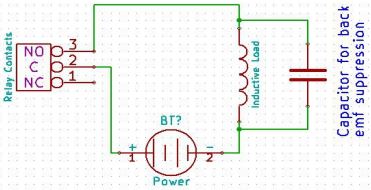
Please note that the relay modules are NOT shipped with back emf suppression devices pre-installed. The exact kind of suppression device and the parameters of the selected device can vary depending on the load itself. Some of the parameters that affects the suppression device selection are the inductance of the load, power supply voltage, load current, physical size/structure of the load etc.. It is obvious that it is impossible for us to predict these parameters and design required back emf suppression device and incorporate that on the board. So we believe this is a task best left to the module user. There is an excellent article on designing back emf suppression on Wikipedia at http://en.wikipedia.org/wiki/Flyback_diode
FAQ
Q. What is the connector marked as ICSP on this module?
A. This connector is used to program the on-board microcontroller. This connector is primarily intended for factory use.
Q. I need a customized version of this product, can Numato do the customization for me?
A. Yes, we can definitely do customization but there may be minimum order requirements depending on the level of customization required. Please write to sales@numato.com for a quote.
Q. Where can I buy this product?
A. All Numato products can be ordered directly from our web store http://www.numato.com. We accept major credit cards and Paypal and ship to almost all countries with a few exceptions. We do have distributors in many countries where you can place your order. Please find the current list of distributors here.
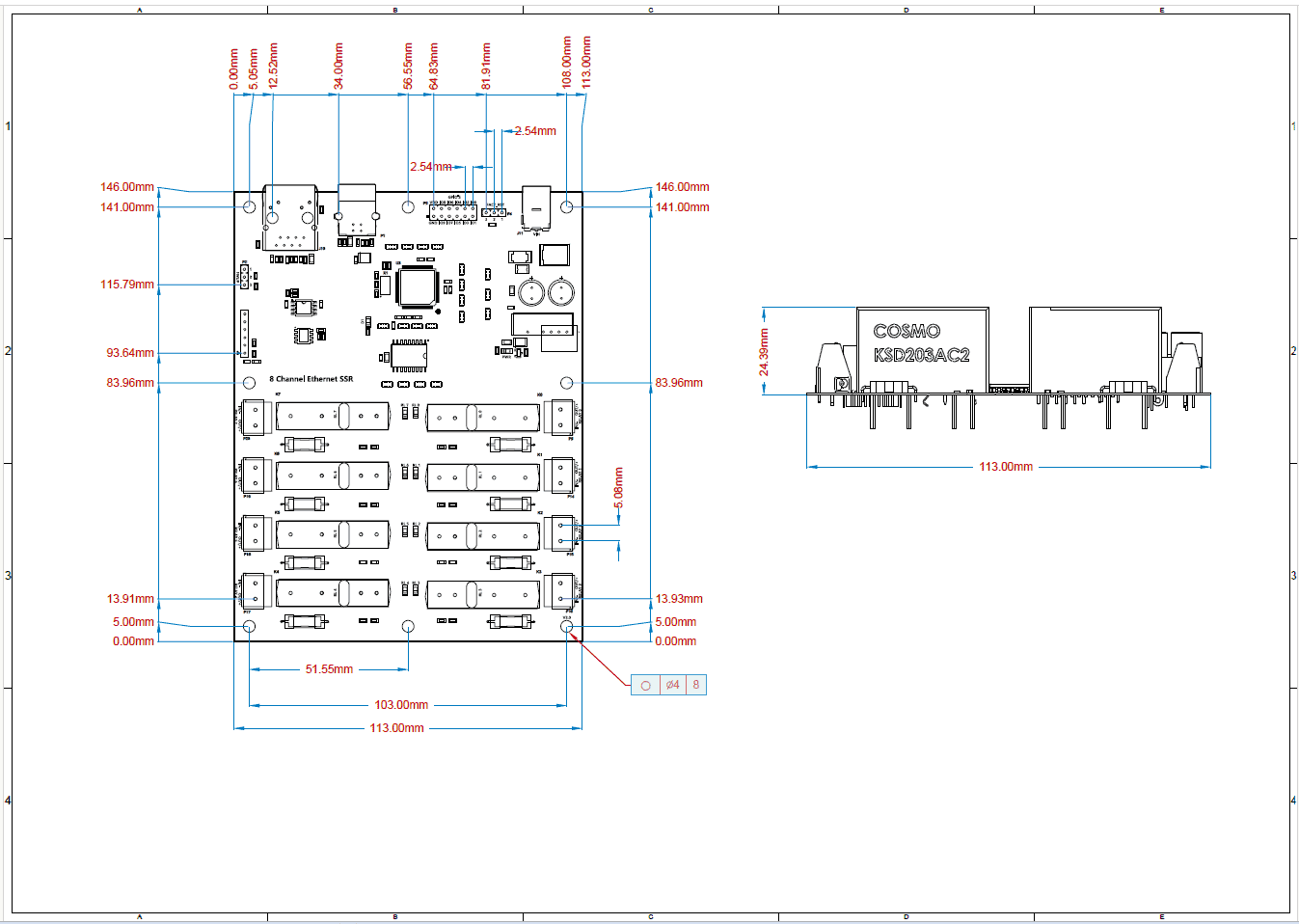
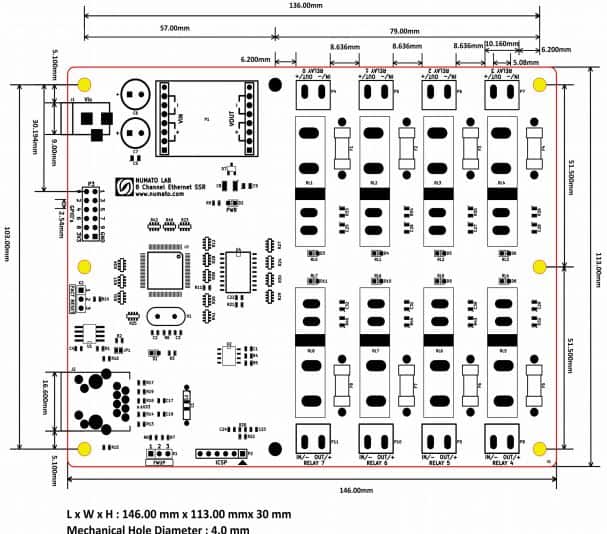
Mechanical Dimensions
With USB configuration